

You’ve probably noticed the basic options in Raspberry Pi Imager. Did you know there’s a hidden treasure trove of Raspberry Pi Imager advanced options? By pressing CTRL+SHIFT+X, you’ll gain access to powerful configuration options that let you set up headless systems, customize network settings, and configure localization preferences before you even boot your Pi. These time-saving features eliminate the need for manual post-installation tweaks and make remote setups dramatically simpler. Let’s examine what these options can do for your next project.
Key Takeaways
- Press CTRL + SHIFT + X to access Advanced Options in Raspberry Pi Imager version 1.6 or later.
- Configure SSH and WiFi settings to enable headless setup without needing a monitor or keyboard.
- Set custom hostname, locale, timezone, and keyboard layout for proper regional configuration.
- Advanced options allow for boot order configuration on Pi 4 and newer models.
- Settings persist until a new image is written, so create backups of essential configuration files.
Accessing the Hidden Advanced Options Menu
This shortcut works reliably in version 1.6 and later.
In newer releases (v1.7+), you might notice a configuration cog icon that appears for compatible OS images, though it sometimes fails to respond.
Version 1.7+ includes a configuration icon for compatible images, but it may not always respond when clicked.
If the icon doesn’t work, either use the keyboard shortcut or downgrade to version 1.6 for guaranteed access.
Remember that advanced options only appear for configurable images like Raspberry Pi OS variants.
Non-configurable images won’t display these options even with the shortcut.
Advanced users can press CTRL + SHIFT + X to access the hidden menu with customization features for their Raspberry Pi setup.
Your custom settings from the advanced options menu are stored in configuration files that vary by operating system, such as ~/.config/Raspberry Pi/Imager.conf on Linux systems.
Setting Up SSH and WiFi for Headless Configuration
Setting up a headless Raspberry Pi configuration becomes remarkably straightforward when you leverage the SSH and WiFi options in Raspberry Pi Imager’s advanced menu.
Simply check the SSH configuration option before writing your OS image and create secure credentials that’ll enable remote terminal access immediately after boot. This advanced configuration option has been available since 2016 when SSH was disabled by default for security reasons. Secure SSH access is essential for protecting your device from unauthorized access.
Simultaneously, enter your WiFi setup details including SSID, password, and country code to guarantee automatic network connection on first startup.
This eliminates the traditional manual method of creating an empty “ssh” file and “wpa_supplicant.conf” in the boot partition. The imager handles these configurations behind the scenes, writing the necessary files with your specifications.
For those using the command line interface version, you can alternatively create an empty ssh file in the boot folder to enable SSH access on your headless setup.
For troubleshooting, verify your Pi’s LED indicators after boot and use network scanning tools to locate its IP address.
Always implement strong passwords to maintain security in your headless setup.
Customizing Hostname and System Localization With Raspberry Pi Imager Advanced Options
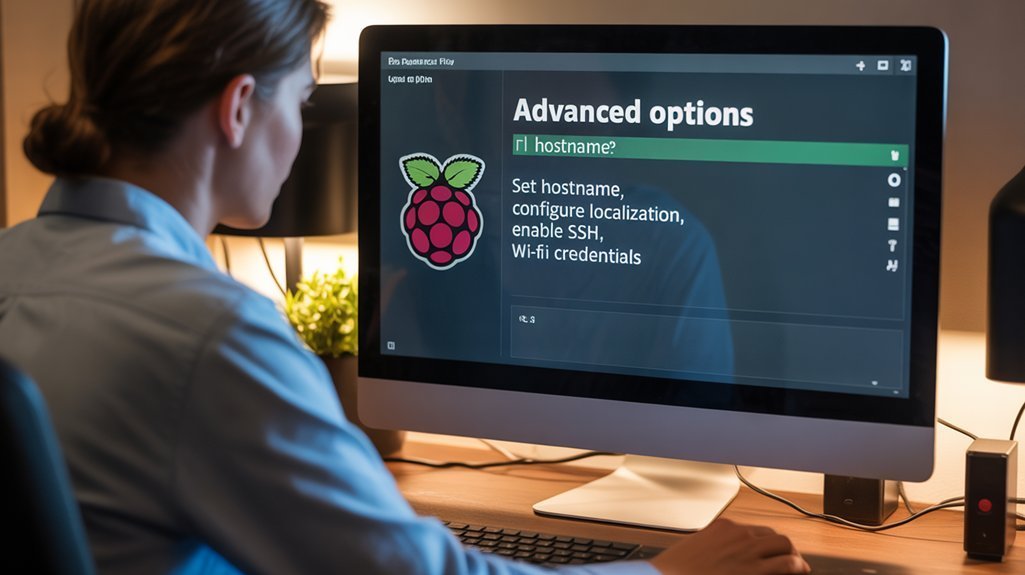
Customization of hostname and localization parameters through Raspberry Pi Imager advanced options guarantees your Pi operates with region-specific settings right from first boot.
Access these settings by pressing Ctrl+Shift+X (Windows/Linux) or Command+Shift+X (Mac) in Imager v1.6+.
Replace the default “raspberrypi” with your custom hostname to easily identify multiple devices on your network. The hostname affects mDNS resolution (hostname.local) and must contain only alphanumeric characters and hyphens. Additionally, setting a unique hostname can help you manage multiple devices more efficiently on your network.
Personalize your Raspberry Pi by replacing “raspberrypi” with a distinctive hostname for simplified identification in multi-device networks.
Configure locale settings to match your region’s language and formatting preferences.
Select appropriate timezone and keyboard layout to ascertain correct time display and key mapping.
Setting your Wi-Fi country code during configuration ensures compliance with local wireless regulations and optimizes network performance.
Note that Imager doesn’t fully generate locale files, so you might need to run `sudo dpkg-reconfigure locales` after first boot to resolve any “cannot change locale” warnings.
For more complex customization requirements, you can utilize command line tools such as sdm which offers additional localization options not available in the standard interface.
Managing Persistent vs. One-Time Settings
Understanding the distinction between persistent and one-time settings is essential when configuring a Raspberry Pi through Raspberry Pi Imager Advanced Options. All settings applied via Advanced Options become part of the writable SD card configuration, persisting until you rewrite the card with a new image. NOOBS provides an intuitive interface that simplifies this process for users.
Unlike actual one-time programmable (OTP) memory—which contains limited hardware-level bits—your system configurations in Advanced Options can be modified repeatedly as needed.
Remember that each time you flash a new OS, all previous settings vanish unless you’ve created an image backup. Keep in mind that the Raspberry Pi 2B stores all data on SD card since it lacks persistent memory.
For maximum efficiency, maintain a backup of critical configuration files like config.txt and wpa_supplicant.conf. When modifying important system parameters, remember that changes to config.txt require rebooting your Raspberry Pi to take effect.
Consider using external persistent storage for data you need to preserve across OS reinstallations, keeping your development environment adaptable while maintaining essential configurations. This approach ensures that your settings remain intact even after flashing different operating systems using NOOBS or Raspberry Pi Imager.
Advanced Boot and Storage Configuration Options
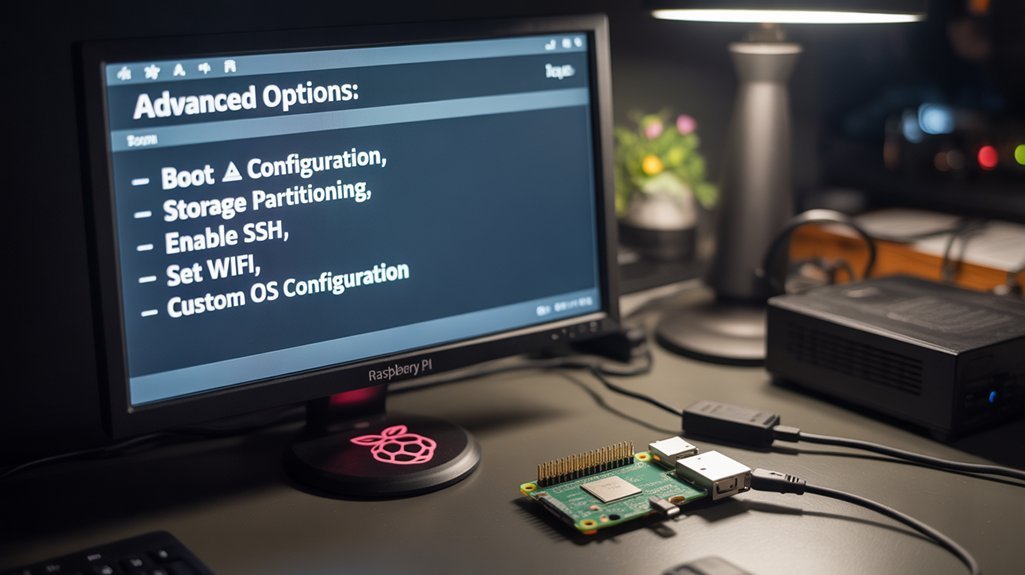
Beyond basic setup options, Raspberry Pi Imager’s Advanced Boot and Storage Configuration options provide granular control over how your Pi initializes and manages its storage.
When accessing the menu via CTRL+SHIFT+X, you can customize the boot order for Pi 4 and newer models—choosing whether your device prioritizes SD card (B1), NVMe/USB drives (B2), or network boot fallback (B3). Filesystem expansion happens automatically when you first boot your Pi with a newly created image. This customization is particularly beneficial due to the native support for various storage devices, ensuring optimal performance and functionality.
These settings are particularly valuable if you’re working with multiple storage devices or implementing network boot deployments. For best results, select a storage device with at least 32GB when using the full Raspberry Pi OS.
You can also control storage verification behavior, choosing to skip verification for faster writes or enable automatic unmounting after write completion.
These options streamline deployment across numerous devices while maintaining flexibility for specialized configurations in embedded systems or headless installations.
Frequently Asked Questions
Can I Change Advanced Settings After Imaging Without Reflashing the Card?
No, you can’t modify Raspberry Pi Imager advanced options through the Imager after flashing. Settings persistence requires you to manually edit configuration files on the SD card or use system tools post-boot.
How Do I Create Custom Images With My Settings Pre-Configured?
You can create custom images with pre-configured settings by modifying a running Pi system, then using dd or Win32DiskImager to capture the image, or utilize rpi-image-gen for automated builds.
Does Enabling SSH Create Security Vulnerabilities During First Boot?
Picture your Pi like an open door in a digital neighborhood. Yes, enabling SSH with default credentials creates immediate ssh security vulnerabilities during first boot. You’ll need to pre-configure credentials or change passwords instantly to prevent unauthorized access.
Can I Use Raspberry Pi Imager’s Advanced Options with Non-Raspberry Pi OS Images?
You’ll find limited Imager compatibility with non-Raspberry configurations. Advanced options primarily support Raspberry Pi OS images, as third-party systems often lack the required configuration hooks to implement these customizations properly.
How Do I Troubleshoot if My Pre-Configured Wifi Doesn’t Connect Automatically?
Like Odysseus charting troubled waters, verify your WiFi settings with ‘iwconfig’ and ‘rfkill list all’. Check wpa_supplicant.conf for correct credentials and consider disabling 5GHz band temporarily for better network connectivity.
Conclusion
By utilizing Raspberry Pi Imager advanced options, you’ve gained powerful headless configuration abilities. You can telegraph your setup preferences directly into the image before booting. Remember that settings persist until overwriting, so maintain backups of critical configuration files. These advanced options streamline your deployment process, eliminating manual post-boot configuration and enabling rapid, consistent Raspberry Pi deployments across your projects or fleet.