

More than 45 million Raspberry Pi units have been sold worldwide, with many users connecting them to TVs for media centers and smart home hubs. You’ll find this small but powerful computer offers an affordable way to transform your standard TV into a versatile entertainment system. The process requires just a few common cables and some basic configuration steps, but the possibilities extend far beyond simple media playback. What exactly can connecting your Raspberry Pi to a Smart TV accomplish?
Key Takeaways
- Connect the Raspberry Pi to your Smart TV using an HDMI cable for optimal audio and video quality.
- Configure display settings by editing config.txt parameters like hdmi_group and hdmi_mode to match your TV’s specifications.
- Install media center software like Kodi, LibreELEC, or OpenELEC using Raspberry Pi Imager on a Class 10 microSD card.
- Ensure stable power delivery with a minimum 3A power supply for Raspberry Pi 4 models to prevent display issues.
- Set up remote control solutions through HDMI-CEC, IR transmitters with LIRC, or smartphone apps for convenient operation.
Physical Connection Methods and Required Cables
Connectivity options for linking a Raspberry Pi to your Smart TV vary depending on both devices’ available ports and your desired output quality. HDMI represents the ideal interface, delivering simultaneous high-definition audio/video transmission through a single cable. Most modern Raspberry Pi models feature HDMI port for this connection.
Achieve optimal Pi-to-TV connections through HDMI, delivering seamless high-definition content through a single unified cable interface.
For best performance, verify HDMI Compatibility Issues by checking your Pi model’s output specifications against your TV’s supported resolutions.
Legacy systems require alternative approaches. The 3.5mm AV port on older Pi models facilitates composite connections via specialized breakout cables, though RCA Quality Considerations include significant resolution limitations.
For VGA-only displays, implement active HDMI-to-VGA adapters with separate audio routing solutions. These converters require power and introduce signal transformation latency.
Select connection methodology based on your hardware specifications and display requirements for best system integration. Ensure your Raspberry Pi is connected to the same network as your TV through ethernet cable or Wi-Fi for additional functionality beyond video output.
Setting Up Your Raspberry Pi for TV Display
Once you’ve established the physical connection between your Raspberry Pi and Smart TV, proper configuration becomes the next logical step in achieving ideal display output.
Begin by editing the config.txt file to optimize display format parameters – set `hdmi_group` and `hdmi_mode` values to match your TV’s native specifications, and add `hdmi_force_hotplug=1` to guarantee signal detection.
For resolution adjustment, modify the framebuffer settings via command-line tools like `tvservice` or through Raspberry Pi OS desktop utilities. If using a touch display instead, ensure it’s properly connected to the DSI connector on your Raspberry Pi for optimal functionality. Consider using a monitor with capacitive touchscreen capabilities for interactive projects that require touch input.
Power considerations are critical; use a stable 3A power supply for Pi 4/5 to prevent display instability.
Boot your system with peripherals connected, switch your TV to the correct input source, and verify the splash screen appears.
If issues arise, check log files and consider safe mode booting for troubleshooting.
Choosing the Right Operating System for Smart TV Functions
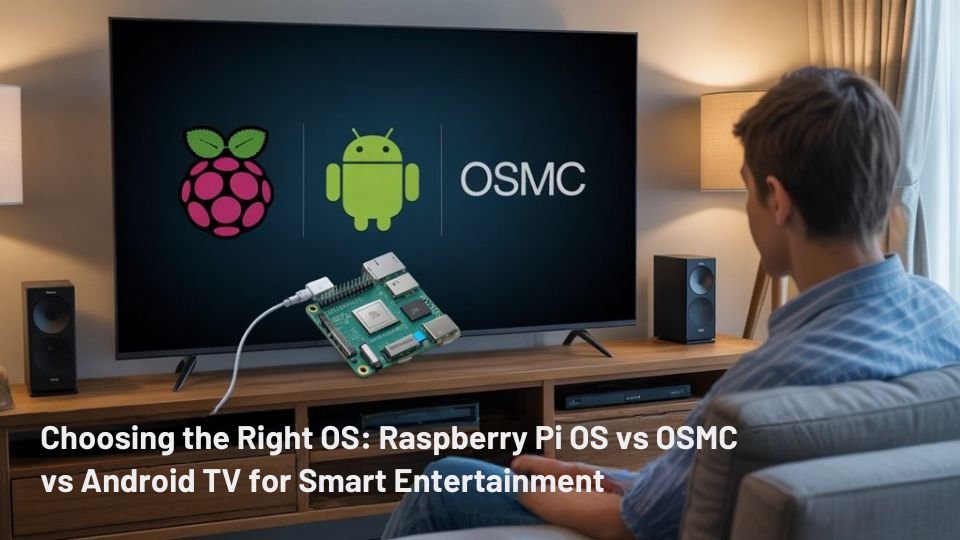
Selecting the right operating system forms the backbone of your Raspberry Pi smart TV setup, directly impacting functionality, performance, and content accessibility.
For streaming service compatibility, consider Android-based builds that offer wider app availability but may limit video quality due to DRM constraints.
Resource efficiency varies greatly across options: LibreELEC delivers optimized 4K video playback at 60fps on Pi 4 with minimal overhead, while Ubuntu 64-bit offers robust multitasking at the cost of higher resource demands. The Desktop version includes a full GUI with pre-installed applications, making it more suitable for interactive smart TV interfaces.
Performance comparison reveals specialized media OSes boot faster and manage memory more efficiently than general-purpose distributions.
User interface requirements should drive your selection—Android TV provides a familiar experience with Google Play integration, while Kodi-based systems excel at library management but lack extensive app store support. Be aware that the Raspberry Pi typically supports only Widevine L3 security level, limiting streaming resolution on popular services like Netflix.
Installing Media Center Software (Kodi, OSMC, LibreELEC)
You’ll need to install specialized media center software like Kodi, OSMC, or LibreELEC onto your Raspberry Pi to transform it into a powerful entertainment hub for your Smart TV.
Using the Raspberry Pi Imager, flash your chosen distribution onto a Class 10 microSD card, ensuring compatibility with your specific Pi model for best hardware acceleration.
Once booted, you can customize your media experience through Kodi’s extensive add-on ecosystem, allowing access to streaming services, local media libraries, and network file sharing protocols. For optimal performance, consider using lightweight Kodi skins that won’t strain the Raspberry Pi’s resources. The Lineage OS option provides a more Android-like experience with better support for popular streaming platforms.
Easy Installation Steps
Installing media center software on your Raspberry Pi involves three fundamental steps that transform your device into a powerful smart TV hub.
The process enables excellent software performance while ensuring streaming compatibility across multiple platforms. OpenELEC is a popular media center option that provides an optimized experience for Raspberry Pi streaming setups. LibreELEC is recommended for Raspberry Pi 5 users seeking a DIY smart TV solution with support for various applications.
- Insert your prepared microSD card containing your chosen OS (Kodi, OSMC, or LibreELEC) into the Raspberry Pi’s card slot, ensuring proper orientation.
- Connect your Raspberry Pi to your TV using an HDMI cable, selecting the appropriate HDMI input on your television.
- Power on your Raspberry Pi and allow the initial boot sequence to complete, which launches the installation wizard.
- Follow the on-screen configuration prompts to set language preferences, network parameters, and display resolution settings that match your TV’s specifications.
Customizing Media Experience
Once you’ve completed the initial hardware setup, the media center software becomes the heart of your Raspberry Pi-powered entertainment system.
You’ll need to choose between several options with distinct advantages.
OSMC delivers a polished user interface with a custom Kodi-based skin, enhancing navigation while providing an app store for extended functionality. It runs on a Debian base, enabling installation of additional Linux packages for multi-role capabilities. For those seeking versatility, OSMC allows more customization of the entire interface compared to alternatives.
Conversely, LibreELEC adopts a minimalist approach, booting directly into Kodi with standard interface elements and fewer customization options. Its lightweight design yields faster startup times and marginally quicker menu responsiveness. LibreELEC installation is simplified through user-friendly SD card tools available for various operating systems.
Consider update frequency in your decision: LibreELEC releases updates promptly after new Kodi versions, while OSMC updates typically lag behind but offer greater extensibility for power users.
Network-Based Media Streaming Options
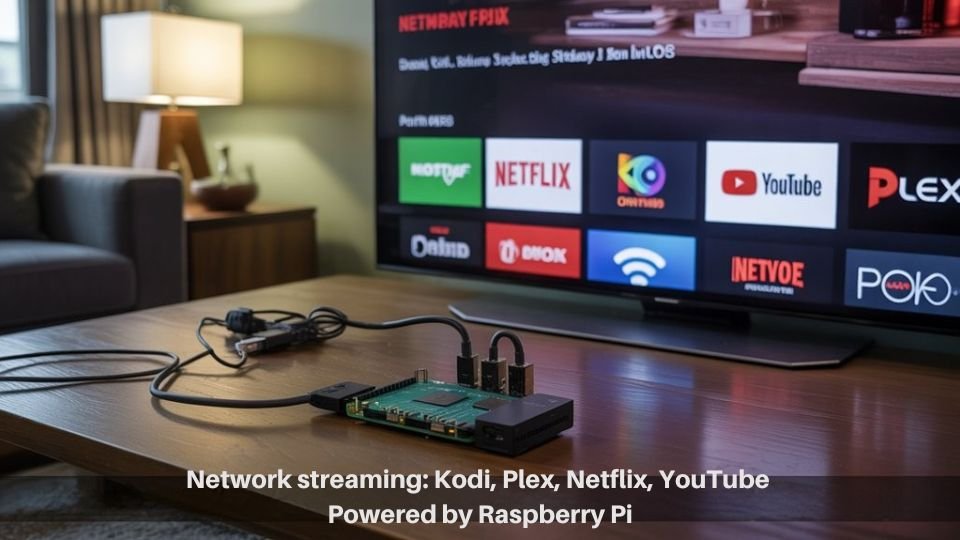
While setting up your Raspberry Pi for media streaming, the network connection serves as the critical backbone for delivering content to your smart TV.
Efficient network streaming requires both devices to share the same local network, enabling seamless device discovery and media protocol communication.
- Implement Kodi or LibreELEC for extensive video formats support and intuitive file management interfaces
- Configure DLNA/UPnP protocols to enable automatic content discovery between your Raspberry Pi and smart TV
- Establish Samba (SMB) sharing for network-based media transfers without physical storage exchanges
- Optimize streaming quality by utilizing Ethernet connections for 4K content or dual-band Wi-Fi adapters for wireless flexibility
For peak performance, name your Raspberry Pi device distinctly on the network to simplify discovery from your smart TV’s media applications. Testing has shown that Ethernet connections are significantly more reliable than Wi-Fi for streaming high-bitrate 4K content to your television. Consider implementing Jellyfin or Emby as they provide excellent user management and parental controls for households with varied media consumption needs.
Remote Control Solutions for TV-Based Raspberry Pi
After establishing your network connection between the Raspberry Pi and smart TV, you’ll need an effective way to control your setup.
Multiple control pathways exist for precise system integration. Configure LIRC with an IR transmitter to capture and replay your TV remote’s signals—ideal for maintaining existing IR control methods.
Alternatively, leverage HDMI-CEC integration through cec-utils libraries for bidirectional control without additional hardware. Users can navigate Raspberry Pi OS efficiently using their TV standard remote via HDMI-CEC functionality.
For network-centric approaches, implement web remote access via Python Flask, transforming any networked device into a control interface. The Raspberry Pi 2 Model B with IR Remote Shield can effectively control multiple home devices like TVs and air conditioners.
Bluetooth remotes pair directly with your Pi, while RF control options provide wireless functionality through USB receivers.
Both circumvent line-of-sight limitations inherent in IR solutions.
For seamless media navigation techniques, map IR signals to keyboard commands using LIRC, creating intuitive control flow across your entertainment ecosystem.
Optimizing Video and Audio Output Settings
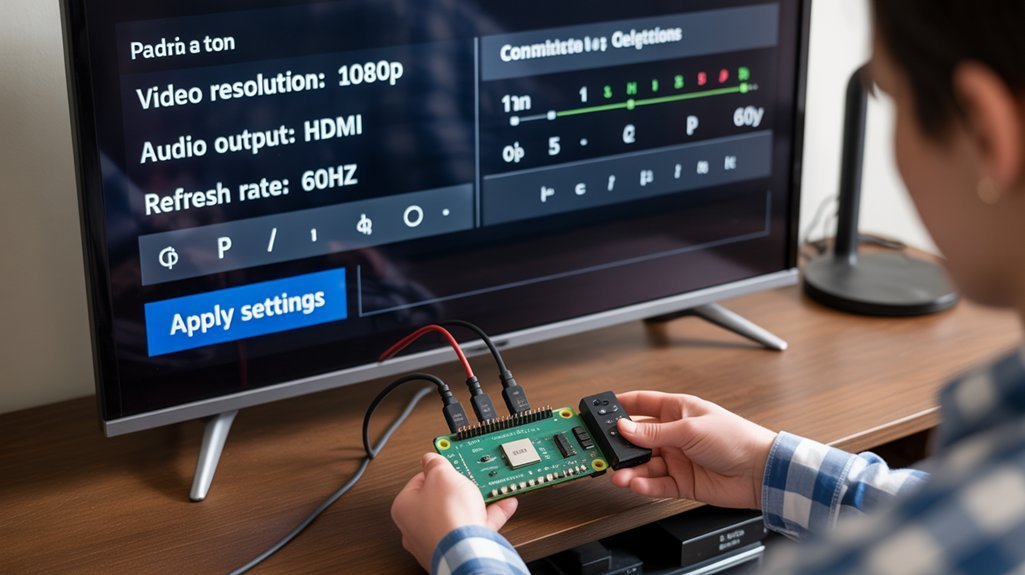
You’ll need to configure your Raspberry Pi’s video resolution using the `xrandr` command or by adjusting `hdmi_mode` values in the `config.txt` file to match your TV’s best display capabilities.
For audio routing, select between HDMI and analog outputs through `amixer` commands or by implementing the `hdmi_drive=2` parameter in your configuration file.
Testing different resolution settings (such as 1080p or potential 4K options) alongside proper audio device selection will guarantee best media playback performance on your smart TV setup. If your Raspberry Pi defaults to an incorrect resolution, you may need to modify the boot configuration file to ensure proper display at startup. If no HDMI display is detected at bootup, the Raspberry Pi will switch to composite output automatically.
Video Resolution Settings
Maximizing your Raspberry Pi’s video resolution settings is critical for achieving the finest possible display on your Smart TV.
Resolution configuration requires understanding both hardware capabilities and software adjustments to guarantee the best viewing experience.
- Edit `/boot/config.txt` to force specific resolution parameters using `hdmi_group` and `hdmi_mode` settings that match your TV’s capabilities.
- Use terminal commands like `DISPLAY=:0 xrandr –output HDMI-1 –mode 1920×1080 –refresh 60` for dynamic resolution adjustments.
- Address overscan issues with `overscan_left`, `overscan_right`, `overscan_top`, and `overscan_bottom` parameters to eliminate hidden screen edges.
- Implement scaling adjustments for UI elements that appear too small on large TVs, especially when using 4K resolution on Pi 4 models (limited to 24fps for 4K).
- Try commands like `tvservice -n` and `tvservice -m CE` to diagnose TV resolution problems and identify supported display modes.
- While Raspberry Pi officially supports 1080p at 60fps, ambitious users can attempt 4K resolution output by adding custom configuration lines to the boot config file.
Audio Device Selection
Audio configuration represents a critical component when connecting your Raspberry Pi to a Smart TV. By default, your Pi routes audio through HDMI, but you’ll need to verify this setting for ideal performance.
Access audio output options through either the desktop interface or by executing `raspi-config` in terminal. For granular control, utilize `amixer` commands to switch between HDMI and analog (3.5mm) outputs.
When troubleshooting absent audio, first check volume control settings through the GUI or command line.
For advanced setups, consider implementing Pro Audio profiles or specialized HATs like the DAC+ for superior sound quality.
Persistent audio issues typically stem from incompatible configurations rather than hardware limitations. Create boot scripts to maintain your preferred audio settings across system restarts, ensuring consistent performance during your smart TV media experiences.
Expanding Storage for Media Libraries
Three primary methods exist for expanding your Raspberry Pi’s storage capacity when building media libraries. Effective microSD management provides baseline storage, while USB expansion and network-attached storage deliver scalable solutions for growing collections.
- MicroSD Optimization – Expand filesystem using `raspi-config` to utilize full card capacity, ensuring compatibility with your specific Pi model.
- External USB Implementation – Connect SSDs or HDDs via USB ports, recognizing older Pi models limit throughput to USB 2.0 speeds.
- NAS Integration – Deploy network storage for centralized media management across multiple devices.
- Performance Calibration – Select storage medium based on required write speeds; SSDs deliver superior performance for demanding applications.
Remember to implement regular maintenance routines and organize your media files efficiently to maximize available space as your library grows.
Troubleshooting Common Display and Connection Issues
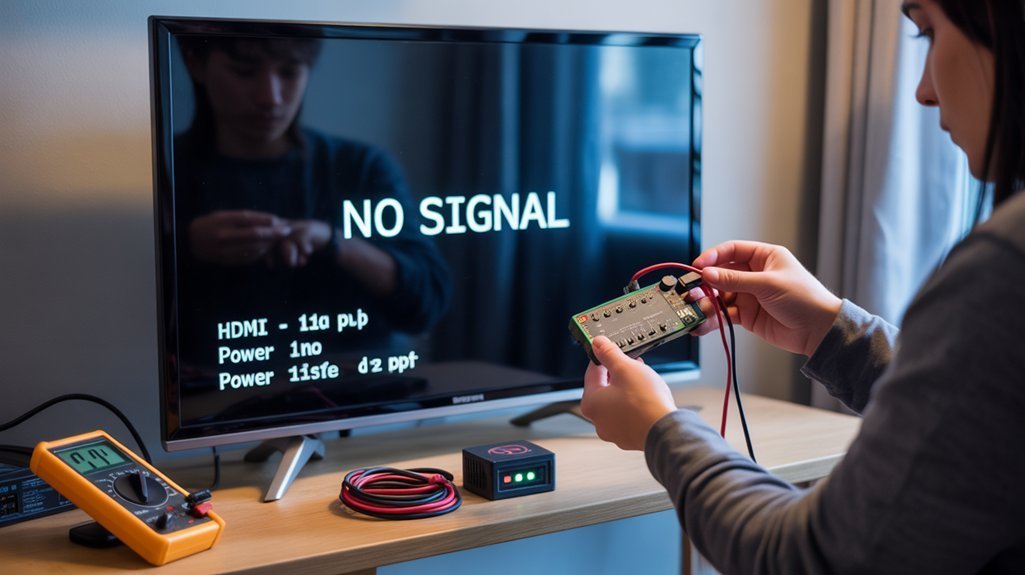
Connecting your Raspberry Pi to a Smart TV can present several display challenges that require systematic troubleshooting. When facing HDMI troubleshooting scenarios, methodically verify both hardware and configuration parameters.
| Issue Category | Primary Solution | Secondary Solution | Verification Method |
|---|---|---|---|
| HDMI Connection | Use HDMI0 port on Pi 4 | Employ high-quality cable | Check TV input detection |
| Display Resolution | Match Pi output to TV specs | Modify config.txt parameters | Run tvservice -s command |
| Signal Integrity | Increase hdmi_boost value | Shorten cable length | Monitor for signal dropout |
| Power Delivery | Utilize 1A+ power supply | Check for brownouts | Examine kernel logs |
For persistent display resolution problems, implement forced EDID configurations and disable CEC if interference occurs. Remember that signal integrity often correlates directly with power stability—inadequate voltage will manifest as intermittent HDMI connectivity.
Frequently Asked Questions
Can I Use a Raspberry Pi to Add DVR Functionality to My TV?
Yes, you can add DVR capabilities to your TV with a Raspberry Pi. Install TVHeadEnd recording software, connect a TV HAT tuner, and configure storage to create a powerful, customizable DVR system.
Will Raspberry Pi Work With Voice Assistants Like Alexa or Google Home?
Yes, your Raspberry Pi integrates effectively with Alexa or Google Home. Install the appropriate SDK to enable voice commands for home automation, using a USB microphone for input and smart hubs for device control.
Can Raspberry Pi Bypass Regional Restrictions on Streaming Services?
Yes, you can bypass regional restrictions by configuring your Raspberry Pi with VPN usage or proxy servers for streaming content. Network performance may vary depending on your encryption and bandwidth requirements.
How Much Power Does a Raspberry Pi Consume Compared to Commercial Devices?
Like a digital hummingbird, your Raspberry Pi sips power at 1-5W, dramatically less than commercial devices. You’ll achieve superior energy efficiency compared to 100-400W TVs and 20-100W laptops.
Is It Possible to Control Other Smart Home Devices Through Pi-Tv Integration?
Yes, you’ll achieve extensive home automation through your Pi-TV setup. Configure Home Assistant to manage compatible devices via MQTT or HTTP protocols, enabling centralized control of your integrated smart ecosystem.
Conclusion
Your Raspberry Pi-TV connection forms a complete circuit that transforms your living space into an integrated media system. You’ll find the theory behind HDMI’s digital signal transmission validated as content displays with pixel-perfect precision. This microcomputer-enhanced setup isn’t just functional—it’s a demonstration of modular systems architecture. When properly configured, your Pi becomes the control node in an expandable home entertainment network that’s limited only by your technical curiosity.