

By using your Raspberry Pi as a desktop computer, a student can save hundreds of dollars while still handling coursework effectively. You can achieve similar results by turning this affordable mini-computer into a capable desktop replacement for everyday tasks. The key lies in choosing the right model, properly configuring the operating system, and selecting appropriate peripherals. With the right approach, you’ll discover how this credit card-sized device can handle your computing needs while keeping your budget intact.
Key Takeaways
- Choose a powerful model like Raspberry Pi 4 (8GB) or Pi 5 for desktop computing needs.
- Install Raspberry Pi OS using the Raspberry Pi Imager tool and complete initial system setup.
- Upgrade from microSD to a USB SSD drive for significantly faster boot times and application performance.
- Connect essential peripherals including monitor (via HDMI), keyboard, mouse, and proper power supply.
- Install alternative software like LibreOffice, GIMP, and customize your desktop environment for optimal use.
Selecting the Right Raspberry Pi Model for Desktop Use
When selecting a Raspberry Pi for desktop use, you’ll need to evaluate models with sufficient processing power, memory, and connectivity options to handle everyday computing tasks.
The Raspberry Pi 4 with 8GB RAM offers excellent performance benchmarks for most desktop applications, while the Pi 5 pushes capabilities further with its 2.4 GHz processor.
User reviews consistently recommend the Pi 400 for light computing needs, as its keyboard integration provides convenience.
For more demanding practical applications, consider the Pi 500 with its enhanced specifications.
Your cost analysis should weigh initial investment against performance – the Pi 4 delivers strong value, while the Pi 5 commands a premium for its advanced capabilities.
Remember that adequate cooling becomes essential as you push these compact devices toward desktop-level performance.
With its quad-core processor, the Raspberry Pi 4 supports data processing and multimedia applications that are essential for desktop functionality.
The Raspberry Pi 4 and 5 models are particularly well-suited for desktop use thanks to their dual 4K display support through micro-HDMI ports.
Setting Up the Raspberry Pi OS for Desktop Computing
Once you’ve selected the right Raspberry Pi model, you’ll need to properly set up the operating system for desktop computing. The Raspberry Pi OS offers excellent compatibility with the hardware, providing numerous advantages for daily computing tasks.
Choosing the right Raspberry Pi model is only the first step—proper OS setup unlocks its full desktop potential.
Download the Raspberry Pi Imager tool and select Raspberry Pi OS Full (64-bit) for the complete desktop experience.
- Boot your Pi with peripherals connected and follow the initial setup process to configure language, timezone, and network settings.
- Customize your display resolution and input devices for ideal comfort.
- Install additional software packages needed for your specific workflow.
- Implement cooling solutions like heatsinks if you plan to run resource-intensive applications.
Remember to use the raspi-config tool to enable communication protocols like I2C and SPI if you plan to connect additional hardware to your system.
Regular updates will guarantee security and performance as you enjoy the innovative capabilities of your new Raspberry Pi desktop.
For optimal performance, ensure you’re using a 5V/5A power supply for Raspberry Pi 5 or the appropriate power rating for your specific model.
Essential Peripherals and Accessories for a Comfortable Experience
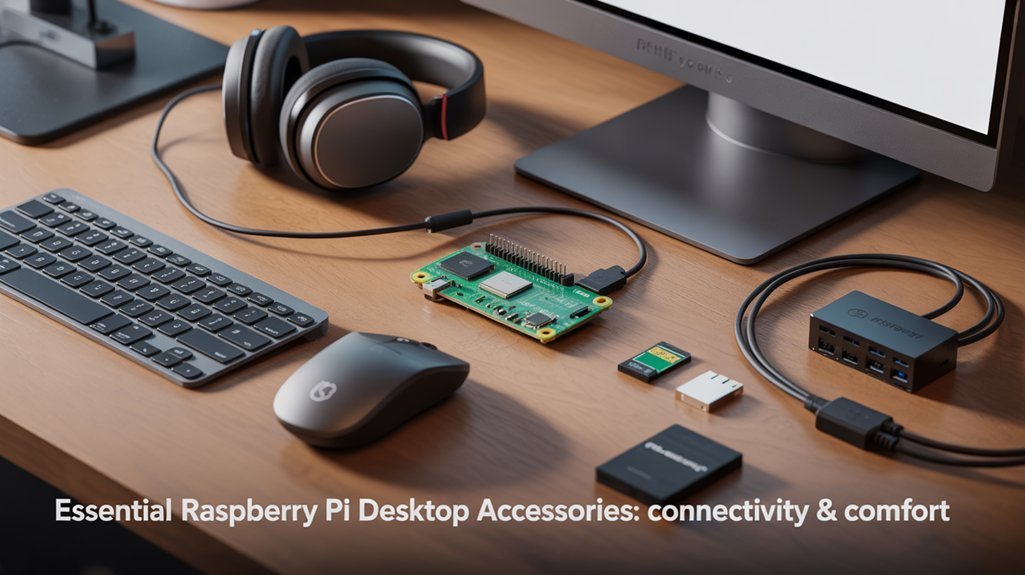
A successful setup with Raspberry Pi as a desktop requires more than just the board itself—it demands carefully selected peripherals that transform this compact computer into a fully functional workstation. Your peripheral selection will directly impact daily usability, with quality input devices and proper cooling being non-negotiable elements. The Raspberry Pi 4 runs optimally with a high-quality USB SSD drive rather than relying solely on microSD cards for storage and boot operations. Consider adding a powered USB hub when connecting multiple external storage devices since the Raspberry Pi can only power one hard drive without additional support.
| Essential Component | Accessory Benefits |
|---|---|
| USB-C Power Supply (5V/3A) | Prevents performance throttling and crashes |
| 32GB+ MicroSD Card | Provides adequate space for OS and applications |
| Cooling Solution (Heatsink/Fan) | Maintains ideal temperatures during intensive tasks |
| Micro HDMI to HDMI Cable | Enables connection to monitors with support up to 4K |
| Keyboard and Mouse | USB or wireless options provide necessary input control |
For an enhanced experience, consider dual-display setups using both micro HDMI ports—perfect for multitasking while maximizing your Pi’s capabilities.
Optimizing System Performance for Daily Tasks With Raspberry Pi As a Desktop
Releasing your Raspberry Pi’s full potential requires strategic optimization of both hardware and software components.
With targeted performance tweaks, you’ll transform your Pi from merely functional to impressively responsive. Consider upgrading to SSD storage via USB 3.0 for dramatically faster boot times and smoother application performance. Implementing a USB-PD solution can provide stable power delivery and prevent performance throttling during intensive tasks.
Effective task management guarantees your Pi remains responsive even during intensive operations. Recent firmware updates have enabled SDRAM tuning that delivers 10-20% performance improvements at default clock speeds.
- Install a quality heatsink and fan to reduce temperatures by 20°C, allowing sustained maximum clock speeds.
- Increase SDRAM frequency to 2400MHz for 10-15% faster data transfer in memory-intensive applications.
- Disable hardware acceleration in non-essential applications to free resources for critical tasks.
- Manage background processes and services to maintain system responsiveness during complex operations.
With these optimizations, you’ll experience considerably reduced application startup times and smoother multitasking capabilities.
Software Alternatives for Common Desktop Applications When Using Raspberry Pi As a Desktop
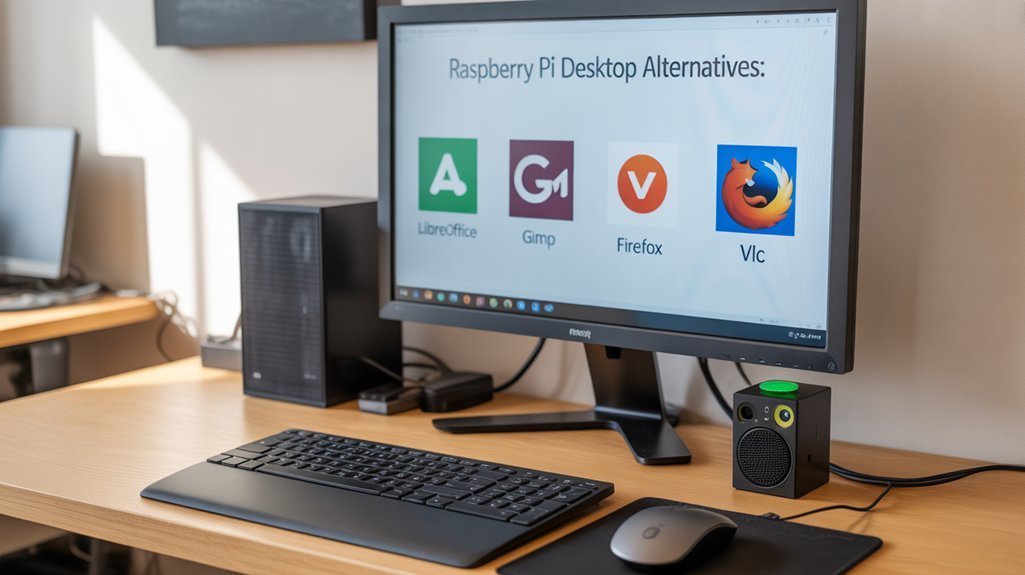
When setting up your Raspberry Pi as a desktop, you’ll need alternatives to familiar office and media software.
LibreOffice provides a complete suite for documents, spreadsheets, and presentations, while OnlyOffice offers a lightweight option optimized for the Pi’s resources.
For media production, GIMP handles image editing tasks admirably, though you’ll want to be mindful of the Pi’s processing limitations when working with larger files. For file management needs, tools like Midnight Commander offer efficient navigation through your system via command line interface. Remote access to your Pi desktop environment can be achieved through AnyDesk software which provides a free option specifically designed for Raspberry Pi.
Office Suite Options
Whether you’re shifting to a Raspberry Pi as a desktop or setting up a secondary workstation, finding suitable office applications is essential for productivity. Your Pi can handle most office tasks with the right productivity software selections.
- LibreOffice provides a thorough solution with Writer for documents and Impress for presentations, running efficiently even on Pi’s limited resources.
- WPS Office offers an Excel-like spreadsheet experience with its ARM64 build, making file sharing with Microsoft users seamless.
- Cloud-based options like Google Workspace or Microsoft 365’s web versions work well when you have reliable internet access.
- Specialized alternatives such as Grist for spreadsheets with Python automation or Trilium Notes for hierarchical note organization deliver innovative features beyond traditional office suites. You can also deploy Nextcloud with Collabora Online for a self-hosted solution that preserves privacy while reducing costs.
The pre-installed LibreOffice Calc handles various spreadsheet formats including XLS and XLSX, offering a lightweight option ideal for basic spreadsheet tasks without requiring additional installation.
Media Production Tools
Despite its modest hardware specifications, your Raspberry Pi can handle a surprising range of media production tasks with the right software. For video editing, you’ll find capable options like OpenShot and Kdenlive offering multi-track editing capabilities, while Shotcut provides cross-platform support through FFmpeg.
Audio enthusiasts can leverage Audacity for basic editing or Ardour for professional-level digital audio workstation features. For creative sound production, Sonic Pi enables live coding of music compositions. For more demanding audio tasks, alternatives like the ODROID N2+ offer significant performance improvements with its powerful processor.
For graphic work, GIMP and Krita handle raster editing, while Inkscape provides vector design functionality.
Enhance your multimedia playback experience with VLC Media Player, or implement thorough media library management through Kodi or Jellyfin. The latter serves as an excellent open-source server for organizing your personal media collections with rich metadata. Kodi remains a popular option as it’s free, open-source and compatible with various Raspberry Pi models from Zero to 4.
Networking and File Sharing Capabilities
You’ll quickly find your Raspberry Pi has robust networking capabilities, making it perfect for file sharing and device connectivity across your home network.
With Ethernet and Wi-Fi connectivity options, you can establish a reliable connection and implement Samba to seamlessly access files from Windows, macOS, or other Linux systems. For larger projects, Filezilla FTP provides a reliable way to transfer multiple files at once with convenient drag-and-drop functionality.
For quick file transfers without additional setup, you can use SCP commands through SSH to copy files to and from your Raspberry Pi.
If you’re looking for more functionality, you can transform your Pi into a basic NAS (Network Attached Storage) device using external drives and appropriate software configurations.
Network Connection Options
Two robust networking methods are available when setting up your Raspberry Pi as a desktop: wired Ethernet and WiFi.
For stability and speed, Ethernet advantages include plug-and-play simplicity with an RJ45 cable connecting directly to your router.
WiFi configurations, though more flexible, require additional setup through either the GUI or `raspi-config` utility.
- Connect via Ethernet for reliable file transfers and remote desktop sessions without additional configuration
- Set up WiFi using `sudo iwlist wlan0 scan` to identify networks, then configure through `raspi-config`
- Check connection status with `nmcli dev wifi list` to verify successful network links
- Remember to set your country’s regulatory domain for proper WiFi compliance and operation
Once connected, you’ll gain remote access capabilities via VNC or SSH, enabling control from other devices on your network. For security reasons, wired Ethernet provides better protection against unauthorized network access than wireless connections.
Raspberry Pi OS uses DHCP by default for all network interfaces, making initial connectivity straightforward without manual IP configuration.
Setting Up Samba
When transforming your Raspberry Pi as a desktop system, setting up Samba creates powerful file sharing capabilities that extend its functionality across your network.
Start by updating your system and installing Samba packages:
“`
sudo apt update && sudo apt upgrade
sudo apt install samba samba-common-bin smbclient cifs-utils
“`
Edit the Samba configuration file at `/etc/samba/smb.conf` to define shares with descriptive names like `[Shared]`.
Set the correct path to your shared folders and configure share permissions using parameters like `writeable = yes` and appropriate masks.
For security, implement user authentication with `guest ok = no` and create Samba users via `sudo smbpasswd -a username`.
After making changes, restart the service with `sudo systemctl restart smbd` and test network browsing from another device.
This setup provides a cost-effective solution for small networks while utilizing the Raspberry Pi’s compact and energy-efficient design.
Remember to add `ntlm = yes` to your configuration for compatibility with Sonos and other network devices that require NTLM authentication.
NAS Implementation Basics
Beyond simple file sharing with Samba, your Raspberry Pi can function as a complete Network Attached Storage (NAS) solution for your home or small office.
Setting up a proper NAS requires configuring both hardware and software components to guarantee reliable file storage, sharing, and backup capabilities.
- Install dedicated NAS software like OpenMediaVault for extensive storage management through an intuitive web interface
- Configure network settings with static IP addresses or DHCP reservations to maintain consistent access to your storage
- Implement proper security considerations including user authentication, encrypted connections, and firewall rules
- Set up automated backup solutions to protect your data and consider redundant storage options when possible
For peak performance, connect your Pi via Ethernet rather than Wi-Fi and use USB 3.0 external drives formatted with the ext4 file system.
Desktop Environment Customization and Themes
Personalization can transform your Raspberry Pi as a desktop but move it from functional to fantastic.
Begin with theme installation through the Appearance Settings or via terminal commands like `sudo apt install arc-theme papirus-icon-theme`. Complement your setup with wallpaper selection—right-click the desktop and choose “Desktop Preferences” to adjust positioning and scaling options.
Personalize your Pi with elegant themes and carefully positioned wallpapers for a desktop that truly feels like your own.
For deeper customization, explore icon customization and cursor themes by installing packages like Numix or Papirus.
Panel modification allows you to reposition the taskbar, adjust transparency, and add useful widgets to enhance productivity.
Consider performance impact when implementing advanced theming; lighter options work best on older Pi models.
Aim for visual coherence by ensuring your wallpaper, icons, and window decorations work harmoniously.
With these adjustments, you’ll create a responsive, personalized computing environment that reflects your style.
Frequently Asked Questions
Can Raspberry Pi Run Windows 10 or MacOS?
You can run a limited Windows 10 on ARM via third-party tools with modest performance. MacOS isn’t compatible with Raspberry Pi’s architecture—Apple restricts it to their proprietary hardware only.
How Long Will a Raspberry Pi Last as a Desktop Computer?
Your Pi can last 7-10 years with proper care. Its performance longevity depends on cooling, power stability, and SD card health. Hardware limitations like passive components degrade slower than storage media.
Can Raspberry Pi as a Desktop Handle Video Conferencing Applications Like Zoom?
While Zoom works, don’t expect stellar video quality. Your Pi 4 can handle basic conferencing but maxes out CPU at 100%, affecting audio clarity. Use Chromium browser and wired ethernet for best results.
Will Raspberry Pi As a Desktop Work With Multiple Monitors?
Yes, Raspberry Pi 4 supports a multi display setup with two monitors via its micro HDMI ports. You’ll get decent screen resolution up to 1080p at 60Hz on both displays simultaneously.
Can I Upgrade RAM or Storage on My Raspberry Pi?
You can’t upgrade RAM as it’s soldered, but you’ll boost performance by expanding storage with high-capacity microSD cards or adding USB 3.0 SSDs as compatible accessories for your Pi.
Would You Consider Using Your Raspberry As a Desktop?
While a Raspberry Pi won’t match a high-end PC’s performance, it’s a surprisingly capable and affordable desktop alternative. You’ll enjoy a complete computing experience at a fraction of the cost and power consumption. Don’t let its size fool you—with the right components and optimizations outlined above, your Pi can handle everyday tasks smoothly while teaching you valuable skills in Linux and hardware customization.