

Imagine you’ve turned an old Raspberry Pi 3 into a cabinet that boots straight into Sonic — you’ll follow the same steps. You’ll pick the right Pi and storage, flash an OS or the RetroPie image, configure controllers, and transfer ROMs over USB or the network. I’ll walk you through each hardware-savvy step, plus smart tweaks for performance and themes, so you can get solid frame rates and low input lag — next up, choosing the right board and SD card.
Key Takeaways
- Choose a suitable Raspberry Pi (Pi 4 recommended; Pi 5 for best performance) and prepare a 16GB+ SD card or external SSD.
- Flash the RetroPie image to the SD card with balenaEtcher or Raspberry Pi Imager, then safely eject and boot the Pi.
- Configure Wi‑Fi/SSH, update the system, and install needed packages before first EmulationStation launch.
- Transfer ROMs via USB, Samba, SFTP, or SD card into roms/
folders and refresh the game list. - Apply performance tweaks (cooling, stable power, governor/overclock carefully) and pick optimal emulator cores for stable play.
Choosing the Right Raspberry Pi and Storage
When picking hardware for RetroPie, focus on the Pi model, RAM choice, and storage type to match the systems you want to emulate; for most users a Raspberry Pi 4 (4GB) on a fast 32–64GB Class 10/UHS-I microSD gives the best balance of performance, compatibility, and cost. If you’re aiming to emulate newer systems, consider the Pi 5 for its improved CPU and GPU performance.
Choose Pi 4 for PS2-era ambitions; Pi 3B+ or Zero 2W suffice for older 2D/retro titles.
Pick 4GB RAM unless you’ll multitask.
Favor quality microSD or external SSD for large libraries.
Consider power consumption and case cooling when overclocking or using Pi 5.
Backup your image regularly.
Raspberry Pi 3 B+ is still a solid choice for many systems and offers a good price-to-performance ratio for classic consoles.
The Raspberry Pi 5 delivers significant improvements in CPU and GPU performance, making it a strong future-proof option for emulation on newer systems Raspberry Pi 5.
Preparing the Raspberry Pi Operating System and Packages
Pick a compatible OS first — flash the Raspberry Pi OS Lite legacy release (not Bullseye) to a 16GB+ SD card using Raspberry Pi Imager. Use the new Raspberry Pi Imager to take advantage of pre-boot configuration for SSH and Wi‑Fi so you can preconfigure access before first boot.
Boot the Pi, confirm free space with df -h, then run sudo apt update && sudo apt upgrade to bring packages current.
Install essentials like git and enable SSH/wifi so you can clone and run the RetroPie setup script. Ensure your system locale is correctly set before installing packages to avoid errors verify locale.
For best results on newer hardware, consider using the 64-bit release of Raspberry Pi OS on Raspberry Pi 4 or newer to better utilize available RAM.
Choose Compatible OS
Because RetroPie depends on specific libraries and kernel support, you should choose an OS build that matches your Pi model and RetroPie release—preferably Raspberry Pi OS Lite (Buster for maximum compatibility, 64-bit Lite for Pi 4/8GB), or the full desktop only if you plan to log out of PIXEL before running emulators. Using Raspberry Pi OS ensures full hardware compatibility and access to thousands of packages which improves emulator stability.
Pick with intent:
- Use Raspberry Pi OS Lite (Buster/64-bit for Pi4) for best emulator compatibility and performance optimization.
- If you need GUI tools, use the full OS but log out of PIXEL before RetroPie installation to preserve gaming experience.
- Explore alternative distributions (Debian/Ubuntu) only if you accept extra configuration for RetroPie installation.
Raspberry Pi OS is generally recommended because it is the official distribution optimized for Raspberry Pi hardware.
Make sure you also have a suitable power supply to avoid performance and stability issues.
Update Essential Packages
1. Verify network connectivity (Ethernet or stable Wi‑Fi) with ping; offline updates aren’t supported.
Run sudo apt update to refresh package lists so you won’t fetch outdated versions. Then run sudo apt upgrade -y to apply upgrades—this streamlines package maintenance and boosts system stability.
Install essential dependencies: sudo apt install git dialog wget unzip build-essential -y to guarantee the RetroPie setup script runs without errors. Also use a high-quality microSD card to reduce corruption during upgrades.
Check bootloader/firmware via rpi-eeprom-update or raspi-config and apply critical updates for Pi 4+ to improve hardware support. It’s recommended to back up your system before updating the bootloader to avoid issues with custom configurations.
Repeat regularly before major RetroPie changes to minimize dependency issues and security risks. Additionally, ensure you update the RetroPie-Setup script via the Update refreshes the RetroPie-Setup script and all installed packages to keep the installer and packages current.
Writing the Retropie Image to the Microsd Card
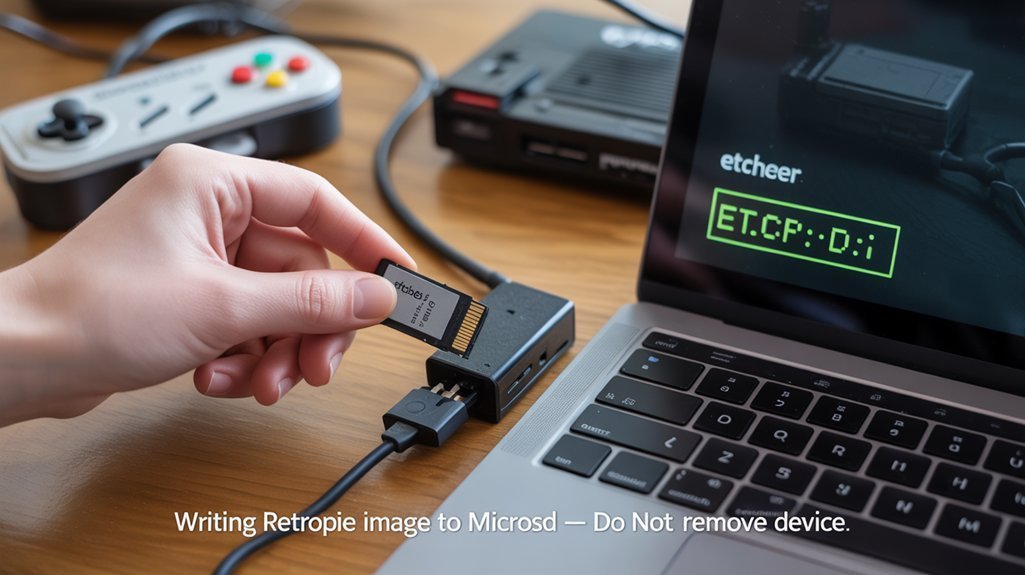
Before you write the image, make sure your extracted .img file is ready and your formatted microSD card is inserted into the PC; you’ll use a flashing tool (balenaEtcher, Win32 Disk Imager, or Raspberry Pi Imager) to overwrite the card with the RetroPie image.
Use a quality 16GB+ card, format appropriately (FAT for <64GB, exFAT for larger), and confirm extraction finished. Also ensure you have a compatible Raspberry Pi model on hand Raspberry Pi 3. It is recommended to format the card first because Win32DiskImager does not perform a full format and writing requires full card access.
Then follow this concise checklist:
- Select the .img, pick the correct microSD destination, start the flashing process.
- Wait for completion; flashing duration depends on card speed and connection.
- Safely eject, inspect boot partition, and retain a backup image.
First Boot and Controller Configuration
Power up the Pi only after inserting the RetroPie microSD and connecting your display and controller(s); attach the power supply last and watch the status LED and boot screen within a few minutes. You’ll be prompted to map inputs—press and hold a button to begin. If a USB controller isn’t detected, unplug and retry; use RetroPie tools for controller troubleshooting. For wireless, enable Bluetooth, start discovery, put the controller in pairing mode and complete Bluetooth pairing; assign player profiles.
Use the setup script to remap, test inputs, enable hotkeys, or inspect logs for driver errors. Ensure you use a regulated 5V supply within the acceptable voltage range to prevent undervoltage warnings and boot failures. Make sure you also use a proper power supply rated for your Raspberry Pi model to avoid boot or performance issues. RetroPie supports playing games from multiple consoles and includes features like achievements and save states, making it a versatile retro gaming platform.
| Step | Action | Tip |
|---|---|---|
| 1 | Boot & map | Press & hold any button |
| 2 | USB fix | Unplug/reboot |
| 3 | Bluetooth | Enable discovery |
Adding ROMs and Setting Up Network Transfers
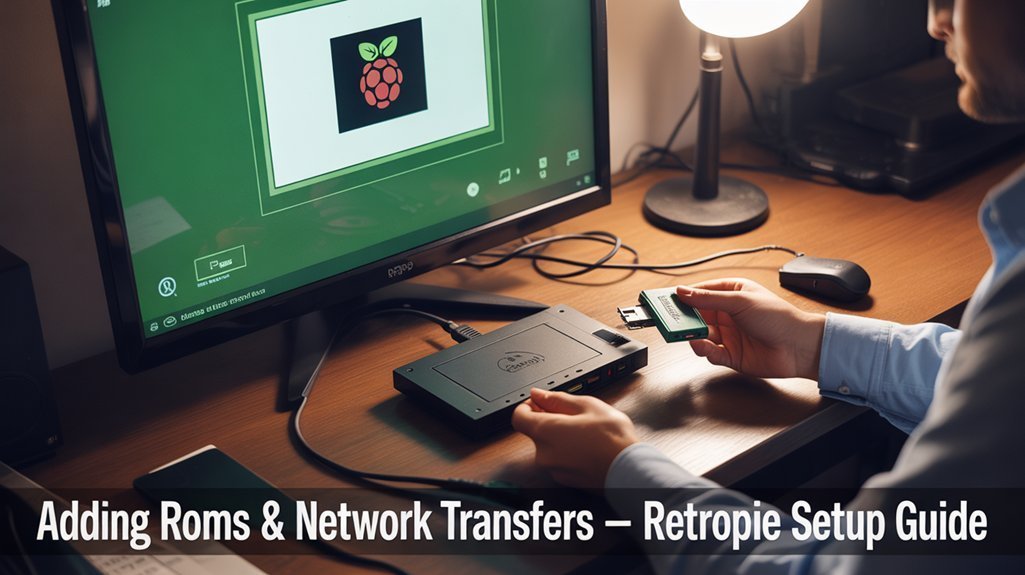
Now that your controllers are mapped and the system boots cleanly, you’ll want to get games onto the Pi—there are four practical methods: USB stick, Samba network shares, SFTP/SCP over SSH, or mounting the SD card on a PC.
- Enable USB ROM Service, create a “retropie” root folder, copy ROMs into system subfolders, plug into Pi for USB transfers.
- Turn on Samba/SSH for network sharing; use file explorer or transfer tools (WinSCP/FileZilla) to drag ROMs into roms/
. - Mount SD or use SFTP, guarantee emulator compatibility, follow ROM organization and naming, use backup strategies for resilient file management.
Performance Tweaks, Themes, and Extras
A few targeted tweaks will noticeably improve play: start by setting a stable power/thermal baseline (good 2A supply, heatsink or fan) then enable performance governor and incremental overclocking from /boot/config.txt or raspi-config, testing stability after each small CPU/GPU step. The Raspberry Pi 5’s 8GB LPDDR5 and quad-core Arm Cortex-A76 CPU help sustain better multitasking and emulation performance under load. Set force_turbo=1 cautiously for overclocking benefits; monitor temps.
Tune emulator settings in /opt/retropie/configs/all/retroarch.cfg (video_threaded=true, rewind_enable=false). Lower framebuffer, match TV native resolution, enable Game Mode, and pick better cores for N64. Stay cool and test per-game. Ensure you use a reliable power supply and quality SD card to reduce instability and data loss, as overclocking and power issues can shorten device lifespan and cause corruption (reliable power).
Frequently Asked Questions
Can I Legally Download and Use Commercial ROMS With Retropie?
No — you generally can’t legally download commercial ROMs; Roms legality depends on copyright, and Fair use rarely covers full-game downloads. Check licenses, buy official collections, or rip your owned cartridges to stay compliant and innovative.
Can I Use Retropie With Non-MicroSD Storage (SSD or USB Boot)?
Yes — despite microSD norms, you can use Non MicroSD options like SSDs; enable USB boot, flash RetroPie image to the drive, verify compatible USB‑SATA adapter and power, then enjoy superior SSD performance and reliability.
How Do I Backup and Restore My Entire Retropie Setup?
You back up by cloning the SD (rpi-clone, Win32DiskImager, Balena Etcher) or copying /home/pi/RetroPie; follow clear Backing up strategies. For restore, flash the saved .img or clone back—Restoring process is identical and hardware-aware.
Can I Run Modern Console Emulators (PS2, Gamecube) Reliably?
No — you won’t get reliable PS2 or GameCube play; emulator performance falls short. Step 1: accept limits. Step 2: try Pi 5, advanced configuration, cooling, overclocking. Step 3: prefer PC for full fidelity.
Is Retropie Compatible With Steam Controller or Switch Pro Controller?
Yes — RetroPie supports Steam Controller and Switch Pro controller. Update firmware, install drivers, pair devices, edit es_input.cfg for mappings. Troubleshoot via RetroPie Setup, driver packages, Bluetooth adapter checks, and community threads for fixes.
Conclusion
You’ve built your pixel-powered time machine: pick the Pi, prep the OS, flash RetroPie, boot and map controls, then load ROMs and tune performance. Now let that box hum like a tuned engine — overclock carefully, tweak shaders and frame limits, and keep backups. Treat the Pi like precision hardware: cool it, feed it fast storage, and update selectively. Do this, and your living room will become a retro arcade that runs like clockwork.