

If you’re working with sensors, displays or other low‑speed peripherals on a Raspberry Pi, you’ll use the I2C bus to share two lines (SDA and SCL) among multiple devices with unique addresses. You’ll enable I2C in the OS, wire pull‑ups correctly, and scan for device addresses before sending data. This guide walks through setup, Python usage, common modules and troubleshooting so you can get hardware talking reliably using the I2C bus on Raspberry Pi —starting with enabling the interface.
Key Takeaways
- I2C is a two-wire serial bus on the Raspberry Pi using SDA (GPIO2) and SCL (GPIO3) for master-slave communication with 7-bit addresses.
- The I2C interface is disabled by default; enable it via raspi-config and load the i2c-dev kernel module to access /dev/i2c-1.
- Use i2c-tools (e.g., i2cdetect -y 1) to scan for device addresses and verify connected peripherals.
- Always share a common ground, use 3.3V-compatible devices or level shifters, and include pull-up resistors on SDA and SCL.
- Troubleshoot by checking wiring, pull-ups, bus speed, device addresses, and kernel modules when devices are not detected.
What I2C Is and How It Works on Raspberry Pi
I2C (Inter-Integrated Circuit) is a two-wire serial bus that you’ll use on the Raspberry Pi to talk to many low-speed peripherals over just SDA and SCL.
The Pi typically acts as the master, toggling SCL while SDA carries address, read/write bits, data bytes and ACK/NACKs, and all devices share the same lines provided each has a unique 7-bit address and 3.3V logic levels.
You’ll leverage I2C protocols for sensor integration, exploiting Raspberry Pi advantages like shared lines and SMBus support.
Manage device addressing to prevent bus conflicts, enforce data integrity, and guarantee peripheral compatibility for robust master slave communication.
The Raspberry Pi’s I2C pins are pulled up with 1.8 kOhm resistors, so ensure connected devices support 3.3V logic levels.
Additionally, remember to connect a common ground between the Pi and peripherals to complete the circuit, as a missing ground connection can cause unreliable behavior.
Enabling I2C Bus On Raspberry Pi OS
Before you can talk to sensors and peripherals over the two-wire bus, you’ll need to enable the Pi’s I2C interface in Raspberry Pi OS; it’s disabled by default for safety and must be activated via raspi-config, the graphical Raspberry Pi Configuration tool, or non-interactively with raspi-config nonint. Use sudo raspi-config → Interface Options → I2C and reboot, or run raspi-config nonint do_i2c 0. That updates /boot/config.txt and device tree overlays to expose /dev/i2c-1.
Install i2c-tools to run i2cdetect, i2cget, i2cset. Also ensure you understand which pins on the Pi’s GPIO header correspond to the I2C SDA and SCL lines before wiring devices. Verify modules (i2c-dev) and check I2C timing when troubleshooting I2C communication and I2C applications. It is also important to enable the interface in the GUI via Raspberry Pi Configuration under Interfaces to make setup easier enable I2C. Note that you can check the current enabled state non-interactively with sudo raspi-config nonint get_i2c, which returns 0 when enabled and 1 when disabled.
Wiring and Hardware Requirements for I2C
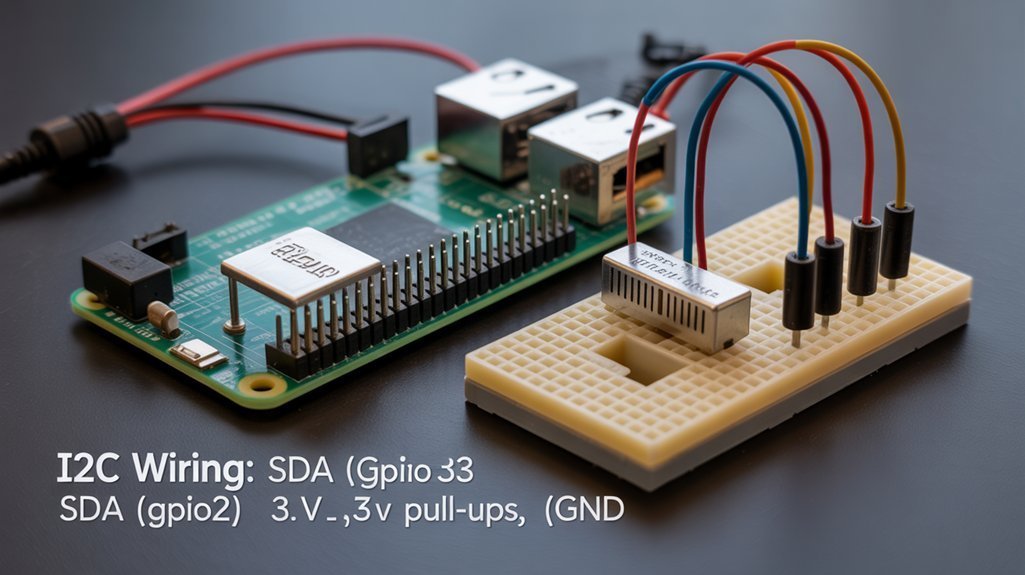
Now that the software side is enabled and /dev/i2c-1 is exposed, you’ll need to get the physical wiring and voltage setup correct before powering anything.
Use GPIO2 (SDA) and GPIO3 (SCL) for I2C devices following wiring standards: short, parallel runs, matched pins per connection diagrams.
Assure common ground and 3.3 V voltage compatibility; Pi provides 1.8 kΩ internal pull ups but add external pull up resistors for long wires or many nodes to meet pull up requirements.
Avoid 5 V signals without level shifting.
Consider current limitations for powered peripherals and use proper wiring techniques and isolation.
Be sure to enable the i2c-dev kernel module so the I2C device files appear.
Note that the Raspberry Pi typically acts as the I2C master when interfacing with most peripherals.
Scanning and Identifying I2C Devices
Scanning the bus will quickly tell you which devices are present and at which 7-bit addresses, so start by enabling I2C in raspi-config, wiring SDA/SCL with proper pull-ups, and installing i2c-tools if needed.
Use i2cdetect -y 1 for fast I2C scanning; results show a hex matrix with addresses like 0x77 or 0x60.
Match found addresses to known devices for Device identification. If output shows — or missing devices, perform I2C troubleshooting: check wiring, pull-ups, bus number, and power.
For embedded projects, you can scan programmatically (Node.js, MicroPython) to automate discovery. It’s also useful to verify the known presence of pull-up resistors on the Pi’s GPIO header built-in pull-ups before adding externals.
You can also use the Node.js i2c-bus package to scan and interact with devices programmatically, as it exposes both promisified APIs and synchronous methods.
Using I2C With Python and the Smbus Library
Install and import the SMBus library, create an SMBus object for the correct bus number (usually 1 on modern Pis), and use its read/write methods to talk directly to device registers. For installing smbus use apt or pip (smbus2 preferred). Create i2c_bus = smbus.SMBus(1), set i2c_address, then use read_byte_data/write_byte_data to access registers. Verify I2C enabled and /dev/i2c-1 present. Use SMBus2 i2c_msg for complex transfers. Table shows common calls and purpose:
| Method | Params | Purpose |
|---|---|---|
| read_byte_data | addr, reg | read register |
| write_byte_data | addr, reg, val | write register |
| i2c_msg | read/write | custom transfer |
| scan | – | discover addresses |
The Raspberry Pi’s I2C interface is typically provided on GPIO2 and GPIO3 and is implemented by the Broadcom BSC controller. Also be aware that many Raspberry Pi models have I2C enabled by default in the OS, but it still must be enabled in raspi-config or the device tree for some setups modern Pis.
Common I2C Devices and Projects for Raspberry Pi
Many Raspberry Pi projects use I2C because it lets you connect multiple sensors and peripherals with just two pins (SDA, SCL), so you can add compasses, temperature sensors, RTCs, OLEDs, ADCs, and GPIO expanders without complex wiring.
I2C makes Raspberry Pi projects simple — connect compasses, temp sensors, RTCs, displays and expanders using just SDA and SCL.
You’ll integrate common sensors like CMPS03 compasses, TC74 temps, ADXL343 accelerometers, SRF08 ultrasonic range finders, and EEPROMs for logging.
Use display modules such as OLEDs or LCD1602 with I2C backpacks for compact readouts, or LED matrix drivers and 7-segment drivers for numeric output.
Expansion boards include PCF8574 GPIO expanders, DS3231 RTCs, ADS1115 ADCs, MCP4725 DACs.
Project types span environmental monitoring, robotics, data logging, wearables, and home automation. Many beginners find the Pico especially approachable for these projects because it supports MicroPython and simple GPIO/I2C access. I2C must be enabled in Raspberry Pi configuration tools and verified with utilities like i2cdetect -y 1.
Troubleshooting I2C Issues and Best Practices
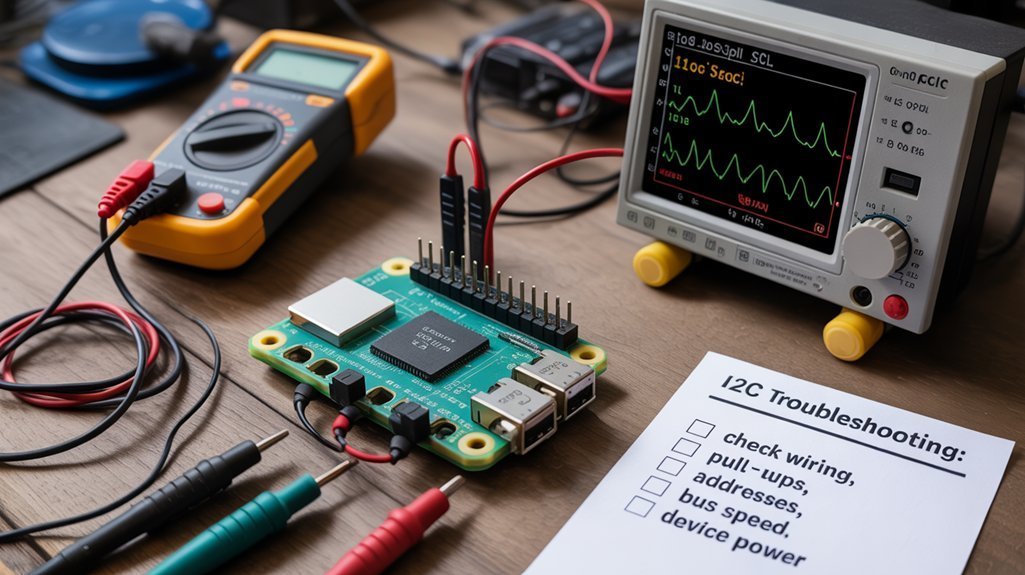
First, make sure I2C is enabled in raspi-config and reboot so /dev/i2c-1 appears. If you manage the Pi remotely, use SSH key authentication when enabling I2C to secure access.
Then inspect wiring: SDA to SDA, SCL to SCL, a common ground, and firm solder/jumper connections to avoid intermittent contact.
Finally verify proper pull‑ups are present (or provided by the sensor) and, if you see Errno 121 or missing addresses in i2cdetect, try slower bus speeds or an alternate GPIO‑based I2C bus. For example, many Raspberry Pi systems include the i2c-tools package which can help diagnose bus issues. Additionally, confirm your Raspberry Pi’s firmware and OS are up to date to avoid known I2C compatibility problems.
Check I2C Enablement
Because the I2C interface is disabled by default on Raspberry Pi, you should enable it before connecting devices and troubleshooting bus issues. Modern Raspberry Pi models expose GPIO pins at 3.3V logic levels, so avoid applying higher voltages.
Use sudo raspi-config (Interface Options > I2C) or Raspberry Pi Configuration (Interfaces tab) to enable I2C protocols support and reboot immediately.
Verify enablement with lsmod to see i2c_bcm2708/i2c_dev and run i2cdetect -y 1 to scan the bus.
If modules aren’t present, check raspi-blacklist.conf, append i2c-bcm2708 and i2c-dev to /etc/modules, update OS/firmware, then reboot.
Keep I2C libraries and tools current for reliable development and reproducible hardware behavior.
The Raspberry Pi uses GPIO2 (SDA) and GPIO3 (SCL) for the I²C bus so ensure you connect devices to those pins.
You can confirm the kernel is loading I2C support by checking module listings and dmesg for I2C status.
Wiring and Pull‑ups
With I2C enabled and modules loaded, check the physical connections next: wire your device SDA to GPIO2 and SCL to GPIO3, share a common ground, and power the peripheral at its required voltage (use a level shifter for 5V devices). Also ensure you use a regulated 5V supply capable of delivering sufficient current for the Pi and peripherals. Verify the Pi’s onboard 1.8 kΩ pull-ups to 3.3V and avoid parallel strong resistors. For long runs or many nodes, calculate pull up configurations (2.2–10 kΩ) to balance rise time and current.
Confirm unique addresses, use short twisted pairs, lower clock speed if errors occur, and consider buffers or isolators for robust I2C protocols in innovative projects. Additionally, remember that many I2C devices like the MCP23017 are commonly used for GPIO expansion, so you may need to configure their direction registers before use.
Frequently Asked Questions
Can I Run Multiple Pi Models on the Same I2C Bus Simultaneously?
You can, but you’ll hit limits: I2C device addressing and shared bus topology force one master or careful arbitration; identical addresses conflict. Use multiplexers, distinct addresses, or alternative links (SPI, UART, Ethernet) for reliable multi‑Pi setups.
How Do I Secure I2C Communications Against Tampering?
You secure I2C communications by using I2C encryption techniques, secure device pairing, shielding and short cables, hardware watchdogs, pull‑ups and termination, CRC/MACs, TPMs or secure elements, and strict access controls plus firmware integrity checks.
Can I Use I2C Over Long Distances Reliably?
Not reliably without hardware: you’ll face I2C distance limitations, so use buffers/extenders, shielded I2C cable types like RG58 coax, strong pull-ups, lower speeds, and watchdogs to maintain signal integrity and recovery.
Are There Real-Time Performance Limits With I2C on Raspberry Pi?
Yes — you’ll hit real-time limits: I2C advantages like simplicity clash with I2C disadvantages such as unreliable clock stretching and limited throughput, so you’ll need slower baudrates, careful tuning, or alternative buses for deterministic performance.
How Do I Add Hardware-Level Acknowledgments or Retries?
You enable hardware acknowledgments via the Pi’s I2C controller (driver handles ACK/NACK) and implement I2C retries in software: catch NACK exceptions, pause, reinitialize the transaction, toggle SCL/SDA for bus recovery, repeat.
Conclusion
You’ve seen how I2C gives your Raspberry Pi a simple two-wire way to talk to sensors and displays, and how to enable, wire, scan, and code it. Test the theory that a loose SDA/SCL or wrong pull-up causes intermittent failures: reseat connectors, measure pull-up resistance, and watch signals with a scope or logic analyzer — you’ll usually find the culprit. Follow wiring rules, use correct addresses, and your I2C projects will run reliably.