

About 80% of Wi‑Fi networks use WPA/WPA2, so knowing how to test them matters. You’ll set up a Raspberry Pi Kali Linux wi-fi penetration device, pick a compatible USB adapter, and run targeted Aircrack-ng workflows step by step. You’ll capture handshakes, use deauthentication carefully, and try offline cracking with smart wordlists — but there’s one essential configuration you must get right before you begin.
Key Takeaways
- Prepare a Raspberry Pi with a verified Kali ARM image, update packages, and change default credentials before beginning any tests.
- Choose a compatible USB Wi‑Fi adapter with supported chipset/driver for monitor mode and packet injection (e.g., Atheros, supported Realtek).
- Enable monitor mode with airmon-ng, capture target BSSID/channel using airodump-ng, and save handshake captures for offline analysis.
- Use aireplay-ng (only with authorization) to deauthenticate clients to accelerate handshake captures, then verify captures with Wireshark/tshark.
- Perform offline cracking responsibly using aircrack-ng or hashcat with curated wordlists, logging results and adhering to legal and ethical rules of engagement.
Preparing Your Raspberry Pi Kali Linux Wi-Fi Penetration Testing Image
Before you start, gather the right hardware and a verified Kali image: get a minimum 16 GB Class 10 microSD card, a compatible Pi (Pi 2/3/4/400/Zero or Pi 5 with 64‑bit), a suitable power supply, USB keyboard/mouse, and a card reader if your PC needs one; then download the Raspberry Pi‑specific Kali ARM image from the official Kali site and optionally verify it with Offensive Security’s GPG key to guarantee integrity. The Raspberry Pi was developed to promote coding and creativity and remains a community-driven platform.
You’ll follow clear installation prerequisites: confirm Pi model, power rating, and microSD capacity. Use Raspberry Pi Imager for straightforward imaging or dd if you prefer manual control, taking care to select the correct device. Format the microSD card as FAT32 when preparing it manually to ensure compatibility with older installers and some Pi boot methods. Perform image validation before boot. After imaging, change default credentials and update packages to secure and stabilize your innovative testbed. Kali on Raspberry Pi provides a portable penetration platform for on-the-go testing.
Choosing and Configuring Wi‑Fi Adapters for Monitor Mode
When you pick a Wi‑Fi adapter for Kali on your Raspberry Pi, focus on chipset and driver support first, since those determine whether you’ll get monitor mode, packet injection, and AP capabilities rather than the brand name or case design. Ensure your Raspberry Pi’s kernel version and driver support match the adapter requirements to avoid incompatibilities.
Verify adapter compatibility and chipset selection (Atheros AR9271, Ralink RT2800/RT3070, certain Realtek) before buying; watch out for hardware revisions like TL‑WN722N v2/v3. Prioritize driver support and community resources for stable kernels.
- Check supported modes with iw and iwconfig; set interface down, switch to monitor mode, bring it up.
- Test packet injection with aireplay-ng and other testing tools; confirm signal range and antenna options.
- Use portable options, USB extension to avoid USB 3.0 noise; follow troubleshooting steps if monitor fails.
Also consider the adapter’s chipset-driver pairing since monitor mode support often depends on driver availability and kernel compatibility. Devices with certain vendor chipsets may require modified firmware on some platforms.
Essential Aircrack‑ng Commands and Workflow
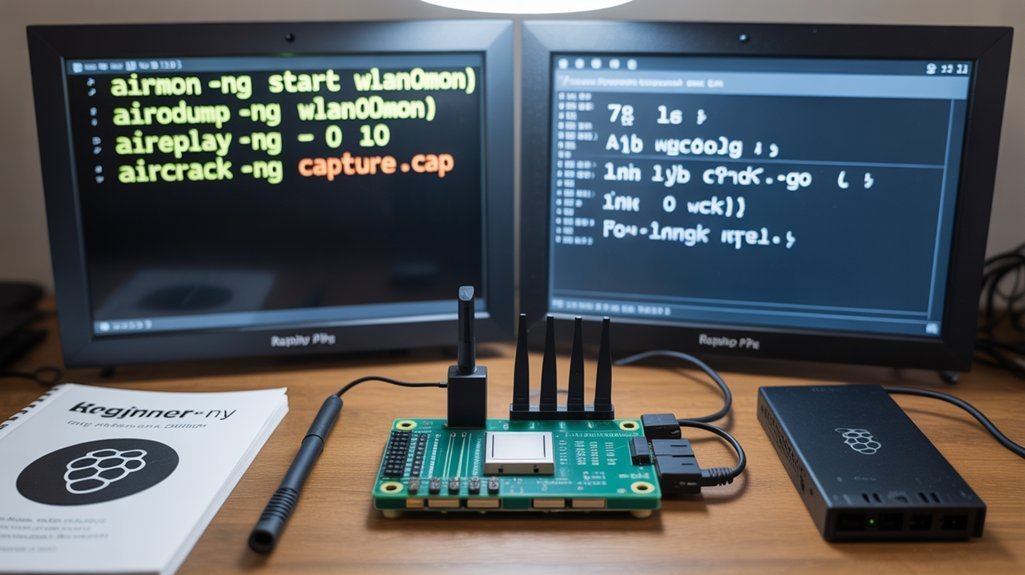
First, you’ll put your adapter into monitor mode with airmon-ng (start
Next, you’ll capture WPA/WPA2 handshakes with airodump-ng, isolate valid handshakes using wpaclean, and confirm the target BSSID and channel.
Finally, you’ll run aircrack-ng against the cleaned capture with a wordlist to perform an offline dictionary attack, adjusting options like -w and -b as needed. Many wireless cards require a patched driver for packet injection to work reliably, so check hardware compatibility and install the correct driver with the patched driver recommended for your adapter. Additionally, ensure your system has the required dependencies installed for aircrack-ng to function properly.
Interface Setup and Monitoring
Although setting up a wireless interface for monitoring requires a few deliberate steps, you can quickly put a card into monitor mode with airmon-ng and verify it’s ready for packet capture.
First, run airmon-ng to list interfaces, then airmon-ng start
Use airmon-ng check to spot conflicting processes and airmon-ng check kill to stop them.
When finished, restore normal operation with airmon-ng stop
- Start monitor mode and optionally fix channel with airmon-ng.
- Verify status and kill interfering services before capture.
- Use airodump-ng
to begin focused packet capture, save .cap/.csv outputs.
Work methodically, keep interfaces tidy, and target data efficiently. It is important to ensure your wireless card supports packet injection packet injection. Additionally, many systems require installing development packages like Autoconf/Automake/Libtool to compile and use the latest Aircrack-ng tools.
Capturing Wpa/Wpa2 Handshakes
Now that your interface is in monitor mode and you’re capturing packets with airodump-ng, you’ll focus on obtaining the WPA/WPA2 4‑way handshake — the packet exchange you need for offline password cracking. For secure remote operations consider using SSH key authentication when managing distributed Pi devices.
You’ll apply capturing techniques: run airodump-ng targeting the AP’s BSSID and channel, writing .cap files while you monitor for the “WPA handshake” indicator.
Use deauthentication methods with aireplay-ng to force client reauthentication (common: -0 2-5 -a
Afterward perform packet analysis with tshark/Wireshark to verify all four handshake messages, validate MICs and nonces, and extract clean handshake captures.
This rigorous workflow aligns cracking strategies with verification processes, improving efficiency and reducing false starts during offline attacks.
Deauthentication attacks can be effective but require physical proximity to associated clients for reliable results.
The handshake process ensures mutual proof of knowledge while deriving ephemeral keys, so capturing it lets you perform offline attacks on the Pairwise Transient Key.
Offline Cracking With Wordlists
Once you’ve confirmed a clean WPA/WPA2 4‑way handshake in your capture file, you’ll use aircrack‑ng with targeted wordlists to perform offline dictionary attacks; specify the BSSID and wordlist with `aircrack-ng -w wordlist.txt -b
Scanning and Selecting a Target Network Safely
Anyone preparing to scan Wi‑Fi should prioritize safety, legality, and proper setup before touching a packet capture or discovery tool. You’ll verify adapter compatibility, enable monitor mode with airmon-ng, and disable NetworkManager to avoid interference. Emphasize target identification and ethical scanning: get written permission or use an isolated lab.
| Step | Purpose |
|---|---|
| Verify interface (ifconfig/iwconfig) | Confirm device visibility |
| Enable monitor (airmon-ng) | Passive observation only |
| Choose scan method | Passive for stealth; active for discovery |
Use netscanner, netdiscover, arp-scan, and nmap sequentially: passive first to minimize footprint, then controlled active probes only with authorization. Assess RSSI and channel to select a proximate, lawful target. Nmap is a powerful network exploration tool that supports ping scanning to determine which hosts are up and discover open services. Additionally, you can run arp-scan on the local subnet to quickly enumerate IPs and MACs before deeper probing.
Capturing WPA/WPA2 Handshakes and Using Deauthentication
Capturing WPA/WPA2 handshakes on Kali requires you to run your wireless adapter in monitor mode and use airodump-ng to record the four-way exchange for the target ESSID and channel; if no clients are actively authenticating you can selectively force a reconnection with aireplay-ng deauthentication frames to prompt a fresh handshake.
You’ll enable monitoring frames capture, focus airodump-ng on the AP’s channel and ESSID, and save the .cap file. When clients reconnect, they produce the nonce and MAC elements needed for key derivation.
Use aireplay-ng to target specific stations, deauthenticating clients selectively to reduce noise and detection risk. Clean up monitor mode after capture to restore networking.
- Put interface in monitor mode
- Run airodump-ng on target channel
- Use targeted aireplay-ng deauthenticating clients
You should also ensure you have installed and configured the required tools such as aircrack-ng and screen to run the workflow effectively aircrack-ng package. Additionally, understanding the WPA/WPA2 four-way handshake is essential for confirming that the captured .cap contains all necessary elements for offline cracking (four-way handshake).
Offline Cracking Techniques and Wordlist Strategies
After you’ve saved a clean WPA/WPA2 handshake, you move into offline cracking where all testing happens locally against the capture file.
You’ll use tools like Aircrack-ng, hashcat, or John the Ripper for password recovery, leveraging GPUs where possible to boost speed.
Prioritize high-quality captures to avoid wasted cycles.
For wordlist strategies, combine large public lists with custom, target-specific entries (SSID, related keywords) and apply mangling rules to simulate user behavior.
Use Crunch or CUPP to generate focused lists and preprocess to remove duplicates.
Apply rule-based and hybrid attacks to extend coverage beyond raw dictionaries.
Monitor attack effectiveness by tracking candidate throughput and iterating wordlist composition until you converge on successful recovery.
Kali NetHunter Pro on devices like the PinePhone Pro can be used for such testing when paired with a compatible external Wi-Fi adapter to enable monitor mode and packet capture compatible adapter.
This guide is intended for ethical use and assumes you have permission to test the networks in question.
Reporting Findings, Legal Considerations, and Best Practices
Because wireless assessments touch both technical systems and legal boundaries, you should document findings clearly, get explicit written authorization, and follow agreed rules of engagement before testing. Also be sure to apply firmware updates and system patches before assessments to reduce avoidable vulnerabilities.
Because wireless assessments cross technical and legal lines, document findings, obtain written authorization, and follow engagement rules.
You’ll structure reports with an executive summary, technical findings, impact assessment, remediation steps, and appendices that balance depth with clarity.
Prioritize risks, include evidence, and validate fixes after remediation.
Observe legal considerations: keep permissions, avoid disruption, and protect sensitive data.
Uphold ethical conduct by testing only in scope and reporting honestly. Align processes with compliance alignment standards and retain records to demonstrate due diligence.
- Report scope, methods, and exploitable vs. unexploited vulnerabilities.
- Include actionable remediation and validation steps.
- Preserve confidentiality and documented permissions.
Remember to perform a comprehensive vulnerability analysis that examines encryption, authentication, and device configuration as part of your testing workflow. Additionally, incorporate network discovery early to map assets and identify targets before exploitation.
Frequently Asked Questions
Can I Run GPU-Accelerated Cracking From the Raspberry Pi Remotely?
Yes — you can do remote cracking, but you’ll mostly rely on CPU; GPU performance is experimental, unstable, and limited on Pi, so you’ll offload heavy GPU workloads to remote GPU rigs for reliable, faster results.
How Do I Set up Persistent Logging of All Wireless Activity on the Pi?
Treat your Pi like a vigilant lighthouse: you’ll deploy wireless monitoring, install logging tools (Kismet/Wireshark), write a continuous script, create a systemd service, mount external storage, and enable log rotation so data persists reliably.
Can I Use the Pi to Perform Evilap/Man-In-The-Middle (Mitm) Attacks?
Yes — you can use the Pi for EvilAP setup and MITM techniques, but you’ll need compatible Wi‑Fi adapters, proper tools, technical skill, and explicit authorization; misuse is illegal and ethically unacceptable, so proceed responsibly.
What Precautions for Physical Security and Anti-Tamper Should I Take in the Field?
40% of lost gear is due to casual theft — you’ll enforce field logistics: use tamper-evident seals, RFID-blocking bags, hardened enclosures, stealthy device concealment, chained custody logs, and anti-tamper sensors with automatic data lockdown.
How Do I Securely Transfer Large Capture Files From Pi to My Desktop for Analysis?
Use SFTP or SCP over SSH to perform secure transfer; compress and split large capture files, or copy to an encrypted external drive, then verify integrity before file analysis to maintain confidentiality and efficient processing.
Conclusion
You’ve walked through preparing your Pi, tuning adapters, using aircrack-ng, and responsibly gathering handshakes—now you’re ready to practice in controlled environments. Treat every test as a “safety rehearsal,” documenting methods and results clearly and avoiding real-world mischief. Stay within legal boundaries, favor responsible disclosure, and refine wordlist and cracking techniques thoughtfully. With discipline and curiosity, you’ll turn these foundations into reliable, ethical security skills.