

You’ve likely encountered the frustrating processing limitations of your Raspberry Pi when running intensive tasks. Standard Pi computing power simply won’t cut it for AI applications, computer vision, or parallel processing workloads. Connecting a dedicated GPU with a Raspberry Pi can transform it into a capable computing platform—but it’s not as straightforward as plugging in a peripheral. The process involves specific hardware requirements, power considerations, and specialized software configurations that aren’t well-documented in standard Pi resources.
Key Takeaways
- AMD Polaris GPUs (particularly RX 460 4GB) are most compatible with Raspberry Pi 5’s PCIe Gen 3 x1 slot.
- External power supply (75W+) with PCIe connectors is required as Pi’s built-in power is insufficient for GPU operation.
- PCIe connection requires adapters like Pineboards HatDrive to convert Pi 5’s FFC connection to an M.2 slot.
- Custom kernel compilation with appropriate GPU drivers must be performed using the Raspberry Pi Linux repository.
- Thermal management solutions including fans and heatsinks are essential to prevent overheating during GPU operations.
Required Hardware Components for Pi GPU Integration
When integrating a GPU with your Raspberry Pi, you’ll need to assemble several critical hardware components that work in concert to create a functional PCIe-based graphics acceleration system.
AMD Polaris GPUs, particularly the RX 460 4GB, offer prime compatibility with the Pi 5’s PCIe Gen 3 x1 slot and mature open-source driver support. The superior CPU architecture of the Raspberry Pi 5 enhances the overall performance for tasks that require GPU acceleration.
AMD’s Polaris GPUs deliver ideal compatibility with Raspberry Pi 5, combining PCIe Gen 3 integration with robust open-source driver support.
You’ll require a PCIe adapter board that interfaces with the Pi 5 while providing adequate power delivery and signal integrity.
Thermal management solutions are essential—active cooling fans and heatsinks prevent overheating during GPU operations.
A robust external power supply (75W+) with appropriate PCIe power connectors guarantees stable operation. The setup requires a JMT external stand with OCuLink connection to properly integrate the graphics card with your Pi system.
GPU compatibility considerations should prioritize PCIe Gen 3 support while avoiding Nvidia cards due to driver limitations on the Pi platform.
The Pineboards HatDrive is an effective solution that converts the Pi 5’s PCIe FFC connection to a usable M.2 slot.
Setting Up PCIe Connections and Power Supply
Establishing a proper PCIe connection between your Raspberry Pi 5 and GPU requires careful attention to both data and power pathways.
You’ll need to leverage the Pi 5’s native PCIe Gen 3 x1 bus through an M.2-to-PCIe adapter or breakout board.
First, enable maximum throughput by adding `dtparam=pciex1_gen=3` to your `/boot/firmware/config.txt`.
While PCIe adapters bridge the physical connection, they’re constrained to x1 bandwidth despite accommodating x4 M.2 devices.
For power requirements, recognize that the Pi’s PCIe port delivers only 5W—drastically insufficient for GPUs needing 75W+.
You’ll need a dedicated ATX power supply with 6/8-pin PCIe connectors directly powering your GPU.
Confirm the PSU powers on before booting your Pi to prevent initialization failures.
Initial tests with graphics cards like Nvidia GT210 have shown driver compatibility issues requiring extensive troubleshooting and kernel rebuilding.
Installing and Configuring GPU Drivers on Raspberry Pi
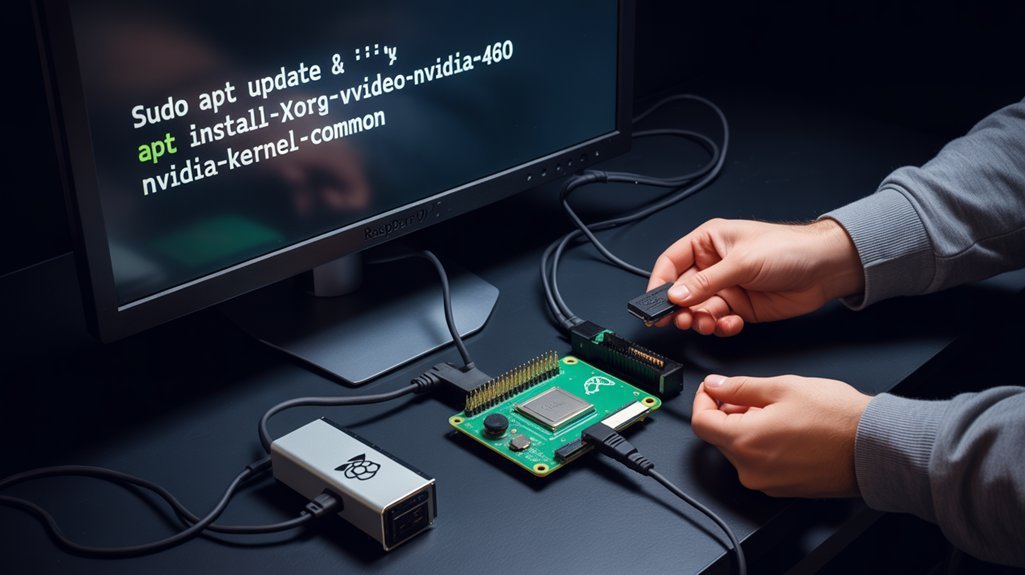
Installing proper GPU drivers on your Raspberry Pi requires careful kernel-level configuration, as these ARM-based devices aren’t natively designed to interface with desktop graphics cards.
Raspberry Pis lack native architecture for desktop GPU integration, requiring extensive kernel modifications for proper driver implementation.
You’ll need to compile a custom kernel with support for your specific GPU architecture, whether AMD, Nvidia, or other variants.
- Clone the Raspberry Pi’s Linux kernel repository and run `make menuconfig` to enable the appropriate GPU driver modules.
- Execute kernel compilation with `make -j4 zImage modules dtbs` then install with `sudo make modules_install`.
- Implement custom memory alignment fixes through library preloading if required (e.g., `/etc/ld.so.preload`).
After driver installation, verify module configuration using `lsmod` and `dmesg` to confirm suitable loading.
Troubleshoot by examining kernel logs for initialization errors and ascertain necessary firmware packages are installed via apt.
When using Nvidia GPUs like the GT 710, you may encounter PCIe ASPM issues that require adding configuration parameters to your boot settings.
For a stable setup, ensure your Raspberry Pi has the proper power supply requirements, as models like Pi 5 need a 5V/5A USB-C power supply to handle additional GPU power demands.
Performance Benchmarks and Real-World Capabilities
Performance testing reveals the Raspberry Pi 5’s GPU capabilities markedly outpace its predecessors, with glmark2 scores reaching approximately 2000—nearly 2.5 times higher than the Pi 4’s 778 rating.
This translates to tripled frame rates in 720p gaming scenarios and doubled graphical rendering performance through the VideoCore 7 architecture. The substantial benchmark comparisons aren’t merely theoretical; you’ll experience tangible graphical improvements in image processing tasks, with operations completing in less than half the time previously required. Additionally, the GPU supports dual 4Kp60 displays, enhancing multimedia experiences significantly.
Gaming efficiency benefits from the 30,000 MBps memory bandwidth—a dramatic improvement from Pi 4’s 4,000-6,000 MBps range.
These GPU improvements contribute to the Pi 5’s impressive position as a viable daily driver for many users, according to comparative benchmarks.
For peak GPU performance during sustained workloads, implement active cooling to prevent thermal throttling.
While impressive for embedded applications, remember these capabilities remain modest compared to desktop-grade solutions.
The intensive benchmark testing involves running multiple scenes to thoroughly evaluate the GPU’s handling capabilities across various graphical rendering scenarios.
Troubleshooting Common Issues and Optimization Tips
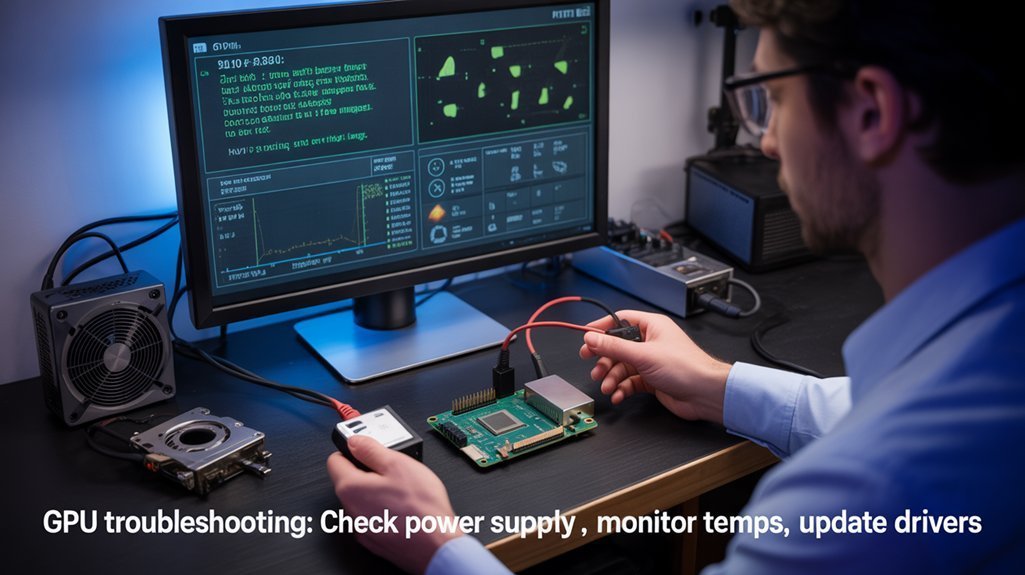
When implementing GPU functionality on your Raspberry Pi, you’ll likely encounter several common issues that can impede ideal performance.
Insufficient power supply is a primary culprit, evidenced by random reboots and the yellow lightning bolt icon. Always use properly rated official power supplies to maintain stability.
Kernel messages accessible via `dmesg` provide essential diagnostic information when GPU initialization fails. For optimization, allocate adequate GPU memory (at least 256MB) through `raspi-config` and keep firmware updated with `sudo rpi-update`. Enabling the Glamor acceleration feature can resolve black screen issues when working with camera modules.
- Yellow lightning bolt flickering on your display as current fluctuates and the GPU struggles for sufficient power
- Terminal filling with red error codes during driver initialization attempts
- Heat sink glowing as thermal throttling activates during intensive GPU computation
To resolve compatibility issues, consider switching between modern and legacy drivers depending on your specific use case. Using Class 10 SD cards is essential for optimal performance and stability when running GPU-intensive applications.
Frequently Asked Questions
Can a GPU with a Raspberry Pi Support Machine Learning Frameworks Like Tensorflow?
You’ll face TensorFlow compatibility limitations as Pi’s GPU lacks native acceleration. Use TensorFlow Lite with CPU or consider external accelerators like Coral TPU for effective machine learning deployment.
Will Older Raspberry Pi Models Work With External GPUS?
No, most older Pi models won’t work with external GPUs due to compatibility issues. Only Compute Module 4 offers PCIe connectivity, but you’ll face severe performance expectations due to bandwidth limitations.
How Does GPU Power Consumption Affect Total System Heat Output On a Raspberry Pi?
Your GPU’s power draw directly increases system heat output. Effective heat management requires advanced cooling solutions to maintain power efficiency and prevent throttling that degrades system performance under computational loads.
Can a GPU with a Raspberry Pi Handle Video Editing or CAD Software?
Wondering about Pi’s capabilities? You can handle basic video editing with GPU-accelerated software compatibility, but expect limited video rendering performance. CAD workloads remain challenging due to the VideoCore GPU’s computational constraints.
Are There Any Successful Cryptocurrency Mining Setups With Raspberry Pi GPUS?
No, you won’t achieve cryptocurrency mining profitability with Pi GPUs. Their limited processing architecture and power efficiency constraints create insurmountable computational bottlenecks for effective hash rate generation.
Explore using a GPU with a Raspberry Pi!
Hooking up a GPU to your Raspberry Pi 5 feels like teaching a compact car to sprint like a racehorse. You’ll need to carefully balance power requirements, optimize cooling circuits, and compile custom driver modules. With the right AMD Polaris GPU and PCIe configuration, you can achieve computational acceleration that exceeds the Pi’s native capabilities by orders of magnitude—though you’ll need to troubleshoot electrical and thermal constraints.