

You’ll find that adding an M.2 SSD on Raspberry Pi 5 dramatically improves storage performance over SD cards. This upgrade requires a compatible NVMe drive and proper handling to avoid ESD damage. The process involves careful physical installation, followed by essential software configuration to enable full PCIe Gen 3 speeds. With just a few terminal commands and a config file adjustment, you’ll transform your Pi’s capabilities—but there’s more to optimizing this setup than meets the eye.
Key Takeaways
- Ensure compatibility by using an NVMe M.2 drive with Raspberry Pi 5 and a proper adapter like the Pi M.2 HAT+.
- Prepare your workspace, align the SSD’s notch with the socket, and secure it with a bolt without overtightening.
- Connect the adapter to the Raspberry Pi using stacking headers and spacers for proper mounting.
- Add ‘PCIE_PROBE=1’ parameter and update config.txt to enable PCIe Gen 3 for optimal performance.
- Verify installation by checking SSD detection with ‘lsblk’ command and review kernel messages with ‘dmesg | grep nvme’.
Understanding the Benefits of M.2 SSDs for Raspberry Pi
M.2 NVMe SSDs represent a considerable leap forward for Raspberry Pi storage solutions, particularly when paired with the Pi 5’s PCIe interface.
You’ll experience dramatic performance improvements through direct PCIe connectivity that eliminates USB bottlenecks, delivering speeds comparable to desktop NVMe drives. Benchmarks show that NVMe drives deliver approximately 5x faster speeds compared to micro SD cards in sequential read tests.
The advantages extend beyond raw speed. Your data handling capabilities improve greatly as the low-latency access reduces file transfer times and accelerates application loading. This is particularly beneficial for data-intensive workloads like media servers or databases, where consistent throughput makes a tangible difference.
Boot times decrease markedly, while system operations become more responsive. For demanding workloads like media servers or databases, the consistent throughput makes a tangible difference.
Unlike SD cards, NVMe SSDs offer superior endurance with considerably more write cycles, ensuring long-term reliability for your projects.
This combination of speed, reliability, and compact form factor transforms your Pi 5 into a capable computing platform.
The official Raspberry Pi NVMe SSDs come in both 256GB and 512GB capacities, providing ample storage for most applications.
Checking Hardware Requirements and Compatibility for an M2 SSD on Raspberry Pi
You’ll need a Raspberry Pi 5 with its native PCIe Gen 3 interface, as earlier Pi models lack direct NVMe support and require USB adapters instead.
Confirm your SSD is specifically an NVMe M.2 drive (not SATA M.2) in either 2230 or 2280 form factor, depending on your HAT’s specifications.
Pair your setup with a compatible adapter like the official Raspberry Pi M.2 HAT+ or Pimoroni NVMe Base, ensuring you’ve also secured a 27W+ power supply to handle the combined power requirements. For optimal performance, choose official SSDs that have been tested for compatibility with Raspberry Pi models and peripherals. Proper cooling solutions are essential when using NVMe SSDs with Raspberry Pi 5 as they can generate significant heat during high workloads.
SSD Type Considerations
When selecting an SSD for your Raspberry Pi, understanding the precise hardware requirements is critical for successful installation and ideal performance.
The Pi 5 exclusively requires NVMe SSDs using PCIe lanes—SATA M.2 SSDs won’t work despite similar physical appearance. NVMe advantages include markedly faster data transfer rates and proper utilization of the Pi 5’s PCIe Gen 3 x1 connectivity, while SATA limitations make those drives fundamentally incompatible. The NVMe Base for Raspberry Pi 5 transforms the device into a versatile machine suitable for desktop use, media playback, or file serving. Boot times with NVMe drives remain comparable to microSD at roughly 6-8 seconds with Pi OS.
- Choose an NVMe SSD with NVMe 1.4 protocol compliance
- Select appropriate M.2 form factors (2230, 2242, or 2280) based on your HAT or adapter
- Verify the SSD includes thermal management features to prevent throttling
Official Raspberry Pi SSDs guarantee compatibility, but third-party options work when properly matched to specifications, often providing higher capacities for demanding applications.
Compatibility Verification Steps
Verifying compatibility between your Raspberry Pi 5 and an NVMe SSD requires systematic checking across multiple critical areas before installation. Begin by confirming your SSD’s controller isn’t among problematic models like the Phison PS5022 series, a common pitfall in compatibility testing. Consider the various performance specifications available, including 40k IOPS for 4kB random reads on the 256GB model. The official Raspberry Pi SSD kit includes 256GB NVMe storage that has been thoroughly tested for compatibility.
| Compatibility Factor | What to Check | Common Issues |
|---|---|---|
| Form Factor | M.2 2230/2242 size | Larger SSDs won’t fit HAT+ |
| Controller | Avoid Phison PS5022 | Instability, boot failures |
| PCIe Generation | Gen 2-3 compatible | Gen 4-5 excessive power draw |
| Power Requirements | Under 8W consumption | System crashes, throttling |
| Firmware | Latest SSD firmware | Unrecognized drive, errors |
Ensure you’re using the official M.2 HAT+ adapter and verify your bootloader supports NVMe boot. Consider adding `pcie_aspm=off pci=pcie_bus_safe` boot parameters for improved stability with challenging drives.
Selecting the Right M.2 SSD for Your Raspberry Pi
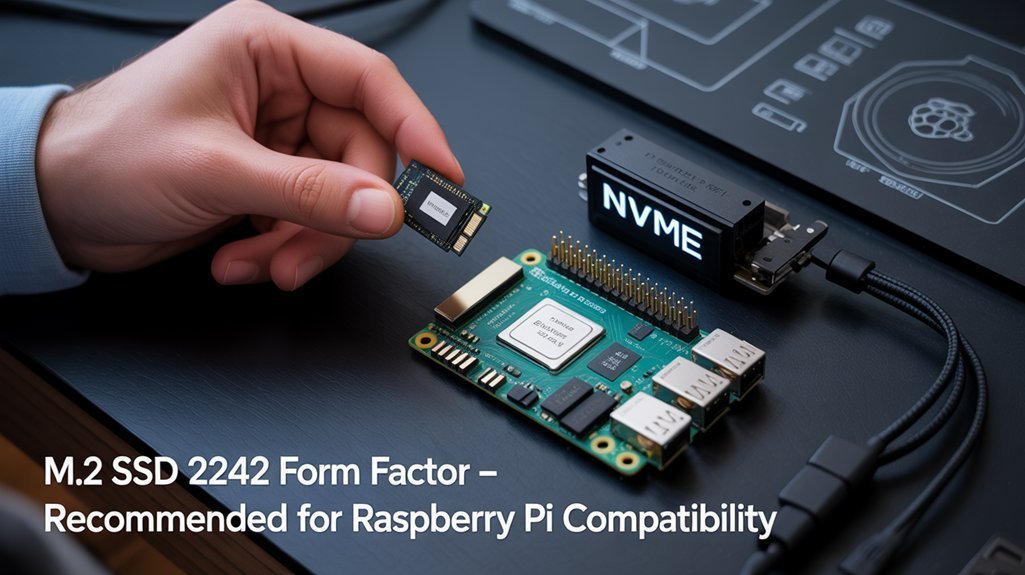
When selecting an M.2 SSD for your Raspberry Pi, you’ll need to confirm three critical compatibility factors: the M.2 2230 form factor (not the larger 2280 size), PCIe Gen 3 with NVMe 1.4 protocol support, and controller chips that work with the Pi’s firmware.
You should verify your chosen SSD’s physical dimensions match the 2230 specification (30mm length) to guarantee proper fit with Raspberry Pi adapters like the official M.2 HAT+. The 52Pi N04 adapter provides excellent flexibility as it supports multiple sizes including 2230, 2242, 2260, and 2280 NVMe drives.
Controller selection impacts both performance and compatibility, with drives using controllers from manufacturers like Phison or Western Digital typically offering the best balance of reliability and speed for Raspberry Pi applications. The official Raspberry Pi SSDs offer guaranteed compatibility with the Raspberry Pi 5, removing the guesswork of finding a compatible drive.
Compatibility Factors Matter
Before purchasing an M.2 SSD for your Raspberry Pi 5, you’ll need to take into account several critical compatibility factors to confirm peak performance.
Make certain your SSD supports PCIe Gen 3 and NVMe 1.4 protocols to maximize data transfer rates and avoid protocol mismatches that can cripple functionality. Utilizing an SSD with native GPIO support can enhance your project’s connectivity with peripherals.
A Raspberry Pi 5-compatible M.2 adapter, such as the official M.2 HAT+, is essential since the board lacks a native M.2 slot. This adapter facilitates proper PCIe connectivity and power delivery to your drive.
Consider these thermal and spatial requirements:
- Case design that accommodates both Pi 5 and M.2 HAT+
- Adequate cooling solution to prevent performance throttling
- Sufficient power supply to handle increased consumption
Choosing the right SSD capacity is important, with 256 GB capacity now available in stock for those seeking enough space for operating systems and applications.
NVMe drives offer significant performance improvements over traditional microSD cards, making them ideal for projects requiring faster and more reliable storage solutions.
Form Factor Considerations
Selecting the appropriate M.2 SSD form factor stands as an essential decision point for your Raspberry Pi storage solution. For maximum compatibility, prioritize M.2 2230 SSDs, as they’re officially supported by Raspberry Pi’s M.2 HAT+ adapter. The HAT+ adapter provides single-lane PCIe 2.0 performance for connected M.2 devices.
| Form Factor | Size (mm) | Compatibility | Installation Tips |
|---|---|---|---|
| M.2 2230 | 22 × 30 | Excellent | Preferred for official adapters |
| M.2 2242 | 22 × 42 | Good | Check clearance in your case |
| M.2 2260 | 22 × 60 | Limited | Requires custom mounting |
| M.2 2280 | 22 × 80 | Poor | Not recommended without modifications |
While larger form factors offer potential thermal advantages through increased surface area, they’ll often require custom adapters. Consider the 2230 form factor advantages: guaranteed compatibility, compact integration, and sufficient performance with the Pi’s PCIe Gen 3 x1 interface limitations (~500 MB/s).
Controller Chip Selection
Why would your Raspberry Pi 5 reject seemingly compatible NVMe SSDs? The culprit often lies in the controller chip—the brain of your SSD. Not all NVMe drives are created equal, and controller chip features determine compatibility with Pi’s PCIe interface.
- Avoid SSDs with MAP1202 controllers as they lack PCIe Gen 2 backward compatibility.
- Select drives with Phison controllers that have the latest firmware updates.
- Prioritize modern controller chips that optimize power management and performance.
Controller chip performance directly impacts your real-world experience, with poorly matched controllers limiting transfer speeds below the theoretical 500MB/s ceiling of Pi 5’s single-lane PCIe 2.0 interface. WD Blue SN550 series drives have proven compatibility after firmware updates, making them reliable choices for Raspberry Pi 5 systems. Remember that the M.2 HAT+ is compatible with devices using 2230 or 2242 form factors, so ensure your chosen SSD matches these specifications.
When selecting an SSD, verify it’s not just physically compatible but also features a controller chip with proven Raspberry Pi compatibility.
Physical Installation Steps and Best Practices
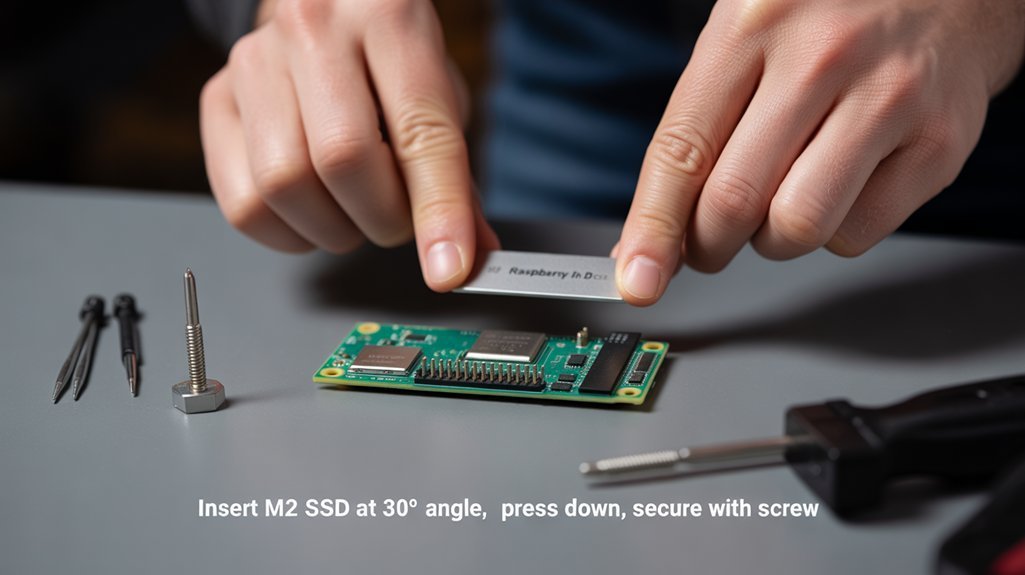
Installing your M.2 SSD properly on a Raspberry Pi requires careful attention to detail and proper technique to guarantee peak performance.
Begin by preparing a static-free workspace to prevent ESD damage. Verify all components before starting, ensuring your SSD length matches the adapter specifications.
Insert the SSD into the M.2 socket, aligning the notch carefully. Secure it with the provided bolt and nut without overtightening.
Mount the adapter to your Pi using the stacking headers and spacers, maintaining proper orientation for maximum airflow. Connect the PCIe cable and make sure to secure it by raising the black latch on the connector. After installation, use the lsblk command to verify that your Raspberry Pi correctly detects the newly installed NVMe SSD.
Manage cables efficiently to minimize strain and interference. Double-check all connections before powering on.
For best results, ground yourself during installation and document your steps with photos for future reference.
Configuring the Operating System to Recognize Your SSD
Once you’ve properly mounted the M.2 SSD hardware, you’ll need to configure your Raspberry Pi‘s operating system to recognize and utilize the new storage device. Proper boot configuration guarantees your Pi communicates correctly with the NVMe drive through the PCIe interface. You may need to include the parameter PCIE_PROBE=1 when using non-HAT devices to ensure proper detection.
- Modify `/boot/firmware/config.txt` by adding `dtparam=pciex1_gen=3` to enable PCIe Gen 3 support for maximum NVMe performance
- Update the EEPROM bootloader settings to prioritize booting from PCIe devices before SD card or USB
- Check kernel messages with `dmesg | grep nvme` to verify proper driver installation and SSD detection
After making these changes, reboot your Pi without the microSD card inserted. Your system should now boot directly from the SSD, delivering greatly enhanced performance than traditional storage options.
Optimizing Performance of Your New SSD Storage

After successfully connecting your M.2 SSD to the Raspberry Pi, you’ll need to optimize its performance to fully leverage the speed advantages over traditional storage options.
Start by implementing proper filesystem tuning—configure ext4 with the discard option to enable TRIM functionality and reduce write amplification. Modify your I/O scheduler to deadline or noop for enhanced SSD data transfer optimization. This can yield up to 5x faster read speeds compared to SD cards, reaching approximately 444MB/s on Pi 5, which is made possible by the upgraded 8GB LPDDR5 memory architecture.
Monitor power delivery stability, as NVMe drives perform best with consistent power. For intensive workloads like running Large Language Models, guarantee adequate cooling since thermal management prevents throttling. Consider using the GeeekPi Metal Case for improved heat dissipation during extended operations.
Periodically benchmark your storage using Pi Benchmarks or hdparm to verify sustained performance levels. Consider SSD performance tuning by checking for firmware updates that improve compatibility with the Pi’s PCIe interface.
Troubleshooting Common Installation Issues
Even with proper performance optimization, you’ll likely encounter some hurdles when installing an M.2 SSD on your Raspberry Pi.
Installation challenges often stem from compatibility issues or hardware failures that require systematic troubleshooting.
Troubleshooting M.2 SSD issues demands methodical diagnosis of compatibility and hardware connections before attempting software fixes.
When diagnosing problems:
- Verify SSD compatibility—only use M.2 NVMe SSDs with Key-M in 2230 or 2242 form factors to avoid mechanical fit issues.
- Check FPC ribbon cable connection—ensure proper orientation and full insertion to prevent device detection failures.
- Confirm bootloader configuration—add `PCIE_PROBE=1` to EEPROM settings and update firmware to latest version. Additionally, ensure that your Raspberry Pi model is suitable for SSD integration, as specific models may have different hardware capabilities.
If your SSD isn’t recognized, run `lspci` to verify hardware connectivity, then test with PCIe Gen3 override. Pay close attention to bad solder joints which can cause intermittent connection issues with PCIe adapters.
Persistent issues may require physical inspection of components or consulting community forums for model-specific troubleshooting.
Frequently Asked Questions
Can I Use an SSD From My Laptop With Raspberry Pi 5?
You can use your laptop’s SSD only if it’s NVMe PCIe M.2 2230 sized. Larger 2280 drives won’t fit the Pi 5 HAT+. Expect excellent laptop drive performance compared to microSD.
Will Using an SSD Significantly Impact Power Consumption?
Yes, your SSD will add 0.5-3W to your Pi’s consumption. Enable power saving features when possible, but expect reduced energy efficiency even at idle or shutdown states.
Can I Clone My Existing Microsd Card Directly to the SSD?
Yes, you can clone your microSD directly to SSD using the Raspberry Pi SD Card Copier utility. This data transfer method preserves all configurations, eliminating reinstallation while greatly improving performance.
Do I Need Special Cooling Solutions When Using NVME SSDS?
You’ll need active cooling when using NVMe SSDs as they increase system heat. Without proper thermal management, your Pi will experience performance throttling. A fan-based solution guarantees optimal heat dissipation during intensive operations.
How Do Multiple SSD Installations Affect PCIE Lane Availability?
Freedom expands while bandwidth contracts. When you install multiple SSDs, you’ll split available PCIe lanes between devices, creating potential performance bottlenecks. Each additional drive reduces per-device throughput on limited-lane systems like Pi 5.
Conclusion
With your M.2 SSD properly installed, you’ve transformed your Raspberry Pi into a high-performance computing platform that’ll run circles around conventional microSD storage solutions. Verify PCIe recognition with `dmesg | grep nvme` and don’t forget to update your boot configuration for ideal throughput. Like upgrading from a country road to an expressway, this NVMe enhancement will greatly reduce I/O bottlenecks and accelerate your Pi projects considerably.