

You’ll turn your Raspberry Pi into a lean web server with Nginx in minutes. Update the system, install Nginx, enable the service, and confirm it’s serving pages. Then set your web root, tighten permissions, and validate the config before reloading. If you need dynamic content, add PHP-FPM. Prefer containers? Use Docker on ARM. In putting an Nginx web server on a Raspberry Pi, we’ll also cover logs and basic hardening so you can launch confidently—starting with what you need on your bench.
Key Takeaways
- Use a Raspberry Pi 4/5 with stable 5V power, Ethernet, and a 16GB+ microSD; update OS with sudo apt update && sudo full-upgrade.
- Install Nginx via sudo apt install nginx, remove Apache if present, and verify with nginx -v.
- Start and enable the service: sudo systemctl start nginx && sudo systemctl enable nginx; check status with systemctl status nginx.
- Test access by browsing http://
(find via hostname -I) or curl -I http://localhost; ensure firewall allows ports 80/443. - Edit /etc/nginx/sites-available/default to set web root (/var/www/html), create a test index.html, then sudo systemctl reload nginx.
Prerequisites and Supported Raspberry Pi Models
Before you install Nginx, confirm your Raspberry Pi and setup meet a few basics.
Choose hardware first: use a Raspberry Pi 4 (4GB/8GB) or Pi 5 for best performance; a Raspberry Pi 400 also works reliably. Older models can run Nginx but expect tighter CPU/RAM limits and may not support the latest software optimizations.
Insert a 16GB+ microSD card; 8GB is the bare minimum.
Address power considerations: connect an official, stable PSU to prevent brownouts under load.
Plan thermal management: add a case with airflow, heatsinks, or an active fan, especially for Pi 4/5.
Connect networking: prefer Ethernet for stable throughput; Wi‑Fi is acceptable.
Set or reserve a static IP for predictable access.
Prepare input devices or enable headless setup via SSH. Nginx is a free, high-performance open-source web server that runs efficiently on the Raspberry Pi.
Confirm you’re comfortable with the Linux CLI and Nginx basics.
Note that NGINX is recommended over Apache on Raspberry Pi due to lower memory and CPU usage, making it well-suited for light workloads.
Update Raspberry Pi OS and System Packages
With your hardware ready, update Raspberry Pi OS to guarantee stability, performance, and security. Verify repositories: sudo nano /etc/apt/sources.list and make certain they match your OS release. Save, then check space with df -h. Refresh and upgrade: sudo apt update && sudo apt full-upgrade -y. Reboot: sudo reboot. These updates deliver patches, performance gains, and a cleaner base for security auditing. Before you begin, ensure a stable Internet connection so package downloads and upgrades proceed without errors. For Raspberry Pi 4 and 5, remember to keep the bootloader updated using rpi-eeprom to maintain compatibility and reliability. Regularly updating your system ensures you benefit from security enhancements that protect against vulnerabilities.
Use automatic snapshots (e.g., filesystem or SD card imaging) before risky changes. Avoid routine rpi-update; it installs pre-release firmware and can destabilize production systems. If advised to test firmware, back up, run sudo rpi-update, then reboot. For major OS jumps, prefer a clean image on another SD card; back up data first.
| Task | Command/Action |
|---|---|
| Verify repos | sudo nano /etc/apt/sources.list |
| Check space | df -h |
| Update index | sudo apt update |
| Upgrade packages | sudo apt full-upgrade -y |
| Reboot | sudo reboot |
Installing Nginx Web Server on a Raspberry Pi With APT

First, update your package lists and upgrade existing packages to ensure compatibility. On Raspberry Pi, Raspbian is the most supported OS, and you can optionally install a newer Nginx from the buster testing branch for improved performance and security. NGINX uses an event-driven architecture, allowing it to handle many connections efficiently on low-resource devices like the Raspberry Pi. This makes it particularly suitable for enhanced OS customization in various project configurations.
Next, install Nginx with sudo apt install nginx, then verify with nginx -v.
Start the service and enable it on boot using sudo systemctl start nginx and sudo systemctl enable nginx.
Update and Upgrade
Although installing Nginx is straightforward, start by renewing and updating your system to prevent outdated packages and dependency hiccups. On a Pi that may run 24/7 with scheduled reboots and bandwidth throttling, precision matters. For older armv6 devices like Raspberry Pi B/B+, ensure your APT sources include the dedicated rpi repository to avoid Illegal instruction errors from architecture-mismatched packages. Regularly updating your Raspberry Pi helps ensure security and functionality, as system updates can patch vulnerabilities and improve performance.
First, refresh metadata: sudo apt update. This only downloads the latest package lists so subsequent actions target current versions.
Next, apply upgrades: sudo apt upgrade to patch security issues and improve stability without removing packages. If you’ve changed repositories or need dependency migrations, run sudo apt full-upgrade.
Clear conflicts by removing Apache if present: sudo apt remove apache2. For older armv6 devices, verify /etc/apt/sources.list points to architecture-compatible repos.
1) Update indexes to avoid stale installs.
2) Upgrade to secure core libraries.
3) Full-upgrade for dependency shifts.
Install and Start Nginx
Kick off the install using APT: run `sudo apt install nginx` to fetch the ARM-optimized package from Raspberry Pi OS repos.
If Apache is present, free port 80 first: `sudo apt remove apache2`.
Target a newer repo if needed (e.g., -t buster), then start Nginx: `sudo systemctl start nginx`. NGINX can also act as a reverse proxy and load balancer for HTTP, TCP, and UDP traffic. It is important to note that Raspberry Pi OS is designed for optimal performance on Raspberry Pi hardware.
Enable on boot: `sudo systemctl enable nginx`.
Verify status: `sudo systemctl status nginx`.
Confirm it serves pages: find your Pi’s IP with `hostname -I`, browse `http://
If it’s missing, check firewall rules and port availability.
By default, files live in /var/www/html.
Edit /etc/nginx/sites-available/default to change root, add reverse proxy blocks, or prep for port forwarding.
After edits, `sudo systemctl restart nginx` to apply changes.
Verifying the Nginx Service Status
Regularly verify Nginx’s status to confirm it’s running and serving traffic correctly. Start with systemd: run sudo systemctl status nginx to see active, stopped, or failed, plus uptime and startup errors. Control it with sudo systemctl start|stop nginx and apply config changes with sudo systemctl reload nginx without downtime. For real time metrics, enable a secure endpoint via the stub_status module: Note that the status page should not be publicly accessible; restrict access or protect it with authentication. On Raspberry Pi, NGINX is a lightweight web server and you can edit its main configuration at nginx.conf located at /etc/nginx/nginx.conf. Additionally, you can access the Raspberry Pi’s command line using SSH remote access, which allows secure management of the server.
location /nginx_status { stub_status on; allow 127.0.0.1; deny all; }
Then curl http://localhost/nginx_status to view connections, accepts, handled, and requests. Cross-check processes using ps aux | grep nginx to confirm master and workers, detect zombies, and verify forking. Validate delivery with curl -I http://localhost and a browser hit. Stream logs: tail -f /var/log/nginx/error.log and access.log.
1) Check service
2) Inspect processes
3) Confirm responses
Setting Up the Web Root and Test Page
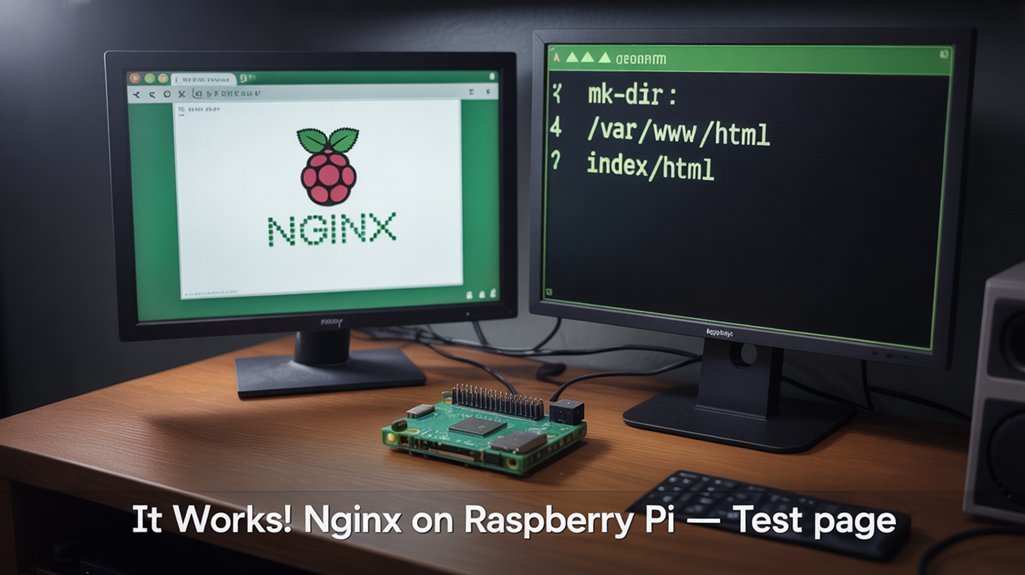
Start by preparing the web root Nginx will serve. Verify it exists: ls /var/www/html. Remove the default page: sudo rm /var/www/html/index.html. Make sure file permissions allow read for the Nginx user (www-data). For multiple projects, create isolated roots like /var/www/mysite to improve asset organization. You can manage site configs in /etc/nginx/sites-available/ and enable them via symlinks to sites-enabled.
Open the default site config: sudo nano /etc/nginx/sites-available/default. Set root /var/www/html; and confirm index index.html index.htm;. Validate and reload: sudo nginx -t && sudo systemctl reload nginx.
Create a test page: sudo nano /var/www/html/index.html. Add minimal HTML with “Hello from Raspberry Pi Nginx”, save with CTRL+X, Y, ENTER. Visit your Pi’s IP; you should see the custom page. If not, check logs and caching. Setting up Nginx can enhance your Raspberry Pi’s remote management capabilities by serving web applications efficiently.
| Path | Purpose | Notes |
|---|---|---|
| /var/www/html | Web root | Readable by www-data |
| /var/www/html/css | Styles | Enforce least-privilege file permissions |
| /var/www/html/js | Scripts | Keep strict asset organization |
Adding PHP Support With PHP-FPM
Next, install PHP-FPM 8.2 to process PHP scripts efficiently: run sudo apt-get install php8.2-fpm and verify the service is active. This stack is widely used because Nginx, PHP and PHP-FPM provide efficient process management for serving PHP applications. Additionally, native GPIO support in Raspberry Pi OS allows for seamless integration with hardware projects. Before making configuration changes, stop the services to avoid conflicts, for example by running service nginx stop && service php-fpm stop. Edit your Nginx server block to handle .php files and set fastcgi_pass to unix:/var/run/php/php8.2-fpm.sock with the fastcgi snippet. Reload Nginx to apply the socket configuration.
Install PHP-FPM 8.2
To add PHP support to Nginx on your Raspberry Pi, install PHP-FPM 8.2 and core extensions, verify the version, and reload the service. Update first: sudo apt-get update && sudo apt-get upgrade. If PHP 8.2 isn’t available in your default repositories, you can add the Sury PHP repository to enable installation of the supported versions. For containerized setups, remember that Nginx and PHP-FPM can run in separate containers where Nginx forwards PHP requests to PHP-FPM via fastcgi_pass.
Additionally, ensure your Raspberry Pi is powered by a regulated 5V supply to maintain system stability during web server operations.
Install packages: sudo apt install -y php8.2-common php8.2-fpm php8.2-cli php8.2-curl php8.2-intl php8.2-mysql php8.2-gd php8.2-sqlite3 php8.2-mbstring php8.2-zip php-imagick.
Confirm: php -v (expect 8.2+). Reload: sudo service php8.2-fpm reload.
Create overrides for runtime tuning and secure session storage: sudo nano /etc/php/8.2/fpm/conf.d/90-pi-custom.ini with:
cgi.fix_pathinfo=0
upload_max_filesize=64m
post_max_size=64m
max_execution_time=600
Reload FPM again.
Align permissions by creating a pool: /etc/php/8.2/fpm/pool.d/zzz-custom-user.conf (user/group/listen.* = deployment), then chown -R deployment:deployment /var/www/.
1) Verify modules: php -m
2) Test PHP info page
3) Monitor logs, then update routinely
Configure Fastcgi_Pass Socket
With PHP-FPM 8.2 running, wire Nginx to it using fastcgi_pass. Edit your site in /etc/nginx/sites-available/. In the PHP location block, choose a Unix socket for speed or TCP for distributed setups. Make certain socket permissions match Nginx’s user. PHP-FPM manages pools to isolate applications and control resources, improving both performance and security. Using a UNIX domain socket can be faster and also adds security via filesystem permissions. Furthermore, implementing a secure boot process can enhance the overall security of your web server environment.
- Use Unix socket (faster): fastcgi_pass unix:/run/php/php8.2-fpm.sock;
- Or TCP: fastcgi_pass 127.0.0.1:9000;
Add fastcgi_param essentials: SCRIPT_FILENAME $request_filename; QUERY_STRING $query_string; REQUEST_METHOD $request_method; CONTENT_TYPE $content_type; CONTENT_LENGTH $content_length; REDIRECT_STATUS 200; HTTPS $https if_not_empty;
| Step | Command/Path |
|---|---|
| Edit site | sudo nano /etc/nginx/sites-available/your-site |
| Verify PHP-FPM | sudo php-fpm -t |
| Verify Nginx | sudo nginx -t |
| Restart services | sudo systemctl restart php8.2-fpm nginx |
| Tune pool | /etc/php/8.2/fpm/pool.d/www.conf |
Set pool user/group and socket permissions. Finish with performance tuning (pm, max_children).
Optional: Deploying Nginx With Docker on ARM
Spin up Nginx on your Raspberry Pi using Docker to keep deployments portable and fast. Install Docker and Docker Compose on Raspbian. Pull ARM images that auto-resolve: docker pull lscr.io/linuxserver/nginx:latest. Verify tags on Docker Hub to avoid architecture mismatch; some images (e.g., jwilder/nginx-proxy) lack ARM support. Note that this image supports multi-platform awareness via a Docker manifest, so the correct architecture will be pulled automatically.
Map volumes for persistence: -v /srv/nginx/config:/config -v /srv/nginx/www:/config/www, and bind your nginx.conf to /etc/nginx/nginx.conf if you prefer stock paths. For read-only containers, add –tmpfs /tmp.
Use Compose for reproducibility:
1) services.nginx.image: lscr.io/linuxserver/nginx:latest
2) volumes: ./config:/config, ./www:/config/www
3) ports: “80:80”, “443:443”
Need customization or private modules? Build on x86_64 with QEMU and buildx—Cross building tips: docker buildx create –use; target arm64/v8 or arm/v7 and push multi-arch manifests.
Log Management and Basic Security Hardening
Containers or not, you need tight logging and basic hardening on a Raspberry Pi. Enable NGINX access and error logs; set error_log to warn or info. Define a custom log_format with client IP, time, request, status, referrer, user agent. Use conditional logging to skip 2xx/3xx and highlight 4xx/5xx for intrusion detection. Segment logs by virtual host and severity for isolation.
Optimize I/O: enable buffering (buffer=32k flush=5s), turn on open_log_file_cache. Configure daily log rotation with compression via logrotate; monitor disk usage and cap retention. Lock down permissions: chown root:adm, chmod 640; restrict sudoers who can read logs.
Integrate with Elastic Stack or Grafana; build alerts on spikes in 5xx and 403. Use tail/grep for real-time triage; correlate with CPU/memory metrics.
Frequently Asked Questions
How Do I Set up a Custom Domain With Nginx on Raspberry Pi?
Point your domain’s DNS records (A/CNAME) to your public IP or DDNS. Configure router ports 80/443. Create Nginx server block with server_name, proxy_pass, and SSL termination via Let’s Encrypt. Test, reload Nginx, and verify externally.
Can I Use Let’s Encrypt for Free HTTPS Certificates on Raspberry Pi?
Yes—you can. Sprint like lightning: open ports 80/443, guarantee public DNS. Install Certbot for Let’s Encrypt and certificate automation; schedule renewals. Need wildcards? Use DNS 01 challenges. Prefer alternatives? Enable acme.sh with ZeroSSL support and provider APIs.
How Do I Reverse Proxy Multiple Services Behind One Nginx Instance?
You reverse proxy multiple services by defining virtual hosts and path based routes. Create server blocks per domain or port; add location blocks with proxy_pass to backends; set proxy_set_header Host; test nginx -t; reload; iterate as services scale.
What’s the Process to Enable Http/2 or QUIC on Raspberry Pi Nginx?
Enable HTTP/2 setup: update/upgrade, install Nginx, guarantee ALPN OpenSSL, verify modules (nginx -V), add “listen 443 ssl http2;” with TLS1.2/1.3, test curl. For QUIC troubleshooting: use QUIC-enabled build, enable http3/UDP:443, require TLS1.3, validate configs, monitor logs.
How Can I Automatically Deploy Site Updates From Git to Nginx?
Automate deployments by pushing to a bare repo with git hooks (post-receive) that checks out to /var/www/html, fixes permissions, reloads Nginx. Alternatively, trigger webhooks to a deployment agent or lightweight CI CD runner, validate, then switch versions atomically.
Conclusion
You’ve installed Nginx on your Raspberry Pi, verified it’s running, set up your web root, and learned how to extend it with PHP-FPM or Docker. Keep configs tidy, test with nginx -t, and reload safely. Monitor logs, lock down permissions, and update packages regularly. Now deploy your site, iterate fast, and back up configs. Treat failures like guideposts, and you’ll progress like a sunrise breaking fog—clear, steady, unstoppable. Execute, validate, document, and keep shipping.