

Imagine you’ve hooked a MAX7219 LED matrix to a Pi to drive scrolling text; you’ll need to enable SPI, wire MOSI/MISO/SCLK/CE and set compatible voltage levels before it’ll work. You’ll get step‑by‑step guidance on enabling the kernel module, verifying device nodes, choosing Raspberry Pi SPI mode and clock, and initializing with spidev or WiringPi. Follow this and you’ll avoid common wiring and configuration pitfalls — and then you can test data transfer.
Key Takeaways
- Update the Pi, enable SPI in raspi-config, and reboot to load the spi-bcm2835 kernel module.
- Physically wire MOSI, MISO, SCLK, CS, and ground between Pi and peripheral; match voltage levels (3.3V).
- Configure SPI parameters (mode 0–3, clock speed, bits per word) in software before starting transfers.
- Use a library like spidev, WiringPi, or bcm2835 to open /dev/spidev0.0 and perform full-duplex reads/writes.
- Troubleshoot by checking /dev/spidev*, dtparam=spi=on, wiring, logic analyzer traces, and kernel logs for errors.
Preparing Your Raspberry Pi and Enabling SPI Support
Before you connect any hardware, enable and update the support for Raspberry Pi SPI : run sudo apt update && sudo apt full-upgrade, open sudo raspi-config, go to Interfacing Options (or Advanced Options) → SPI, set it to Yes, then reboot with sudo reboot so the kernel loads the spi-bcm2835 module and the SPI pins become available. If you plan to configure the Pi headlessly, enable SSH before connecting hardware to allow remote troubleshooting.
After reboot, verify the module with lsmod and confirm active SPI pins using gpio readall. Use mypi.AvailableSPIChannels or check /dev/spidev* to confirm CE0/CE1 presence.
This step combines enabling interfaces and checking compatibility: guarantee firmware and kernel support your target device, and confirm no GPIO conflicts with I2C/UART.
Finally, plan SPI mode, clock speed, and word length in your software (spidev or WiringPi) before any physical connections. Ensure you have a compatible Raspberry Pi model that supports SPI before proceeding. Also ensure you understand the voltage difference between Pi and peripherals to avoid damage.
Wiring the SPI Pins and Connecting Your Peripheral
Start by matching the Pi’s SPI pins (SCLK, MOSI, MISO and a dedicated CS) to your peripheral’s corresponding pins, making sure both devices share a common ground and that the peripheral’s VCC matches the Pi’s 3.3V logic or is level-shifted.
Use the SPI0 pinout (GPIO11 SCLK, GPIO10 MOSI, GPIO9 MISO, GPIO8 CE0, GPIO7 CE1) or enable SPI1 if needed.
Prioritize Ground connections and signal integrity: short, direct wires, solid connectors, and level shifters for non‑3.3V devices.
- Verify SPI pinout and model-specific headers before wiring.
- Share common ground(s) using Pi ground pins and secure power lines.
- Assign unique CS lines per peripheral; route SCLK/MOSI/MISO in parallel.
Connect peripherals systematically, test one device first, and monitor signal integrity. Be sure to consult the Raspberry Pi pinout diagram for accurate pin functions and limits, as it shows the GPIO capabilities. The platform is community maintained and welcomes feedback, contributions, and sponsorship to improve accuracy and support community engagement.
Configuring SPI Parameters: Mode, Speed, and Word Size
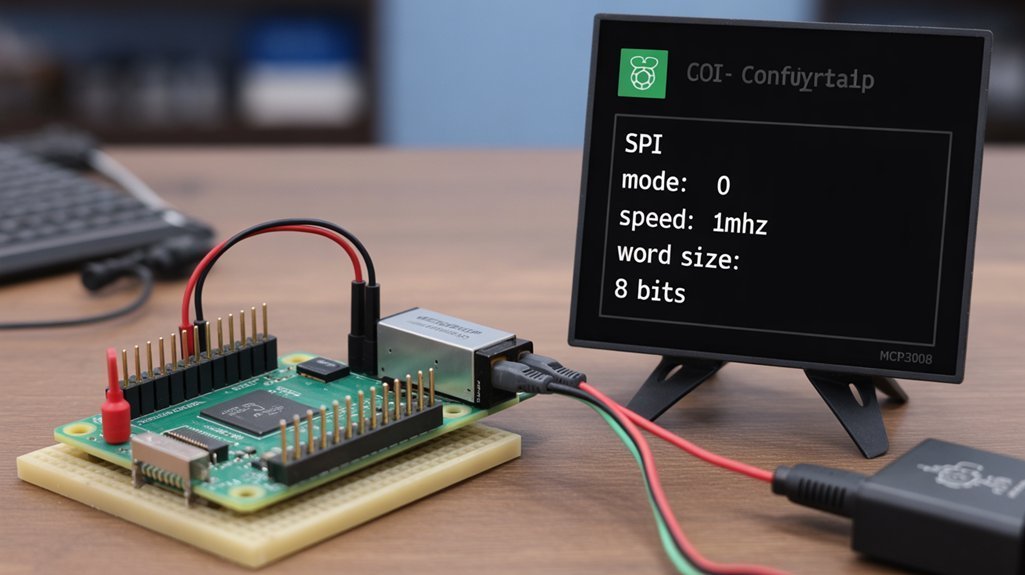
With your pins wired and a single peripheral verified, set the SPI mode, clock speed, and word size to match the device’s datasheet—these three parameters determine how the Pi and peripheral interpret each bit on the bus.
Choose the correct SPI mode (0–3) to match CPOL/CPHA; wrong mode corrupts data. Start conservative on clock speed—Pi supports ~500 kHz–32 MHz—then increase while testing signal integrity; the slowest device on the bus sets the limit.
Use 8 bits per word unless the peripheral specifies otherwise; word size must be configured before communication. Assign proper CS lines to avoid contention.
These deliberate choices—selecting SPI peripherals and optimizing SPI performance—ensure reliable, high-performance links for innovative projects. Ensure you also create a raspi connection and enable SPI in the hardware setup to view and use the SPI pins.
Using Software Libraries to Initialize and Test SPI
Although enabling SPI in the OS is a prerequisite, you’ll typically initialize and test the bus from user space using libraries like spidev (Python/C), WiringPi (C/C++), or bcm2835 (low-level C).
- Use spidev benefits: open /dev/spidev0.0, set mode, max speed and bits per word, then send/receive byte arrays for quick programming examples and sensor integration.
- Use WiringPi advantages: call wiringPiSPISetup(channel, speed) to init, rely on default buffer sizes or adjust with gpio load spi [size], and exercise full duplex communication with simultaneous write/read routines. The library also returns a Linux file-descriptor on successful setup which you can use for diagnostics.
- Use bcm2835 features when you need register-level control and precise timing; write low-level C to configure clocks and perform high-performance SPI transfers. It is important to remember that the Raspberry Pi exposes up to two hardware SPI channels, commonly referred to as SPI0 and SPI1.
Troubleshooting Common SPI Issues and Verification
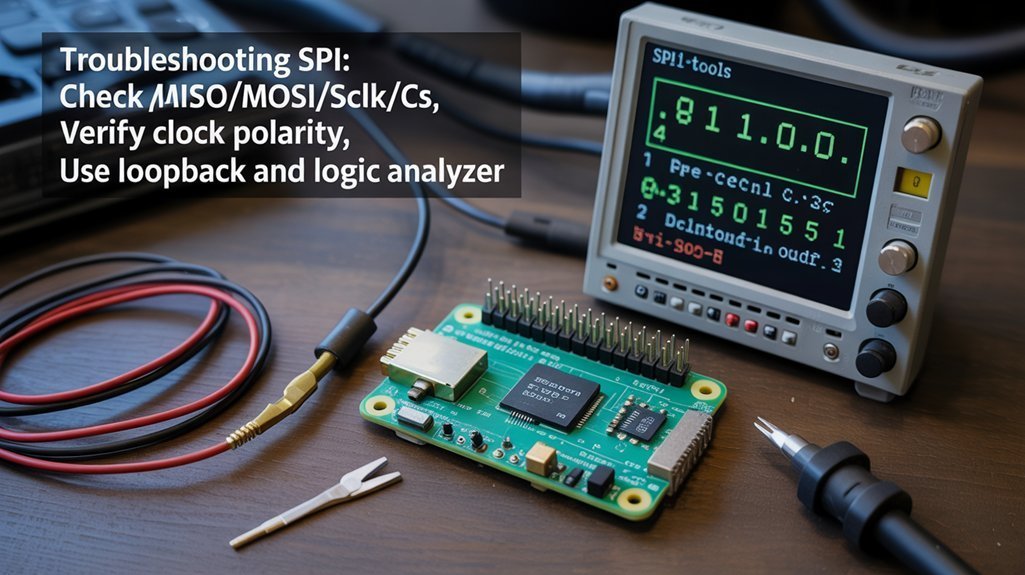
Wondering why your SPI setup won’t talk to a peripheral? Check enablement, device nodes, and wiring first. Use debugging strategies: verify dtparam=spi=on, lsmod, /etc/modprobe.d and /etc/modules, then reboot. Confirm /dev/spidev0.0 exists. Validate wiring (MOSI/MISO/SCLK/CS), voltage levels, and try a loopback to isolate hardware.
Tune parameters: lower spi.max_speed_hz, match SPI mode and bit order. Use a logic analyzer or multimeter to assess signal integrity and apply noise reduction techniques (shorter leads, proper grounding, level shifters). Watch kernel logs for error handling clues and update firmware or drivers if needed. If problems persist, document steps and reproduce with minimal hardware to innovate solutions. Consider pairing SPI peripherals with Hardware-enforced protection when cryptographic operations are critical to device security. Also ensure the Raspberry Pi has SPI enabled in raspi-config and the kernel driver loaded so the SPI device node is available.
| Check | Action |
|---|---|
| Enable | raspi-config, dtparam |
| Modules | lsmod, /etc/modules |
| Wiring | verify pins, loopback |
| Levels | use level shifter |
| Tools | logic analyzer, logs |
Frequently Asked Questions
Can I Use SPI and I²C Simultaneously on the Same GPIO Pins?
Absolutely not — you can’t share pins; even one mistake’ll wreck signals. Use SPI advantages and respect I²C limitations: enable simultaneous protocols on separate pins to avoid bus conflict and preserve signal integrity for innovative designs.
How Do I Connect More Than Two SPI Devices With Only Ce0/Ce1?
Use SPI device expansion by driving Multiple chip selects from extra GPIOs or enable additional SPI buses via device-tree overlays; you’ll toggle GPIO CS lines in software or add multiplexers/expanders to scale beyond CE0/CE1.
Are Level Shifters Required for 3.3v SPI Devices?
No — if your SPI devices truly use 3.3V, you don’t need level shifting; you should still verify voltage compatibility, follow device regulations, and implement circuit protection to prevent damage and guarantee reliable, innovative designs.
Can I Run DMA-Based Raspberry Pi SPI Transfers for High-Speed Data?
Yes — you can run DMA transfers for high speed communication, but you’ll need additional buffers, uncached alignment, careful pacing and synchronization to preserve data integrity, and likely custom drivers and root access.
How Do I Set up an SPI Device as a Slave on Raspberry Pi?
Only ~5% of Pi setups attempt slave roles; you can’t reliably achieve SPI slave setup with stock Raspberry Pi configuration. You’ll need external hardware (MCU/FPGA) or risky bit‑bang drivers and advanced kernel patches.
Conclusion
You’ve now got SPI enabled, wired, and tuned — and unless you’re trying to fry a sensor with a soldering iron, you’ll see data flowing. With mode, speed, and word size set and a library like spidev initialized, your Pi talks to peripherals like a pro. If it hiccups, check wiring, voltage, and chip-select logic. Follow the checklist, debug methodically, and you’ll have rock-solid SPI communication in no time.