

Over 70% of Raspberry Pi home servers operate without proper SSL encryption, leaving sensitive data vulnerable to interception. You’ll need to secure your Pi’s web services with a valid SSL certificate, but the process isn’t as straightforward as traditional server installations. The combination of dynamic IPs, port forwarding complexities, and Let’s Encrypt‘s domain validation requirements creates unique challenges when you install an SSL Certificate on a Raspberry Pi that’ll require specific configuration steps to overcome successfully.
Key Takeaways
- Configure your domain’s DNS records to point to your Raspberry Pi’s public IP address before installing SSL certificates.
- Install Certbot using `sudo snap install certbot –classic` or `sudo apt install certbot python3-certbot-apache` for certificate management.
- Obtain free SSL certificates from Let’s Encrypt using Certbot with domain validation through HTTP or DNS verification methods.
- Configure your web server to use certificate files located in `/etc/letsencrypt/live/
/` and redirect HTTP traffic to HTTPS. - Set up automatic certificate renewal with cron jobs and test the system using `certbot renew –dry-run` command.
Preparing to Install an SSL Certificate on a Raspberry Pi
Before deploying SSL certificates on your Raspberry Pi, you must establish five critical foundation elements that determine whether your implementation succeeds or fails.
First, configure your domain name with proper DNS records pointing to your Raspberry Pi’s public IP address. SSL certificates require domains, not bare IP addresses.
SSL certificates authenticate domain names, never raw IP addresses, making proper DNS configuration an absolute prerequisite for certificate deployment.
Second, establish robust network security by assigning a static local IP and configuring router port forwarding for HTTP (80) and HTTPS (443) traffic. Remember that certificates have a 3-month expiration period and require regular renewal to maintain trust.
Third, update your Raspberry Pi OS and install your web server completely before attempting SSL implementation. Install Certbot client to simplify the process of obtaining SSL certificates from Let’s Encrypt.
Fourth, harden your system by minimizing running services, setting strong passwords, and closing unused ports.
Fifth, make certain of environmental stability with reliable internet connectivity and accurate time synchronization via NTP.
Installing Certbot and Required Dependencies
You’ll install Certbot through Ubuntu’s Snap package manager to guarantee you’re running the latest version with automatic security updates.
Execute `sudo snap install certbot –classic` to deploy Certbot with the necessary system permissions for SSL certificate management.
Verify the installation completed successfully by running `certbot –version` to confirm proper dependency resolution and functionality. The Snap installation method ensures automated certificate renewal is preconfigured for your system.
During certificate generation, ensure your webroot path matches your server’s document root folder to prevent authentication failures when Certbot creates temporary challenge files.
Certbot Package Installation
Since Certbot serves as the primary tool for obtaining and managing Let’s Encrypt SSL certificates, installing it correctly on your Raspberry Pi requires careful attention to package management and dependency resolution.
You’ll find two primary certbot installation methods available: APT and Snap package managers, each offering distinct advantages for different deployment scenarios.
- APT Installation: Run `sudo apt update && sudo apt upgrade`, then install with `sudo apt install certbot` for standard setups
- Apache Integration: Add `sudo apt install python3-certbot-apache` for seamless web server configuration
- Snap Alternative: Execute `sudo snap install certbot –classic` for auto-updating packages with bundled dependencies
- Plugin Management: Install DNS plugins like `python3-certbot-dns-cloudflare` for managing certbot plugins across various providers
Choose APT for stability or Snap for cutting-edge features and automatic updates. The Certbot installation automatically includes necessary dependencies for DNS verification, eliminating the need for manual dependency management in most standard configurations. Snap packages provide the additional benefit of automatic updates and graceful rollback capabilities, ensuring your certificate management tool stays current without manual intervention.
Dependency Verification Process
After completing Certbot’s installation, verifying its dependencies guarantees your Raspberry Pi can successfully obtain and manage SSL certificates without encountering runtime failures. Effective dependency management prevents package conflicts that compromise certificate automation.
Execute `dpkg -l | grep certbot` to confirm installed Certbot packages. Run `python3 -c “import certbot; print(certbot.__version__)”` to verify Python integration. Check `/var/log/apt/history.log` for installation conflicts.
| Component | Verification Command | Expected Output |
|---|---|---|
| Python Dependencies | `python3 -m certbot` | Help menu without errors |
| Apache Plugin | `certbot plugins` | apache plugin listed |
| Network Access | `curl -I http://localhost` | HTTP response headers |
| SSL Libraries | `openssl version` | OpenSSL version info |
Address dependency issues using `sudo apt –fix-broken install` before proceeding with certificate generation. If missing dependencies are detected, you can check installed packages using `sudo dpkg -l` to verify package architecture compatibility and ensure all required components are properly installed. When encountering held packages during installation, use `sudo apt-mark unhold package-name` to release the hold before attempting to resolve dependencies.
Obtaining SSL Certificates From Let’s Encrypt

Let’s Encrypt provides free, automated SSL/TLS certificates through its ACME (Automatic Certificate Management Environment) protocol, making it an ideal choice for securing your Raspberry Pi web services.
This certificate authority streamlines the entire process while maintaining browser trust and security standards.
Before issuing certificates, Let’s Encrypt validates domain ownership using either DNS records or HTTP file verification methods.
Domain validation occurs through two primary methods before certificate issuance:
- DNS validation – Add a specific TXT record to your domain’s DNS configuration to prove ownership.
- HTTP validation – Host a unique verification file at a designated URL on your web server.
- 90-day validity period – Short lifespan encourages automated renewals and enhanced security posture.
- ACME client integration – Tools like Certbot automate the certificate request, validation, and renewal workflow.
You’ll submit a Certificate Signing Request containing your public key and domain information to complete the SSL certificate options process. Let’s Encrypt performs validation checks from multiple network perspectives to prevent potential attacks. The certificates are widely trusted by modern web browsers, indicated by a green padlock in the address bar.
Configuring Your Web Server for SSL
After obtaining your SSL certificate from Let’s Encrypt, you’ll need to configure your web server to use the certificate files and redirect HTTP traffic to HTTPS.
You must specify the correct paths to your certificate and private key files in your Apache or Nginx configuration, then enable SSL listening on port 443. Configure the file permissions properly using chmod 600 to secure your certificate files from unauthorized access.
Setting up automatic HTTPS redirection guarantees all traffic uses encrypted connections and prevents security vulnerabilities from unencrypted HTTP requests. Monitor your error logs regularly to identify any SSL-related configuration issues or potential security threats during the implementation process.
SSL Certificate Paths
Once you’ve obtained your SSL certificate, configuring your web server requires precise path specifications to locate the certificate files.
Understanding SSL certificate types and their proper file locations is essential for successful certificate management on your Raspberry Pi.
Let’s Encrypt automatically places certificates in standardized directories that you’ll reference in your web server configuration:
- Full certificate chain: `/etc/letsencrypt/live/
/fullchain.pem` – Contains your certificate plus intermediate certificates - Private key: `/etc/letsencrypt/live/
/privkey.pem` – Your domain’s private encryption key - Certificate authority chain: `/etc/letsencrypt/live/
/chain.pem` – Intermediate CA certificates only - Certificate file: `/etc/letsencrypt/live/
/cert.pem` – Your domain certificate without chain
You’ll configure these exact paths in Apache’s `SSLCertificateFile` directive or Nginx’s `ssl_certificate` setting to enable HTTPS functionality. When using absolute paths instead of relative paths, you can avoid common configuration errors that lead to certificate recognition failures. For enhanced security, consider implementing TLS client authentication as an alternative to traditional password-based access controls.
HTTPS Redirect Setup
With your SSL certificate paths properly configured, you must implement HTTP to HTTPS redirection to make sure all traffic reaches your Raspberry Pi through secure channels.
Configure your web server to automatically redirect insecure requests to encrypted connections.
For Nginx Configuration, add a server block listening on port 80 with `return 301 https://$host$request_uri;` to handle HTTP Redirects seamlessly.
Your HTTPS block should listen on port 443 with proper SSL certificates configured.
For HAProxy Setup, modify `haproxy.cfg` by adding `redirect scheme https if !{ ssl_fc }` under your frontend section managing port 80 traffic. The configuration file is typically located in `/etc/haproxy/` and requires OpenSSL and HAProxy tools for proper SSL certificate management.
After configuration changes, reload your service using `sudo systemctl reload nginx` or equivalent. Nginx may cache old certificates, so creating renewal hooks to reload Nginx is necessary after certificate updates.
This Web Security implementation guarantees users can’t accidentally transmit data over unencrypted connections.
Testing and Validating Your SSL Configuration
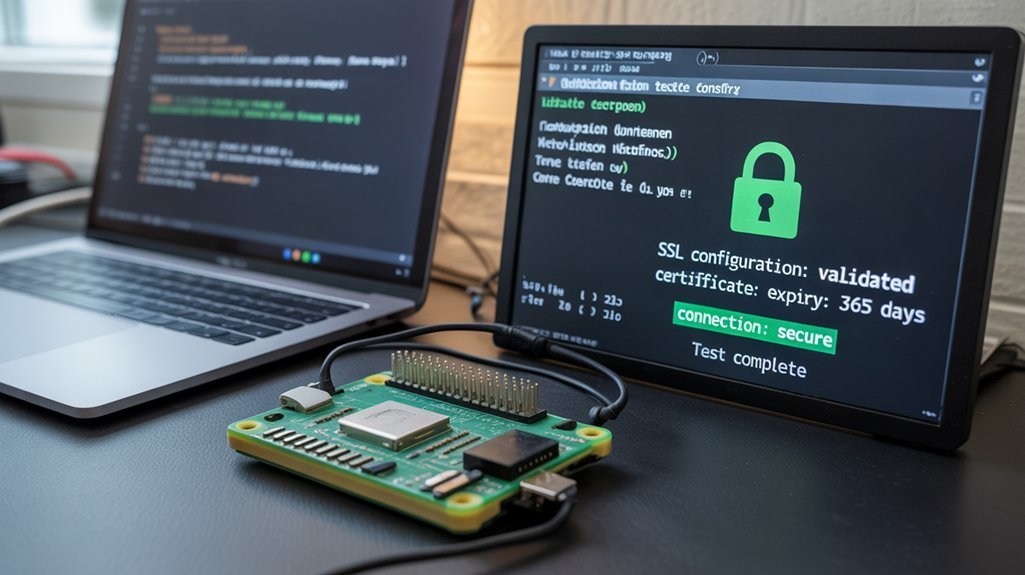
Run `openssl s_client -connect yourdomain:443` to inspect certificate chains and detect mismatches.
- Use Qualys SSL Labs’ free online testing tool for external configuration audits and security grading.
- Execute `nginx -t` or `apachectl configtest` to verify server configuration syntax after SSL setup.
- Deploy `testssl.sh` locally on your Pi to audit supported protocols and cipher suites.
- Consider implementing a DIY Certificate Authority for unit testing environments before deploying to production systems.
Monitor server logs for SSL handshake failures and ascertain your trust chain includes all necessary intermediate certificates for seamless client connections.
Setting Up Automatic Certificate Renewal
Add web server reload commands to apply fresh certificates: `systemctl reload nginx`.
Direct logs to `/var/log/le-renew.log` for monitoring purposes.
Make sure your cron job runs with root privileges and verify execution permissions.
Test renewal functionality using `certbot renew –dry-run` before implementing automation.
Keep ports 80 or 443 accessible for ACME challenge validation.
SSL certificates typically require renewal every 90 days to maintain continuous security coverage.
Monitor logs regularly and maintain current Certbot versions to prevent renewal failures that could compromise your SSL security infrastructure. Verify your Certbot installation method to ensure you’re using the correct command structure for your specific setup.
Troubleshooting Common SSL Certificate Issues

Even when you’ve properly installed and configured SSL certificates on your Raspberry Pi, various issues can disrupt secure connections and compromise your system’s security posture.
SSL errors often stem from incomplete certificate chains or missing root CA certificates in your Pi’s trust store.
Common troubleshooting scenarios include:
- Certificate verification failures – Update CA certificates using `sudo apt-get install –reinstall ca-certificates` to resolve trust establishment issues
- Curl errors (77) – Indicates missing or outdated root CA bundles requiring system-level certificate store updates
- Incomplete certificate chains – Guarantee ur server presents all intermediate certificates in proper hierarchical order
- Self-signed certificate rejections – Manually add custom CAs to `/usr/local/share/ca-certificates/` for debugging connection
For advanced SSL diagnostics, use OpenSSL commands like `openssl s_client -connect hostname:443` to test connections and examine certificate details directly from your Raspberry Pi.
Systematic verification of your Pi’s SSL libraries and certificate permissions guarantees robust security implementation.
Frequently Asked Questions
Can I Use SSL Certificates With Dynamic DNS Services Like Duckdns?
You can use SSL certificates with dynamic dns services like DuckDNS through Let’s Encrypt automation. Configure DNS-based certificate validation using acme.sh or similar tools to handle renewals without exposing ports or manual intervention.
How Much Storage Space Do SSL Certificates Require on Raspberry Pi?
SSL certificates typically consume under 10KB combined – your certificate size remains negligible on Raspberry Pi’s gigabyte storage. Storage requirements include cert files, private keys, and renewal configs totaling mere megabytes maximum.
Do SSL Certificates Work With Custom Ports Other Than 443?
SSL custom ports work perfectly—you’ll configure certificate port flexibility easily. SSL on different ports requires server binding configuration, but certificates aren’t port-restricted. You’ll simply specify the custom port in your URL for secure connections.
Can I Share SSL Certificates Between Multiple Raspberry Pi Devices?
Need scalable security? You can deploy sharing certificates across multiple Raspberry Pis, but it increases compromise risk. Implement proper certificate management with unique keys per device or establish a private CA for enhanced security control.
Will SSL Certificates Affect My Raspberry Pi’s Performance or Speed?
SSL certificates create overhead that’ll impact your Raspberry Pi’s performance. You’ll experience increased CPU load during encryption, higher latency, and reduced throughput. Optimize cipher suites and enable session resumption to minimize performance impact.
Conclusion
You’ve successfully fortified your Raspberry Pi’s digital perimeter by implementing robust encryption protocols. Your web traffic now travels through secure channels, shielding sensitive data from prying eyes. Don’t overlook the automated renewal mechanism—it’s your silent guardian against certificate expiration vulnerabilities. Monitor your SSL configuration regularly and address any handshake anomalies promptly. Your Pi’s now transformed into a hardened endpoint, ready to handle secure communications without compromising your network’s integrity or exposing critical infrastructure weaknesses.