

While taking screenshots on a desktop computer feels intuitive, capturing your Raspberry Pi screen may seem less straightforward—especially for new users. You’ll find several effective methods to take screenshots in Raspberry Pi OS, from simple keyboard shortcuts to powerful command-line utilities. Whether you’re documenting a project, troubleshooting an issue, or creating a tutorial, these screenshot techniques will help you capture exactly what you need. Let’s explore your options for creating a screenshot with raspberry Pi OS.
Key Takeaways
- Press the “PrtScn” key to instantly capture the entire screen, saving a PNG image in your home directory.
- Type `scrot` in the terminal to take a screenshot, adding `-d` flag with a number for delayed captures.
- Capture just the active window with `scrot -u` command in the terminal.
- Install GNOME Screenshot with `sudo apt install gnome-screenshot` for a graphical screenshot utility with additional features.
- Customize keyboard shortcuts by editing the lxde-pi-rc.xml file for specialized screenshot functions.
Default Screenshot Capabilities of Raspberry Pi OS
Raspberry Pi OS comes equipped with three default screenshot capabilities that require no additional software installation. The “PrtScn” key functions as a dedicated screenshot hotkey, automatically capturing your entire screen when pressed. These captures save as PNG screenshot formats to your home directory (/home/pi).
Behind this functionality is the pre-installed Scrot utility, which powers the OS’s screenshot system. While simple in its default configuration, you can enhance automatic organization by modifying the lxde-pi-rc.xml file to include timestamps and resolution details in filenames.
For more control, you can also run Scrot directly from the terminal, enabling options like delayed captures and mouse-selected region screenshots—perfect for documenting your innovative Raspberry Pi projects with precision. You can capture screenshots of only active windows using `a scrud -s` command in the terminal. Screenshots provide exceptionally clear images as they are saved in PNG format, which maintains sharpness.
Using Scrot for a Command Line Screenshot with Raspberry Pi OS
Scrot provides powerful command-line screenshot capabilities through simple commands like `scrot` to capture your entire screen instantly.
You can add a time delay with the `-d` flag (e.g., `scrot -d 5`) to give yourself time to open menus or prepare the screen before capture.
For better organization, specify custom filenames and locations using `scrot /path/to/directory/filename.png` to save screenshots directly where you need them. If you encounter issues with the scrot command, ensure your Raspberry Pi OS is updated to the latest version. Capture only the active window with the -u flag when you need to focus on a specific application.
Scrot Basic Commands
Taking screenshots from the command line in Raspberry Pi OS is efficiently handled with Scrot, a lightweight but powerful utility.
After installation via `sudo apt-get install scrot`, you can immediately capture your entire screen by simply typing `scrot` in the terminal. The resulting PNG image automatically saves to your `/home/pi` directory with a timestamp filename.
For greater control, specify custom save locations and filenames by adding a path after the command: `scrot /home/pi/screenshots/myscreen.png`. Remember that target directories must exist beforehand.
To capture time-sensitive elements, use the `-d` flag followed by seconds: `scrot -d 5`. This delay proves invaluable when you need to prepare the screen before capture. Scrot comes pre-installed with Raspbian, eliminating the need for additional software installation in most cases.
If you’re working on a Raspberry Pi remotely via SSH, you can still capture screenshots by using the command with display export parameter, similar to how Grim operates.
Consult `man scrot` for additional advanced options and screenshot formats.
Delayed Screenshot Technique
One of the most powerful features of the Scrot utility is its ability to capture screenshots with a customizable delay. Using the `-d` flag followed by your desired seconds, you can set up perfect screenshot timing for any scenario.
For example, typing `scrot -d 4` gives you four seconds to prepare your screen before the delayed capture occurs. This technique is invaluable when you need to:
- Capture drop-down menus that disappear on click
- Document context-sensitive UI elements
- Remove terminal windows from view
- Snapshot notifications or transient overlays
The delay parameter works seamlessly with other Scrot options. For complex screen arrangements, use longer delays like `scrot -d 10` to guarantee everything is perfectly positioned before capture. After taking the delayed screenshot, you can always verify capture by using the LS command to see the new file in your directory. You can also combine these delayed captures with the -q option to adjust image quality according to your specific documentation needs.
Custom Filenames Options
Customizing your screenshot filenames gives you precise control over how captures are organized and stored in your Raspberry Pi OS.
With Scrot, you can implement sophisticated automated saving patterns for structured archives:
- Use `scrot /path/to/filename.png` to specify exact locations, guaranteeing your screenshot organization remains consistent
- Create dynamic naming with timestamps using patterns like `scrot ‘%Y-%m-%d_%H:%M:%S.png’` for automatic timestamped files
- Incorporate project names with time variables: `scrot ‘project_%Y%m%d_%H%M.png’` for context-aware captures
- Generate filenames programmatically in scripts: `filename=$(date +’%Y-%m-%d’).png; scrot ~/screenshots/$filename` for advanced automation
Remember that directories must exist beforehand and always specify the file extension (typically .png) to guarantee proper format and compatibility.
You can easily execute these commands remotely using SSH access to your Raspberry Pi when you need to capture screenshots without physical access to the device.
The basic `scrot` command without arguments will capture the entire screen as a PNG image and save it in your current working directory with a default naming pattern.
Setting Up Delayed Screenshot Captures
Delayed screenshot captures offer valuable flexibility when you need to prepare your Raspberry Pi’s screen before taking an image. The `scrot` command with the `-d` option allows you to set a specific delay in seconds before capturing the screen. For example, `scrot -d 10` gives you a 10-second window to arrange windows or access menus.
These delayed capture techniques are particularly useful when you need to grab transient UI elements or remove the terminal from view. You can further enhance functionality by creating screenshot automation scripts that combine delays with custom save locations.
Try `scrot -d 5 ~/Pictures/screenshot.png` to specify both delay and save location. For advanced workflows, consider binding these commands to keyboard shortcuts for seamless screen captures without terminal interaction.
Installing and Using GNOME Screenshot
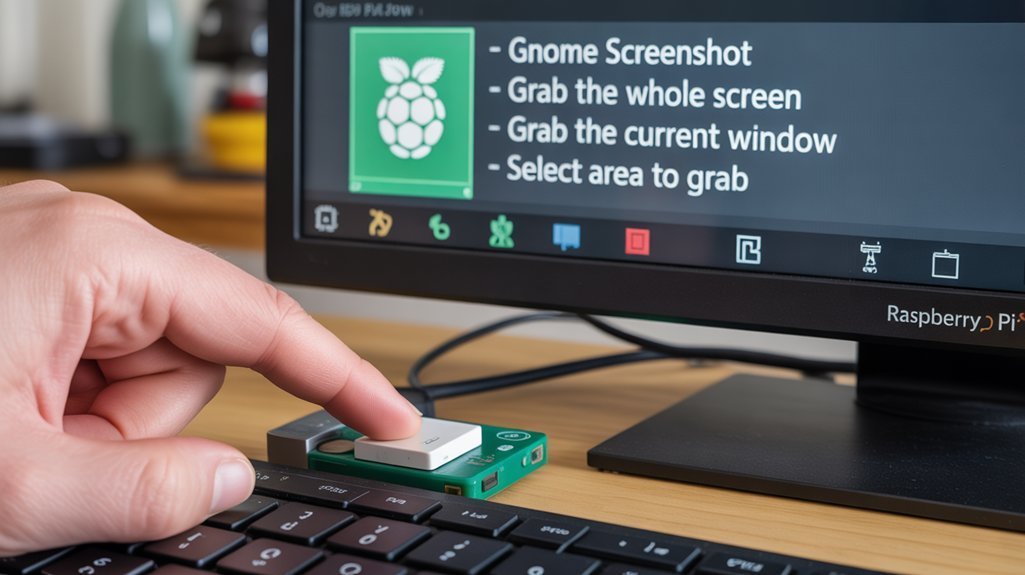
GNOME Screenshot offers a powerful yet simple way to capture screen images on your Raspberry Pi OS.
You can install it either through terminal commands with `sudo apt install gnome-screenshot` or via the GUI Package Manager under Preferences > Add/Remove Programs.
Once installed, you’ll find extensive options for capturing the entire screen, current window, or selected areas with additional features like delayed captures and clipboard integration. Prior to installation, it’s recommended to run software updates for optimal compatibility. After successful installation, you can access the utility through the Accessories > Screenshot path in the system menu.
Installation Steps
The process of adding screenshot functionality to your Raspberry Pi begins with proper installation of GNOME Screenshot. Before installing any new utilities, update your system to prevent installation issues and guarantee compatibility:
“`
sudo apt update && sudo apt upgrade
“`
You have several installation methods based on your utility preferences:
- Command line approach: Run `sudo apt install gnome-screenshot` and confirm with ‘Y’
- GUI method: Navigate to Preferences > Add/Remove Programs and search for “screenshot”
- Pi-Apps installation: First install Pi-Apps with the wget command, then find Screenshot under Tools
- After installation, access via Menu > Accessories > Screenshot
Once installed, you can capture entire screens, specific windows, or selected regions with customizable save options. Keep in mind that Screenshot is not compatible with Wayland display servers, so you may need alternatives like Flameshot in those environments. Additionally, ensuring your Raspberry Pi is equipped with essential hardware requirements will enhance performance during screenshot operations.
Features and Options
After successful installation, GNOME Screenshot offers a versatile suite of capture options that you’ll find both powerful and intuitive.
The user interface lets you capture your entire screen, a specific window, or a custom area by drawing a selection box. Toggle the inclusion of your mouse pointer and set delay timers to perfectly arrange elements before capture.
The interface temporarily disappears during screenshot capture, ensuring clean results. After capturing, you can name your file and select a save location or copy directly to clipboard for immediate use in applications like GIMP.
The user experience focuses on streamlined operation without overwhelming you with complex settings. For capturing dropdown menus or interactive elements, the delay feature proves invaluable, allowing you to prepare the perfect screenshot composition.
Customizing Screenshot Save Locations
By default, Raspberry Pi OS stores screenshots in your home directory (/home/pi) when using the PrtScn button, but you can easily customize this location to better organize your captures.
Take control of your Raspberry Pi experience by easily changing where screenshots are stored instead of cluttering your home directory.
You can modify this behavior using the `scrot` tool that p1owers the screenshot functionality.
- Edit the Openbox configuration file `/etc/xdg/openbox/lxde-pi-rc.xml` with sudo privileges to set a persistent custom path
- Use terminal commands like `scrot ~/Pictures/screenshot.png` to specify a one-time custom save location
- Change file format by appending extensions like .png (recommended for quality) or .jpg
- Install alternative tools such as GNOME Screenshot or `maim` for more save location control options
These customizations help streamline your workflow while maintaining the quality of your captures.
Capturing Selected Screen Areas
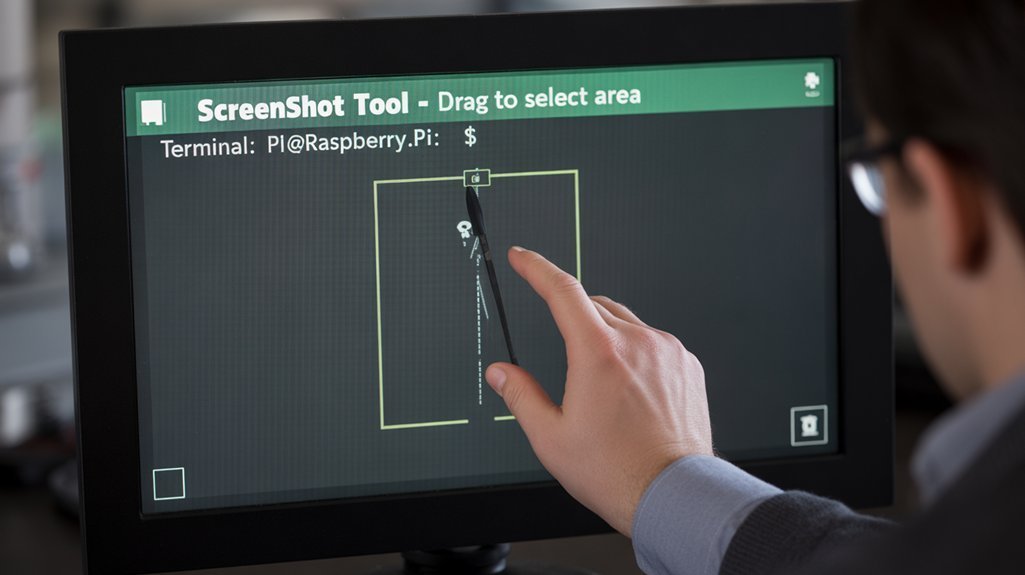
Capturing specific areas of your screen offers more precision than full-screen screenshots, especially when you need to focus on particular interface elements or application windows.
Raspberry Pi OS provides multiple options for this task.
Scrot’s advanced features include area selection with the `scrot –select` or `scrot -s` command, which prompts you to click and drag across your desired region. For timed captures before selection, add the `-d` flag followed by seconds.
Alternatively, grim selected areas offer similar functionality. Though primarily designed for whole-screen capture, grim supports interactive area selection with appropriate command-line options.
Both tools allow you to specify save locations and file formats. Additionally, utilizing native GPIO support can enhance your projects by allowing seamless integration with hardware components that may require visual documentation.
For repeated captures, consider creating custom keyboard shortcuts or aliases to streamline your workflow, especially when documenting projects.
Taking Screenshots via SSH on Headless Raspberry Pi
Taking screenshots on a headless Raspberry Pi presents unique challenges, as you won’t have direct access to a physical display.
To overcome SSH limitations when capturing screenshots remotely, you’ll need to properly configure your environment.
- First, enable SSH via `raspi-config` or by creating an empty `ssh` file in the boot partition. This process is crucial for SSH remote access to work effectively.
- Use `DISPLAY=:0 scrot screenshot.png` to capture screens despite non-interactive sessions.
- Transfer captured images to your computer with `scp *.png username@computer_ip:/destination`.
- Implement screenshot automation using cron jobs to bypass the black screen issue from SSH.
If direct SSH commands produce black images, schedule the screenshot tasks to run locally on the Pi. This method requires minimal setup time, with approximately 10 minutes needed to configure all necessary components.
This approach guarantees your captures reflect the actual display content while maintaining headless operation.
Alternative Screenshot Tools for Raspberry Pi
While headless configurations rely primarily on command-line tools like Scrot, the Raspberry Pi OS ecosystem offers several alternative screenshot applications with varied capabilities.
A performance comparison reveals Flameshot as the most feature-rich option, providing interactive annotation capabilities ideal for documentation projects.
Gnome Screenshot offers simplicity with essential capture options, while XFCE Screenshooter delivers excellent functionality in lightweight environments.
Installation methods vary from simple `apt install` commands to package manager downloads, depending on your desktop environment.
User preferences typically dictate the best choice—those needing rapid captures might prefer Spectacle‘s minimalist approach, while documentation specialists might value Flameshot’s markup features.
For Wayland sessions, the Grim and Slurp combination provides command-line flexibility, though with reduced compatibility on traditional X11 environments.
Deepin Screenshot provides a lightweight alternative with quick capture modes for those seeking efficient screen capturing solutions.
Creating Custom Keyboard Shortcuts for Screenshots
Once you’ve mastered the basic screenshot functionality in Raspberry Pi OS, creating custom keyboard shortcuts can greatly streamline your workflow.
You’ll need to edit the Openbox configuration file at `~/.config/openbox/lxde-pi-rc.xml` to implement custom shortcut configurations. Adding keyboard shortcuts enhances your user experience on the Raspberry Pi.
- Add your keybinding within the `
` tags using the syntax ` scrot - Include modifiers like CTRL (C) or ALT (A) for advanced combinations (e.g., `C-A-Print`)
- Customize screenshot commands with options for delays or specific output directories
- Apply changes by running `openbox –restart` after saving your edits
Binding specific commands to different key combinations lets you capture screenshots in various modes without manually typing commands each time. Remember that shortcuts like PrntSc or Fn + PrntSc capture the screen instantly in the default configuration.
Frequently Asked Questions
Can I Take Screenshots on Raspberry Pi OS While Running Fullscreen Applications or Games?
Yes, you can capture fullscreen applications or games using Scrot with delay options. Press PrtSc or configure custom shortcuts, but consider gaming considerations like exclusive rendering modes that might require specific timing.
How Do I Capture Screenshots Across Multiple Monitors on Raspberry Pi?
In your multi-monitor setup, use scrot to capture all displays collectively. Add custom keyboard shortcuts or create specialized scripts that leverage xrandr for more precise control over your screenshot software’s behavior.
Will Screenshots Capture HDMI Output From External Devices Connected to Raspberry Pi?
You can’t capture external device HDMI output with regular screenshots. You’ll need specific HDMI capture hardware (USB capture device or CSI-2 adapter) connected to your Pi for this functionality.
What’s the Performance Impact of Screenshot Tools on Low-End Pi Models?
Screenshot tools impact low-end Pi models considerably. You’ll notice GUI utilities consume more resources than CLI tools like Scrot. To optimize performance, use command-line options and limit capture frequency on Pi Zero/1 devices.
Can I Automatically Upload Screenshots to Cloud Storage After Capture On Raspberry Pi?
Imagine your screenshots flowing seamlessly to the cloud. You can set up screenshot automation with tools like rclone or AWS CLI, creating shell scripts that trigger cloud synchronization immediately after capture.
Conclusion
Taking screenshots with Raspberry Pi OS is straightforward and versatile. You’ll find multiple options: press PrtScn for instant captures, run scrot commands for terminal-based screenshots, or install GNOME Screenshot for GUI functionality. Whether you’re documenting your projects, capturing terminal output, or creating tutorials, you can customize file locations, set delays, select specific screen areas, and even capture screenshots remotely via SSH.