

When you’re working with your Raspberry Pi’s command line, you’ll inevitably encounter errors that can halt your progress and frustrate your workflow. These issues typically fall into predictable categories—from basic “command not found” messages to complex permission conflicts that seem impossible to resolve. Understanding the systematic approach to diagnosing these raspberry pi command line errors will transform you from someone who gets stuck on error messages into someone who can quickly identify root causes and implement targeted solutions.
Key Takeaways
- Verify command existence with `sudo apt update` and `sudo apt install
` to resolve “command not found” errors. - Use `chmod` to fix permission denied errors by setting proper execute permissions on files and scripts.
- Check the PATH environment variable with `echo $PATH` and ensure commands are in accessible directories.
- Fix broken dependencies using `sudo apt-get -f install` and clear package cache with `sudo apt clean`.
- Add users to hardware groups instead of using sudo for GPIO, SPI, or I2C device access.
Command Not Found Errors
When you encounter a “command not found” error on your Raspberry Pi, you’re facing one of the most common command line issues that can stem from several distinct causes. Effective command resolution requires systematic troubleshooting across multiple vectors.
First, verify the command exists through package installation using `sudo apt update` followed by `sudo apt install
Check your PATH environment variable with `echo $PATH` and add missing directories using `export PATH=$PATH:/new/path`. Make changes persistent by modifying `.bashrc`. The PATH determines the search order in which directories are examined for executable commands.
Examine typographical errors, case sensitivity, and architecture compatibility. Raspberry Pi’s ARM processor requires compatible binaries, so ensure that the CPU architecture aligns with the software you intend to run.
For scripts, verify proper executable permissions and correct shebang lines to enable seamless command execution. User permissions can prevent command access, so ensure your account has sudo privileges for system-level operations.
Permission Denied Errors
Permission denied errors occur when you attempt to execute files without proper permissions, access restricted directories, or run system-level commands without elevated privileges. Understanding the concept of file permissions is essential for diagnosing these access restrictions effectively. You’ll need to understand file permission basics, including read, write, and execute bits for users, groups, and others, to diagnose these access restrictions effectively. Mastering sudo usage and file ownership concepts will help you resolve these errors while maintaining your system’s security integrity. Proper audio quality in your command execution environment ensures clear feedback from system responses and error messages.
File Permission Basics
Linux implements three core permission types: Read (r) enables viewing content, Write (w) allows modifications, and Execute (x) permits running programs or accessing directories.
These permissions apply independently to three user categories: Owner, Group, and Others.
You’ll examine permissions using `ls -l`, which displays a 10-character string like `-rw-r–r–`. The first set of permissions pertains to the file owner, the second set applies to the group owner of the file, and the third set is for other users not owning or in the group. Permission denied errors typically occur when attempting to access files without proper permissions for your user category.
Changing permissions requires the `chmod` command with symbolic notation (`chmod +x script.sh`) or numeric values (`chmod 755 filename`).
The `chown` command modifies file ownership when needed for proper access control.
Using Sudo Effectively
Encountering “Permission Denied” errors while working with files and commands can halt your Raspberry Pi projects immediately.
The `sudo` command elevates your privileges to execute system-level operations, but improper usage creates security vulnerabilities and script failures.
Implement sudo best practices by verifying whether commands actually require elevated privileges before adding `sudo`. For multiple administrative tasks, use `sudo -i` to open a root shell rather than prefixing individual commands.
Always specify absolute paths when running scripts with `sudo` to prevent “command not found” errors.
Reduce sudo dependency through managing group memberships effectively.
Add users to hardware-specific groups like `gpio`, `spi`, or `i2c` using `usermod -aG`. This approach grants necessary hardware access while maintaining system security without requiring root privileges for routine operations. After making group changes, a reboot or re-login may be required to apply the new permissions properly.
Ownership and Security
When your Raspberry Pi denies access to files or hardware interfaces, ownership conflicts and incorrect permissions are typically the root cause.
You’ll encounter these errors when attempting to access GPIO, SPI, or I2C devices without proper group membership or when modifying files owned by other users.
Instead of defaulting to sudo, add your user to relevant hardware groups like `gpio`, `spi`, or `i2c`.
Use `chown` to transfer file ownership appropriately, and implement udev rules in `/etc/udev/rules.d/` for persistent hardware permissions across reboots.
Always verify group memberships with the `groups` command and review file ownership using `ls -l`.
While resolving access issues, maintain the minimal privilege principle to minimize security risks without compromising functionality. Additionally, ensure that your Raspberry Pi is supplied with a regulated 5V supply for optimal performance and stability during operations.
Package Management and Dependency Issues
Package management errors on Raspberry Pi often stem from broken dependencies and misconfigured repositories that don’t support your system’s architecture.
You’ll encounter these issues when packages fail to install, update, or resolve their required dependencies correctly. Properly configured repository settings are crucial to avoid these errors.
Repository configuration errors typically manifest as architecture mismatch warnings or failed package retrievals that prevent successful installations. Simple syntax errors in configuration files can also cause repositories to fail during the update process.
Use ‘sudo apt clean‘ to clear cached package files and free up disk space when encountering installation failures.
Broken Dependencies Resolution
Broken dependencies represent one of the most frustrating obstacles you’ll face when managing packages on your Raspberry Pi, occurring when installed software requires specific versions of libraries or components that are missing, outdated, or conflicting with other system requirements. To effectively troubleshoot these issues, it’s essential to understand how Raspberry Pi OS manages software dependencies.
Effective dependency resolution strategies begin with diagnostic commands that identify conflict sources. Package conflict management requires systematic approaches:
| Command | Function |
|---|---|
| `sudo apt-get -f install` | Automatically fixes broken dependencies |
| `sudo apt-get update && sudo apt-get full-upgrade` | Updates repository data and resolves conflicts |
| `apt-cache policy | Displays version information for conflict analysis |
When encountering persistent unmet dependencies, installing packages separately can help isolate specific problematic components rather than attempting bulk installations. Media server applications like Plex often encounter dependency conflicts with multimedia packages such as VLC during upgrade processes. These tools provide thorough solutions for most dependency issues, enabling you to restore system stability and continue your innovative projects without prolonged interruptions.
Repository Configuration Errors
Although broken dependencies often capture immediate attention, repository configuration errors represent the underlying foundation issues that can prevent your Raspberry Pi’s package management system from functioning entirely.
You’ll encounter these problems when your `/etc/apt/sources.list` file contains misconfigured URLs, missing repository components like “contrib” sections, or expired GPG keys that trigger security warnings.
Essential repository troubleshooting tips include clearing corrupted cache with `sudo apt-get clean` and `sudo rm -rf /var/lib/apt/lists/*`, then running `sudo apt-get update` to verify fixes. When signature verification fails due to missing keys, you can resolve NO_PUBKEY errors by adding the required public key using `apt-key adv –keyserver` followed by the specific key identifier.
Follow apt configuration best practices by maintaining minimal repository sets, using official Raspberry Pi mirrors, and documenting configuration changes. Applications like Pi-Apps may require default Raspbian repositories with specific distribution components in your sources.list to function properly.
These systematic approaches eliminate “NO_PUBKEY” warnings, 404 errors, and repository signature failures that compromise your system’s security and functionality.
Syntax and Assembly Language Errors
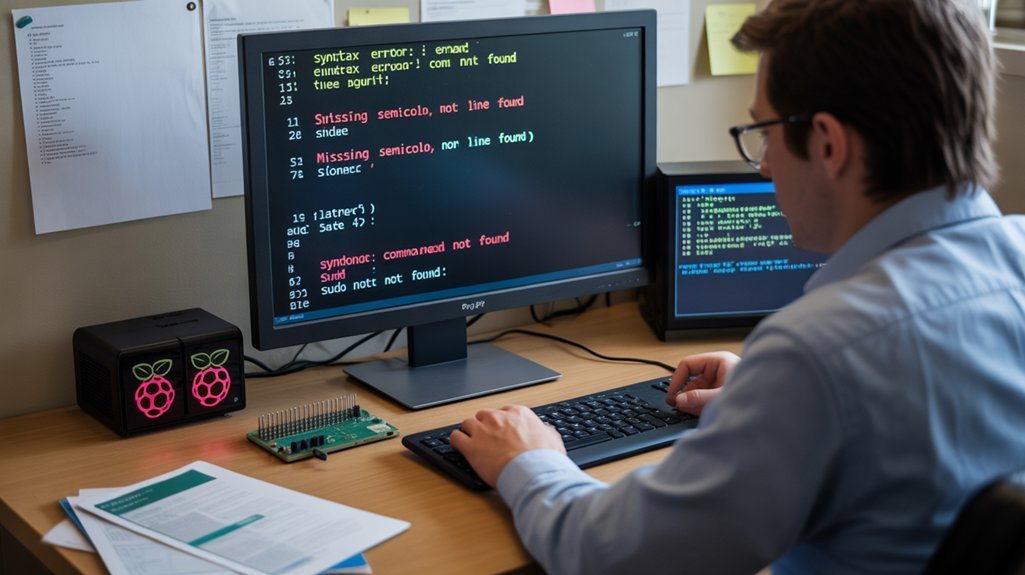
When working with Raspberry Pi’s command line interface, syntax errors represent one of the most frequent obstacles you’ll encounter, whether you’re executing shell commands or writing assembly language programs.
Effective syntax troubleshooting begins with analyzing error messages that pinpoint exact failure locations. You’ll commonly face missing punctuation, incorrect quotation marks, and typographical mistakes in command names. Additionally, understanding Raspberry Pi models can help you choose the right hardware for your programming needs, which may reduce the occurrence of certain syntax errors.
Assembly issues on Raspberry Pi stem from ARM architecture specifics—misaligned instruction mnemonics, unsupported directives, and incorrect register usage. Combat these by leveraging syntax highlighting editors and incrementally testing code blocks.
Copy-pasting from incompatible architectures without modifications creates additional complications. Reference official documentation, validate through online checkers, and understand ARM calling conventions.
Error codes like “command not found” typically indicate permission or naming issues requiring systematic verification of file paths and executable permissions. Maintaining regular updates to your software packages helps prevent compatibility-related syntax errors that can emerge from version mismatches.
System Performance and Resource Monitoring
How can you effectively identify performance bottlenecks before they cripple your Raspberry Pi’s functionality? System performance monitoring requires proactive resource allocation tracking across essential components.
CPU utilization spikes above 80% signal potential thermal throttling, while memory optimization becomes vital when swap usage exceeds 10%. Network latency measurements reveal connectivity degradation that impacts distributed applications. This is especially critical as overclocking capabilities can further increase CPU performance, necessitating careful management of thermal conditions.
Performance monitoring demands systematic approaches:
- Your system’s silent screams for help – Temperature readings above 75°C indicate imminent hardware failure.
- The crushing weight of memory leaks – Unchecked processes consuming RAM will freeze your projects mid-execution.
- Storage death spirals – Disk health deterioration destroys months of development work instantly.
Tools like `htop`, `iostat`, and `vcgencmd` provide real-time metrics. Configure automated alerts using Grafana or Netdata to catch issues before they become catastrophic failures. Advanced monitoring solutions offer pre-configured alerts that automatically notify administrators when critical thresholds are exceeded across multiple devices. For enhanced system visibility, Glances provides comprehensive monitoring that displays detailed performance data alongside visual graphs accessible through both terminal and web interfaces.
Network Connectivity and Related Errors
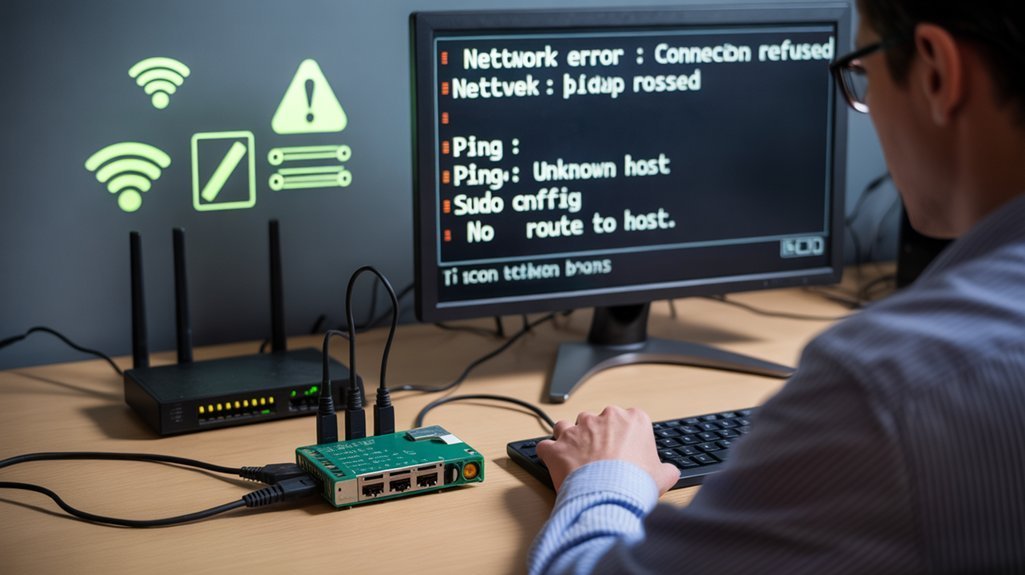
Performance bottlenecks often mask underlying network connectivity problems that manifest as seemingly unrelated system slowdowns.
When tackling Raspberry Pi connectivity issues, you’ll need systematic WiFi troubleshooting approaches. Start with network interface configuration verification using `ifconfig` or `ip a` to confirm active interfaces. Remote access methods such as SSH or VNC may also be affected by network issues.
Address IP address conflicts by implementing static assignments or DHCP reservations—automatic DHCP assignment frequently causes conflicts with multiple Pis.
Investigate DNS resolution failures by checking `resolv.conf` or switching to public DNS servers like 8.8.8.8.
Conduct signal strength analysis using `iwconfig` to identify 2.4GHz limitations and interference patterns.
For hardware malfunction diagnosis, perform routing table verification and consider disabling 5GHz bands or smart switching features. Ensure you’re using an official power supply as poor-quality chargers can introduce WiFi connectivity problems.
DHCP assignment issues often resolve through router-level configuration adjustments rather than device-side modifications. Implement automated connectivity monitoring using scripts that ping external servers at regular intervals to capture network data when failures occur.
Frequently Asked Questions
How Do I Recover From a Corrupted SD Card on Raspberry Pi?
Use data recovery tools like extundelete or TestDisk first to salvage files. Then repair the file system with fsck or CHKDSK. Always backup accessible data before attempting repairs to prevent overwriting recoverable information.
Why Does My Raspberry Pi Randomly Reboot During Command Execution?
Random reboots during command execution typically stem from inadequate power supply voltage drops or overheating issues. You’ll need to upgrade your power adapter, improve cooling solutions, and monitor system logs for hardware-related errors.
How Can I Increase Swap Space When Running Out of Memory?
When your system experiences memory constraints, you’ll optimize performance through swap file configuration. Disable current swap with `sudo dphys-swapfile swapoff`, edit `/etc/dphys-swapfile`, increase `CONF_SWAPSIZE`, then execute `sudo dphys-swapfile setup` for memory optimization.
What Causes GPIO Pin Access Errors and How to Fix Them?
Your gpio pin configuration failures stem from incompatible python gpio library versions, insufficient permissions, or incorrect pin numbering schemes. Run with sudo, update libraries for Pi 5 compatibility, and verify BCM versus physical pin references.
How Do I Troubleshoot USB Device Detection and Mounting Issues?
Like untangling digital cables, you’ll systematically check USB device drivers with `lsusb` and `dmesg`, then tackle mounting filesystems using `lsblk` and manual mount commands to establish reliable connections.
Conclusion
You’ve now mastered the essential troubleshooting techniques for Raspberry Pi command line errors. Remember that “an ounce of prevention is worth a pound of cure” – regularly updating your system with `sudo apt update` and maintaining proper file permissions will prevent most issues. When errors occur, systematically verify package installations, check permissions with `ls -l`, and validate your PATH variables. You’ll resolve command execution problems efficiently by following these structured diagnostic steps.