

Like building a sturdy lighthouse, you’ll set up Apache on your Raspberry Pi with care and minimal exposure. Update the OS, install Apache web server on a raspberry pi, then enable it to start at boot. Open only necessary ports, confirm it serves the default page, and lock down permissions. Add PHP if you need dynamic content and keep logs close. You’ll be serving pages in minutes—provided you avoid one easy-to-miss step that compromises everything.
Key Takeaways
- Prepare Raspberry Pi OS Lite, enable SSH, ensure reliable power/network, and update packages with sudo apt update && sudo apt full-upgrade, then reboot.
- Install Apache with sudo apt install apache2 -y and enable it at boot using sudo systemctl enable apache2.
- Verify service status (sudo systemctl status apache2) and test by visiting http://
to see the Apache2 Debian Default Page. - Optional: Install PHP integration with sudo apt install php libapache2-mod-php, enable needed modules (a2enmod rewrite ssl), and restart Apache.
- Place site files in /var/www/html, check logs in /var/log/apache2, and open ports 80/443 on firewall/router if remote access is needed.
Prerequisites and System Preparation
Before you install Apache, lock down and prep your Raspberry Pi. Apache serves HTML.
Use a Raspberry Pi 3 or later, a Class 10 16GB+ microSD, and a 5V 2.5A+ power supply. For better performance consider using a Raspberry Pi 4 with a 5V/3A supply.
Connect via Ethernet or reliable Wi‑Fi. To ensure a smooth installation later, update packages on the Pi before adding web server components.
Flash Raspberry Pi OS Lite, enable SSH, and assign a static IP or reserved DHCP lease.
Enforce strong passwords, disable or change the default user, and set UFW rules allowing 22, 80, and 443.
Configure router/firewall to forward 80/443 as required.
Install fail2ban for SSH/HTTP hardening.
Define a backup strategy for configs and web content; test restoration.
Plan remote monitoring with lightweight agents or scripts.
Verify /var/www/html.
Add your user to www-data, chown user:www-data, and set 770 permissions.
Organize site directories.
Prepare build tools for Apache/PHP.
Updating and Upgrading Raspberry Pi OS
With your Pi secured and prepped, update the OS to patch vulnerabilities and stabilize your build. Also check CPU temperature regularly using vcgencmd measure_temp to avoid overheating during updates.
First, verify space: run df -h. Ensure a stable internet connection is available before proceeding with updates. For ongoing security, remember the default user password is raspberry and you should change it promptly.
Refresh packages with sudo apt update, then perform a thorough upgrade using sudo apt full-upgrade (or sudo apt dist-upgrade -y).
Reboot with sudo reboot to lock in kernel and service changes.
Treat routine updates and firmware updates separately for control and reliability.
- Execute backups before any change; test your backup strategies so recovery is predictable.
- Only consider sudo rpi-update under Raspberry Pi engineer guidance; it pulls pre-release code and can destabilize systems.
- Don’t mix major OS jumps with firmware updates; change /etc/apt/sources.list carefully, sudo apt update, then upgrade—or prefer a clean image.
Keep iterations small, verify after each step, and prioritize stability.
Installing the Apache Web Server on a Raspberry Pi

Install Apache2 with sudo apt install apache2 -y, keeping your system updated and noting it listens on port 80. Before installing, it’s recommended to run sudo apt update && sudo apt upgrade -y to ensure you have the latest packages. Start and enable the service with systemctl to make sure it runs on boot and stays available after reboots. Verify the default page by visiting your Pi’s IP in a browser; confirm you see the Apache test page before proceeding. For dynamic sites, you can optionally install PHP and MySQL as part of a LAMP stack. Ensure your power supply is adequate to avoid undervoltage and instability.
Install Apache2 Package
Kick off the web server setup by installing Apache2 from Raspbian’s repositories using apt. Raspberry Pi OS is optimized for Raspberry Pi to ensure efficient use of the Pi’s limited resources. First, update and upgrade to pull the latest security patches and avoid dependency drift: sudo apt update && sudo apt upgrade -y.
Verify connectivity, then install: sudo apt install apache2 -y. Expect a small installation footprint (~7.4 MB) and a quick 1–2 minute deploy, model and network dependent. Apache’s default welcome page will be served at your Pi’s IP address (http://PI_IP), confirming that the default Apache package is running.
Default web roots land in /var/www/html/, with baseline modules for HTTP serving. Prefer Raspbian’s signed packages for binary verification and predictable updates. For example, you can SSH into your Pi with a command like ssh login (e.g., ssh pi@192.168.0.136) before installing packages.
- You’re now hosting-ready: drop an index.html into /var/www/html/.
- Need logs fast? Inspect /var/log/apache for request and error traces.
- Planning dynamic content later? Apache’s modular design lets you add PHP without reinstalling.
Start and Enable Service
Although Apache usually starts right after installation, verify and control it explicitly.
For remote management, consider enabling SSH to access the Pi’s command line without a monitor.
Start the service and confirm it’s accepting requests: sudo systemctl start apache2 && sudo systemctl status apache2.
If you need to halt traffic, run sudo systemctl stop apache2.
For resilient, always-on operation, enable autostart at boot: sudo systemctl enable apache2.
This sets symlinks so Apache comes up after reboot, respecting dependency ordering. Note that this guide targets a Raspberry Pi running Raspberry Pi OS and a local webserver setup on your LAN.
If needed, disable with sudo systemctl disable apache2.
After config or module changes, apply them without reboot: sudo systemctl reload apache2 for a graceful reload, or sudo systemctl restart apache2 when a full restart is safer.
For boot troubleshooting or unexpected stops, inspect logs: sudo journalctl -u apache2 and check systemd targets.
Keep permissions tight; only required users should manage service actions.
Verify Default Page
Next, prove Apache is serving files. On your Pi, run: hostname -I to get the IP.
Also ensure your Raspberry Pi has the correct DocumentRoot set and system packages are up to date.
In a browser on the same network, open http://
If it doesn’t load, check network, service state, and HTTP Status Codes (200 vs 403/404/500). Clear Browser Caching or use a private window to avoid stale content.
- Find IP: hostname -I, then browse to http://
to verify a 200 OK. - Inspect files: ls /var/www/html and view index.html to confirm default content.
- Validate config: sudo nano /etc/apache2/sites-available/000-default.conf and verify DocumentRoot /var/www/html.
For edits, add yourself to www-data and set group ownership before replacing index.html.
Verifying the Web Server Installation
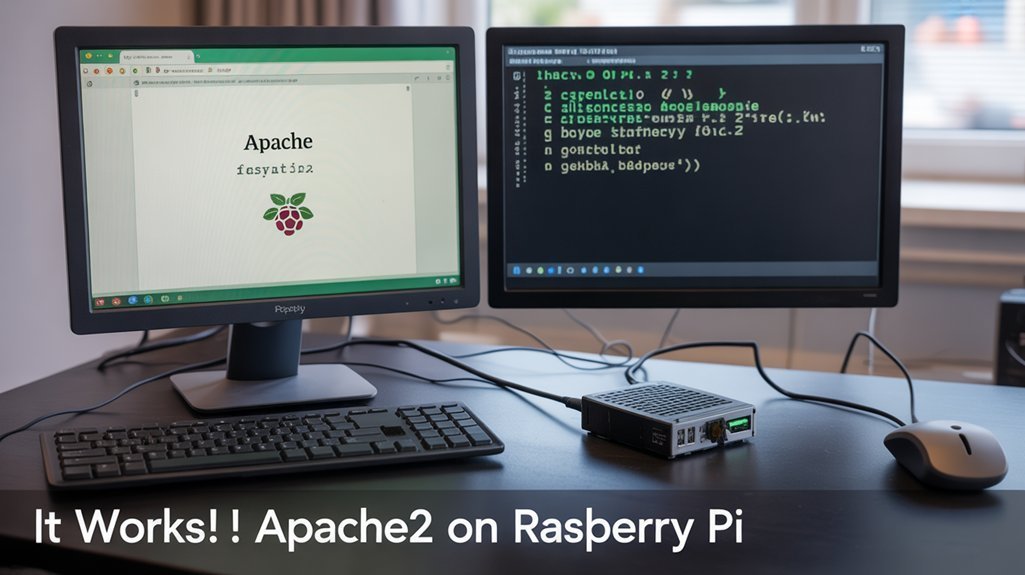
Confirm the install by checking Apache’s status and basic reachability. Run sudo systemctl status apache2 and confirm “active (running).” Because Apache holds a strong market share, skills you practice here will transfer well to general-purpose servers.
If not, sudo systemctl restart apache2, then review /var/log/apache2/error.log for faults. Consider enabling SSH key authentication for secure remote management when troubleshooting headless devices. For headless checks, use wget -O check_apache.html http://127.0.0.1 and cat ./check_apache.html; the default “It works!” indicates success.
If Apache isn’t running, restart it, check error.log, then wget localhost; “It works!” confirms success.
Verify network exposure. Find the Pi’s IP with hostname -I and load http://
If it fails, confirm connectivity and that port 80 is open. Use ss -tuln or netstat -tuln to verify Apache listens on :80. Validate ufw allows 80/tcp.
Confirm content delivery. Serve a test file from /var/www/html and browse http://
Plan for growth: integrate Remote monitoring and baseline SSL verification to prepare for HTTPS.
Managing File Permissions and User Access
Add your user to the www-data group to edit web files without root while keeping Apache’s context intact. Also consider enabling SSH activation for secure remote management when running a headless Pi serving Apache. This lets you safely grant edit access to /var/www/html without weakening security by leveraging group ownership. Change ownership of the document root to www-data and enforce tight group control. Set secure directory permissions (e.g., 770) to allow Apache and trusted users access while blocking everyone else. Apache’s default group is www-data, which ensures the web server and authorized users share appropriate permissions for managing web content.
Add User to Www-Data
Before you edit or deploy site files, place your account in the www-data group so you can manage Apache content without using root. Note that the MicroSD card is often the first component to fail, so keep backups of site files. This aligns access with your role documentation and strengthens your audit trail. On Raspberry Pi, this setup works well when hosting student sites in /home/
Run: sudo usermod -a -G www-data username. This appends the group without stripping existing memberships.
Log out and back in (or reboot) for membership to apply.
Keep membership tight—only trusted collaborators should join www-data. This limits exposure while enabling agile updates.
- Verify: id username to confirm www-data appears in your groups.
- Scope: add only accounts that need to build, test, or ship web content.
- Review: periodically prune the group to maintain least privilege.
Once added, you’ll edit, sync, and deploy with fewer permission blockers while avoiding risky root workflows.
Change Document Root Ownership
With your account in www-data, align the document root’s ownership so edits don’t require root and Apache can read/write as intended. First, confirm current ownership: ls -l /var/www/html and stat /var/www/html/index.html. If it’s root:root, switch it: sudo chown -R www-data:www-data /var/www/html. For custom vhosts, repeat per root, e.g., sudo chown -R www-data:www-data /var/www/example.com/public_html. Use -f to suppress harmless errors. Pair this with future inotify monitoring and deployment hooks to automatically verify and restore ownership after updates. Raspberry Pi OS is Debian-based and optimized for Raspberry Pi hardware.
| Path | Check | Fix |
|---|---|---|
| /var/www/html | ls -l | chown -R www-data:www-data |
| index.html | stat | chown www-data:www-data |
| Custom root | ls -l | chown -R …/public_html |
| Multi-site | find . -maxdepth 2 -type d | chown -R www-data:www-data |
| After deploy | script audit | chown reset via hooks |
Set Secure Directory Permissions
Lock down your web roots so Apache can serve files while unauthorized writes stay out.
Set directories readable and traversable, but restrict writes to trusted owners and the www-data group. Use chown and chmod recursively with intent—never blanket 777. On Raspberry Pi, you can verify Apache is active by visiting the default page after installation, confirming the server is serving content over the Apache Web Server.
Confirm execute (x) on directories for traversal; prefer 755 for public read or 775/770 when collaborators need writes. Add editors to www-data instead of using root.
Align your umask configuration so new files inherit safe modes. Where shared upload dirs exist, set the sticky bit to prevent users deleting others’ files.
– Assign group control:
sudo chown -R :www-data /var/www/html && sudo usermod -a -G www-data youruser
– Enforce modes:
sudo find /var/www/html -type d -exec chmod 775 {} +; sudo find … -type f -exec chmod 664 {} +
– Enable user dirs safely:
sudo a2enmod userdir && chmod 755 ~/public_html
Adding PHP Support for Dynamic Content
Ready to serve dynamic pages? Install PHP and its Apache module in one shot: sudo apt-get install php libapache2-mod-php -y. Enable the module (version may vary): sudo a2enmod php7.4; then restart: sudo systemctl restart apache2. Consider enabling mod_rewrite for clean URLs: sudo a2enmod rewrite && sudo systemctl restart apache2. Secure your docroot with proper ownership and 770 permissions before deploying apps. Plan for Composer Integration and OPcache Configuration to boost performance and maintainability.
| Step | Command | Purpose |
|---|---|---|
| Install | sudo apt-get install php libapache2-mod-php -y | PHP + Apache integration |
| Enable PHP | sudo a2enmod php7.4 | Activate handler |
| Restart | sudo systemctl restart apache2 | Apply changes |
| Rewrite | sudo a2enmod rewrite | URL control |
| Test | echo ‘‘ | Functional check |
Delete test file after verification.
Optional Components, Testing, and Maintenance
Although Apache runs fine out of the box on a Pi, harden it and extend its capabilities deliberately: add only the modules you need (mod_rewrite, mod_ssl, mod_status). On a Raspberry Pi, using a Pi 4/5 is recommended for better performance when serving multiple concurrent requests.
Pair it with MariaDB/MySQL when your apps require a database, and use tools like Webmin cautiously. Add PHP separately if your stack requires it. On a Raspberry Pi intended to host websites or accept HTTP requests on your LAN, consider installing Apache, PHP, and MySQL together so Apache can serve requests, PHP handle dynamic logic, and MySQL persist data.
For HTTPS, automate Certificate Management with Let’s Encrypt; renew and reload cleanly.
Test precisely: find the Pi’s IP with hostname -I, hit it in a browser, confirm the default page, and check sudo systemctl status apache2.
Validate permissions in /var/www/html and inspect responses with curl -I.
Maintain proactively: apt update && apt upgrade, monitor /var/log/apache2/, enforce Log Rotation, back up configs, and reload after changes.
- Disable directory listings and unused modules
- Tune KeepAlive and worker limits
- Benchmark with ab and enable mod_status
Frequently Asked Questions
How Do I Set up a Custom Domain for My Raspberry Pi Server?
Register a domain, enable privacy, and verify renewal. Complete Domain registration, then perform DNS configuration: create A/CNAME records, low TTL, set Dynamic DNS. Reserve static LAN IP, forward 80/443, harden firewall, enable HTTPS, test externally with nslookup and browsers.
Can I Enable HTTPS With a Free Let’s Encrypt Certificate on Pi?
Absolutely—hit the ground running: point your domain to the Pi, open ports 80/443, install certbot with Apache plugin, run certbot –apache, enable redirects, verify automatic renewal, and perform TLS troubleshooting (logs, firewall, vhost) as needed.
How Do I Configure Port Forwarding for External Access?
Configure your router’s port forwarding: map external 80/443 to your Pi’s internal 80/443. Assign a Static IP to the Pi. Disable UPnP—Risks abound. Test externally. Prefer HTTPS. Optionally use nonstandard external ports. Monitor logs.
What’s the Best Way to Secure Apache Against Common Attacks?
Harden Apache now: disable ServerSignature/Tokens Prod; drop server-info/status; least-privilege user; trim modules; restrict Options. Deploy ModSecurity Deployment with CRS; add mod_evasive, Fail2ban; tighten HTTP Headers (HSTS, CSP); set request/time limits; enable TLS; log, monitor, update relentlessly.
How Can I Set up Virtual Hosts for Multiple Websites?
Configure name based hosting: create /var/www/domain/public_html, chown to www-data, chmod 770. Add VirtualHost *:80 with ServerName and DocumentRoot; enable via a2ensite; reload Apache. For IP based hosting, bind unique IPs. Secure permissions, test externally.
Conclusion
You’ve just turned a tiny Pi into a web server—because obviously the internet needed one more. Now lock it down. Update regularly, enable only what you use, and restrict ports. Keep Apache running at boot, monitor logs in /var/log/apache2, and set /var/www/html to www-data. Test locally, then externally. Add PHP and MariaDB only if you must, and harden them. Backup configs before edits. Congratulations—now prove you can keep it online without becoming someone else’s demo.