

Like a bridge between devices, your Raspberry Pi can mirror screens over Miracast—but it needs the right hardware and setup to work reliably. You’ll want a Pi with good Wi‑Fi (preferably 5 GHz), a stable power supply, and the right software such as MiracleCast or RPiPlay. Follow clear steps for OS installation, network configuration, and pairing so you can cast from Android or Windows with low latency—here’s how to get Miracast with a Raspberry Pi.
Key Takeaways
- Use a Linux-compatible 5 GHz Wi‑Fi adapter (not just Pi onboard Wi‑Fi) to ensure stable Miracast/Wi‑Direct connectivity.
- Install a Miracast receiver like MiracleCast or Lazycast, following required dependencies and kernel/driver compatibility.
- Run Raspberry Pi OS (Legacy 32-bit), set GPU memory to 128MB, and match display resolution for smoother playback.
- Use a stable 5V/3A power supply and active cooling to prevent undervoltage and thermal throttling during streaming.
- Verify network and Wi‑Direct status (ip a, wpa_supplicant logs), open necessary ports, and test pairing with the source device.
Hardware and Network Requirements for Miracast on Raspberry Pi
Although Miracast can work over the Pi’s built‑in Wi‑Fi, you’ll get far better results with a Linux‑compatible Wi‑direct (P2P) adapter that supports 5 GHz; this minimizes interference, improves throughput, and lets the Pi act as a reliable receiver.
For reliable Miracast reception, use a Linux‑compatible Wi‑Direct adapter with 5 GHz support rather than the Pi’s onboard Wi‑Fi
You should choose Wi Fi adapters with Linux driver support for Miracast compatibility and dual‑band 5 GHz operation to boost connection stability.
Match display resolution between source and Pi, allocate GPU memory, and accept possible 1080p limits.
Address power considerations with a stable 5V/3A supply and implement cooling solutions.
Enforce security measures to protect the direct P2P link. The Raspberry Pi 3 or 4 is recommended for the best Miracast functionality, so consider using a Raspberry Pi 3/4 when building your receiver. For building the receiver and running the software you’ll need to install required packages and compile binaries as described in the lazycast README.
Preparing Your Raspberry Pi: OS, Power, and Wi‑Fi Setup
Before you start, pick Raspberry Pi OS (Legacy, 32-bit) and flash the official image to an SD card so Miracast components remain compatible. For best results use Raspberry Pi OS because it provides full hardware compatibility and extensive package support.
Use a stable 5V/3A (or higher) power supply and check connections to avoid reboots under load, and consider cooling if you’ll stream for long periods.
Finally, configure Wi‑Fi (wpa_supplicant or GUI), confirm DHCP or set a static IP, and verify connectivity before installing Miracast dependencies. Also ensure you install required packages like python3 and system utilities needed for networking and media playback. Additionally, note that a Raspberry Pi 3 can act as an inexpensive streaming alternative to devices like Chromecast.
Choose the OS
Choosing the right OS determines how reliably your Raspberry Pi will act as a Miracast receiver, so pick a Linux-based distro — preferably Raspberry Pi OS (Full with Desktop) — for best driver and software support. Before flashing, download Raspberry Pi Imager to write the OS to your microSD card.
You’ll choose Raspberry Pi OS for broad Wi‑Fi driver compatibility, easy installation of miraclecast, and strong community user experiences.
Consider lightweight desktop variants to reduce latency.
Evaluate software alternatives like Picast or RPiPlay when you need AirPlay or simpler setups; they demand Python3 and extra packages.
On older Pis, plan for USB Wi‑Fi dongles and confirm distro driver support before flashing your SD card.
For multiple displays you should use a more capable model such as the Raspberry Pi 4 because it handles 2-3 displays more reliably.
RpiPlay is an option for AirPlay mirroring on Raspberry Pi and can be run with the VideoCore userspace libraries and Avahi for device advertisement, so consider it if you need AirPlay mirroring functionality.
Power Requirements
When you set up Miracast on a Raspberry Pi, give power top priority: use a high-quality 5V supply rated 2.5–3A (or higher if you attach displays, touchscreens, or USB peripherals), prefer USB‑C PD for Pi 4/5, and keep cable runs short and thick to avoid voltage drop that causes undervoltage warnings, resets, or streaming instability. Also monitor for undervoltage warnings which indicate voltage drop and can disrupt streaming. Ensure the supply can handle startup peaks that may exceed idle consumption, as total current draw can be notably higher during boot and under load startup peaks. Our compact touchscreen bundle proved easy to power and work with a Pi when connected correctly, demonstrating compatibility testing.
| Item | Recommendation |
|---|---|
| Supply | 5V, 2.5–3A minimum |
| Cables | Short, thick, PD-capable |
| Peripherals | Use powered USB hub |
| Battery/UPS | PD-compliant, ~3A capacity |
Prioritize power stability, manage amperage considerations, use certified adapters, and disable unnecessary services to sustain reliable Miracast streaming.
Configure Wi‑Fi
With power stable, you’ll need to get the Pi on the network to stream Miracast reliably. Make sure you’re using a suitable PSU like 5V/3A power to avoid drops during heavy wireless use.
Use the desktop welcome wizard to pick your SSID and enter the password for quick setup, ideal if you have a monitor.
For headless builds, create a correctly formatted wpa_supplicant.conf on /boot with country, ssid and psk so DHCP assigns an IP for SSH.
Alternatively run sudo raspi-config or nmcli to set wireless options, enable radio, and verify status.
Choose WPA2/3 where possible for Wi Fi security.
Optimize channel and placement to maximize Wireless performance for smooth Miracast streaming.
All Raspberry Pi models from 3 Model B onward include on‑board WiFi, so you often won’t need a USB adapter.
You can also connect via wired Ethernet if you prefer a more stable connection for streaming, as it avoids Wi‑Fi interference and provides reliable bandwidth.
Installing Third‑Party Miracast and Mirroring Software
Now you’ll pick software that matches your devices and goals — Raspicast for Android casting, or alternatives like AirPlay/VNC tools if needed.
Install required dependencies precisely (ffmpeg/omxplayer, tmux, or Wi‑Fi drivers) and follow package instructions to avoid permission or codec errors.
Finally, configure stream ports, test playback locally and from a source device, and troubleshoot connectivity or latency before relying on the setup. Additionally, remember that a Raspberry Pi is a credit card-sized mini PC. It’s helpful to note that the setup benefits from a highly energetic network and stable power supply to maintain reliable mirroring.
Choosing Compatible Software
Choosing the right mirroring software means matching your Raspberry Pi to the devices you’ll be casting from and the performance you need: pick MiracleCast for Miracast support from Android/Windows, RPiPlay if you mostly want AirPlay from iOS/macOS, Lazycast for a minimal Miracast receiver, or Raspicast for simple Chromecast‑style media casting.
Evaluate Miracast software, compatibility considerations, latency tolerance, display count, and setup effort. If you need multiple displays or native Miracast pairing, choose MiracleCast.
For Apple-first environments pick RPiPlay. For lightweight sinks use Lazycast. For casual media casting choose Raspicast. Plan around audio and network needs.
Installing Dependencies Correctly
Having picked the right mirroring stack, you’ll need to install and configure the supporting packages so the software can actually run on your Raspberry Pi.
Update apt first to prevent dependency management problems: sudo apt-get update, then install base packages (net-tools, python3, udhcpd, python3-gi, python3-pip) and GStreamer plugins (gir1.2-gstreamer-1.0, gstreamer1.0-plugins-good, gstreamer1.0-omx-rpi). Use a virtualenv to avoid conflicts with system Python packages. Add vlc and a light DE (lxde –no-install-recommends) if needed. The beta installer was tested specifically with a Dongo dongle supporting Wi-Fi Direct, so verify you have compatible hardware before proceeding.
Use python3 -m pip to install picast in a virtualenv to isolate Python deps.
Install wpa_supplicant/udhcpd and verify drivers to avoid installation errors.
Configuring and Testing Streams
Before you start streaming, set up and verify a Miracast receiver app (like Picast) and the necessary playback tools so your Pi can accept, decode, and display incoming sessions reliably.
Clone Picast, create a Python virtualenv, install deps, adjust /boot/config.txt GPU memory to 128MB, copy settings.ini and tune receiver configuration, then enable autostart.
Use OMXPlayer for hardware decoding, configure TCP/UDP ports (e.g., 8888), and capture .ts for analysis.
Test by pairing with WPS PIN 12345678, monitor latency and dropped packets, and iterate on Wi‑Fi adapter and config to improve stream performance.
- Install and configure Picast
- Set GPU memory and autostart
- Test with OMXPlayer and port settings
- Measure latency and optimize
Configuring Network Settings and Verifying IP Connectivity
When you configure the Pi’s network for Miracast, set a reliable Wi‑Fi or Ethernet connection, confirm DHCP (or assign a static IP where needed), and guarantee the correct country code and sufficient power to prevent dropouts. Then verify DHCP, hostname consistency, and open ports for Miracast. Perform network verification with ip a, ifconfig, and confirm DNS/mDNS. Use ping and traceroute for connectivity testing and route integrity. Prefer 5 GHz or Ethernet for low latency. Monitor signal and firewall rules. Use consistent hostnames when scaling Miracast deployments to simplify discovery and maintenance. Enable SSH key authentication to securely manage Miracast-enabled Pis remotely.
| Check | Command/Tip |
|---|---|
| IP status | ip a / ifconfig |
| Ping | ping |
| Ports | tcp/udp 7236,7250,53,5353 |
| Hostname | hostnamectl |
Pairing and Casting From Android and Windows Devices
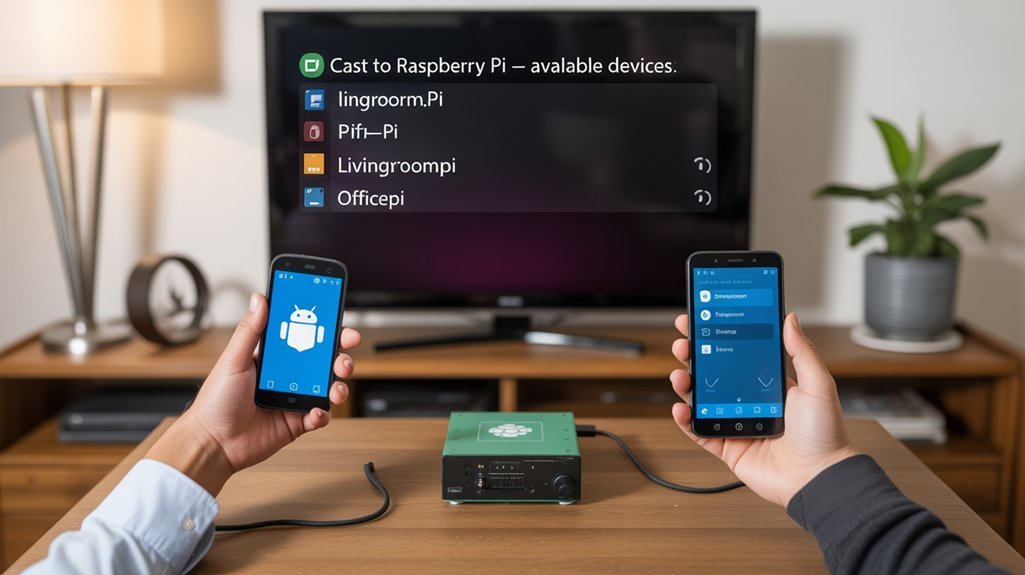
Although Miracast pairing steps differ slightly between Android and Windows, you can follow a clear, consistent process: make sure your Pi and casting device share the same network (or use a direct Wi‑Fi connection), enable screen‑mirroring on the Pi’s receiver software, and confirm the Pi’s IP and that required ports (TCP/UDP 7236, 7250, 53, 5353) and mDNS are reachable.
You’ll verify Miracast compatibility and perform device selection on the casting device, then accept prompts on both ends. Use Raspicast for media casting or native cast/connect flows on Android and Windows; troubleshoot network, firmware, or firewall issues.
- On Android: Settings > Display > Cast Screen.
- On Windows: Action Center > Connect.
- Enter Pi IP for Raspicast and SSH if required.
- Restart interfaces and confirm DHCP/IP.
Optimizing Performance: Power, Wi‑Fi, and Video Decoding
To get reliable Miracast performance from your Raspberry Pi, you’ll need to balance power, Wi‑Fi configuration, and video decoding so the device stays stable without wasting energy.
To get reliable Miracast on Raspberry Pi, balance power, Wi‑Fi, and hardware decoding for stable, efficient streaming
For power optimization, disable unused hardware (dtoverlay entries), HDMI output when unused, onboard LEDs, and underclock CPU/GPU or adjust governors to cut draw. The Raspberry Pi Zero is notably efficient, using as little as 50-70 mA at idle and lower power than other models, so choose a model with good efficiency when possible.
Configure Wi‑Fi for high‑performance mode or use 5 GHz or a quality external adapter to reduce retransmits; tweak transmit power carefully.
Rely on hardware‑accelerated decoding (VideoCore/OMX/VLC) and lighter codecs/resolutions to minimize CPU load.
Use proper PSU and cooling to avoid undervolt and thermal throttling. Also consider choosing a model with a better performance-to-power ratio.
Troubleshooting Common Connection and Audio Issues
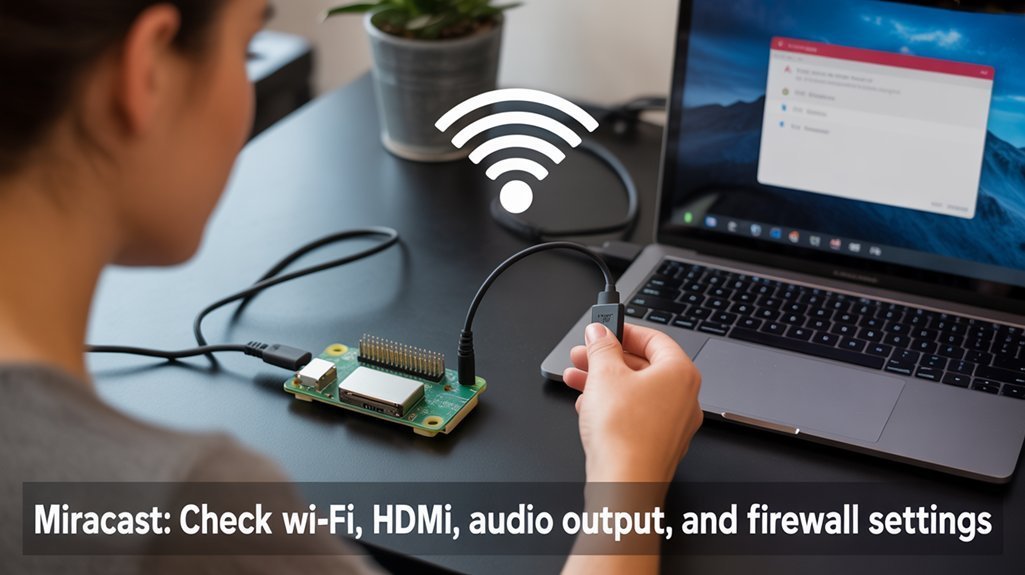
Because Miracast combines Wi‑Fi Direct, kernel drivers, and multimedia pipelines, you’ll need a checklist approach to troubleshoot connection and audio issues:
verify the sink service (miracle-sinkctl) is running in a graphical session, confirm Wi‑Fi Direct/network settings on both Pi and sender, update kernels/firmware/drivers, and guarantee GStreamer and related audio/video dependencies are installed and configured.
Start with rebooting both devices, check dbus/policy files, and prefer GUI mode to reduce audio delay and dropouts.
Focus on driver/kernel compatibility and Wi‑Fi signal.
Use these targeted steps:
- Restart Pi, sender, and network interfaces
- Verify miracle-sinkctl in GUI, not SSH
- Rebuild/update MiracleCast and dependencies
- Test GStreamer pipeline and adjust buffers
Also ensure systemd and related packages are up to date to resolve dbus and interface errors and verify dbus connection. Additionally, confirm that your Raspberry Pi model actually supports Miracast hardware to avoid wasted troubleshooting.
Frequently Asked Questions
Can Raspberry Pi Act as a Miracast Source (Sender) to a TV?
No — you can’t reliably use Raspberry Pi capabilities as a Miracast source; Miracast applications on Pi are experimental, unstable, and hardware-limited, so you should pursue alternatives like AirPlay, DLNA, or Chromecast for streaming.
Can I Use Miracast Over Ethernet Instead of Wi‑Fi?
Like a locked door, you can’t: Miracast limitations mean it requires Wi‑Fi Direct, so you can’t use Ethernet as the transport. You’ll leverage Ethernet advantages for network traffic, but Miracast streaming must run over Wi‑Fi.
Do Raspberry Pi Zero Models Support Miracast?
No, you won’t get native Miracast compatibility on Raspberry Pi Zero models; Raspberry Pi specifications (limited CPU, GPU, 2.4GHz Wi‑Fi) prevent reliable Miracast use, so you’ll need adapters or alternative casting solutions.
Is Screen Touch Input Forwarded When Mirroring to the Pi?
No — screen touch input isn’t forwarded by default when screen mirroring to the Pi; you’ll need VNC/RDP or USB debugging workarounds. Expect additional complexity and potential input lag when enabling interactive control.
Can I Mirror Drm‑Protected Streaming Apps via Miracast on Pi?
No — you can’t reliably mirror DRM‑protected streaming apps via Miracast on Pi. DRM restrictions cause streaming limitations; Miracast on Raspberry Pi handles open content well, but protected streams usually fail or show blank/error screens.
Conclusion
You’ve set up hardware, network, and software to get Miracast working on your Raspberry Pi, but don’t expect perfection: a polished streaming session can sit beside a finicky pairing step. When things click, you’ll enjoy low‑latency mirroring; when they don’t, simple fixes—rebooting, boosting GPU memory, swapping a 5 GHz dongle—usually help. Keep settings lean, test with both Android and Windows, and iterate: pragmatic tweaks turn occasional frustration into reliable casting.