

You might not know Caddy will automatically obtain and renew TLS on armhf and aarch64 with no extra tooling. You’ll update the Pi, add Caddy’s APT repo and GPG key, install the caddy package, and enable its systemd service so sites get HTTPS automatically. Follow reproducible commands for setup, configuration, and troubleshooting when you install Caddy on a Raspberry Pi!
Key Takeaways
- Use a Raspberry Pi 4 or Pi 5 running Raspberry Pi OS (Bullseye or newer) with at least 16–32 GB microSD and reliable power/cooling.
- Update the system and install prerequisites: sudo apt update && sudo apt upgrade, plus curl, gnupg, apt-transport-https, and build-essential if needed.
- Add Caddy’s repository and GPG key, run sudo apt update, then sudo apt install caddy to install the package and systemd service.
- Ensure network and ACME requirements: public IPv4/port forwarding for HTTP(80)/HTTPS(443), correct system time, and firewall rules allowing 80/443 and SSH.
- Place a Caddyfile in /etc/caddy, site files under /var/www/your-site, then manage and verify with systemctl status caddy and caddy validate.
Preparing for Installation of Caddy on a Raspberry Pi
Before you begin, make sure you’ve picked compatible hardware so the setup is reproducible and stable: choose a Pi 4 or Pi 5 for best performance, use a microSD card of at least 16 GB (32 GB recommended), and have a model-specific reliable power supply (e.g., 5V/3–5A for Pi 5). For consistent performance across deployments, prefer models based on Broadcom SoCs.
Next, verify peripherals only if needed; for headless installs you’ll automate via scripted provisioning. For many projects, opting for a Pi 5 gives noticeably better performance and graphics support.
Prioritize case selection that supports mounting and airflow so you can script deployments without overheating.
Implement thermal management with heatsinks or active cooling, and document fan controls or thermal thresholds for reproducible behavior.
Gather microSD reader, imaging tool, and cable.
Standardize imaging settings, flash card, and log hardware serials so automated inventories can recreate the environment.
and note revision numbers.
Install Raspberry Pi OS and configure it before proceeding.
Ensuring Network and OS Compatibility
Confirm you’re running a supported Raspberry Pi OS release (preferably the latest stable) and have the prerequisite packages for Caddy installed. Also ensure your Pi’s Debian release and package manager are up to date to avoid dependency issues. Caddy supports HTTP/2 by default and auto-provisions SSL via Let’s Encrypt.
Automate a network connectivity check for Ethernet/Wi‑Fi and verify internet access so Caddy can retrieve ACME certificates.
Make certain firewall and router rules allow inbound/outbound traffic on ports 80 and 443, and script opening those ports for reproducible deployments.
Caddy provides automatic HTTPS and reverse proxying, making it easier to secure and manage hosted services on the Raspberry Pi.
Supported OS Versions
If you’re installing Caddy on a Raspberry Pi, use Raspberry Pi OS Bullseye (or newer) or an equivalent Debian/Ubuntu ARM release to guarantee repository compatibility and smooth updates. Use Raspberry Pi Imager to perform pre-boot configuration before first boot to set SSH, Wi‑Fi, and hostname.
Prefer Caddy for its automatic certificates and simplified HTTPS management on Pi-hole.
For innovation-focused deployments, avoid legacy raspbian and prefer supported images or vetted alternative distros.
Update the system first with sudo apt update && sudo apt upgrade, remove conflicting services like apache2, and make certain apt transport and curl are present.
Match your binary to uname -m (armv6l, armv7l, or aarch64/arm64) to prevent runtime errors; if no pre-built fits, automate a from-source build in CI.
Before downloading binaries, determine your processor architecture with the command uname -m.
Ubuntu Server (20.04/24.04) and Debian derivatives work well; CentOS ARM variants are possible but less common.
Keep packages current to enable repository-based installs and reproducible upgrades.
Document steps in scripts for repeatable provisioning.
Network Connectivity Check
With a supported OS and updated packages in place, verify network interfaces and connectivity programmatically. Remember that SSH provides secure remote terminal access, so enable it if you need remote management SSH. Also ensure you expand filesystem to utilize full storage capacity on Raspberry Pi before installing services. Use nmcli device show to enumerate interfaces, confirm GENERAL.TYPE for ethernet or wifi, and pick the correct device before tests. Automate wireless diagnostics with nmcli dev wifi list and sudo nmcli –ask dev wifi connect
Perform ip validation by extracting IP4.ADDRESS (strip CIDR) and guarantee it matches your network scheme. Test reachability with ping or curl, check DHCP lease status, and consult journalctl -u NetworkManager for failures.
Keep configurations reproducible in /etc/NetworkManager/system-connections/ and script retries, service restarts, or firmware checks to recover connectivity sustainably.
- Enumerate interfaces
- Confirm type and IP
- Run wireless diagnostics
- Automate ip validation
Log outputs to a consistent location so you can audit and iterate automated recovery steps quickly safely.
Firewall and Open Ports
When securing a Raspberry Pi running Caddy, use UFW to enforce a minimal, scriptable surface area: set default deny incoming and allow outgoing, add persistent rules for 22/tcp (create this before enabling to avoid lockout), and explicitly allow 80/tcp and 443/tcp so Let’s Encrypt and HTTPS can function. Firewalls control network traffic and act as a barrier between your Pi and external networks.
Install and enable UFW via apt, then apply defaults and specific allows (22,80,443) with scripted commands.
Assign a static IP, configure router port forwarding for 80/443 to the Pi, and confirm iptables/UFW compatibility on your OS. If you plan to power your Pi remotely, consider Power Over Ethernet to simplify cabling and provide both data and power over a single cable.
Enable logging to detect probes, and consider automation for rule rollouts and backups.
If you expect abuse, implement rate limiting at Caddy or firewall level.
You’re responsible for scheduling updates and monitoring certificate renewal.
Note that Caddy and ACME require the http-01 challenge to be served by the publicly reachable host, so proxying or forwarding requests can prevent automatic certificate issuance.
Updating System Packages and Dependencies
First, run `sudo apt update` to refresh package metadata so your Pi sees the newest versions. Regular updates are crucial for security.
Then you’ll run `sudo apt full-upgrade` (or `sudo apt upgrade` to avoid removals) to apply updates and resolve dependency changes. Be cautious because this process follows Debian’s apt conventions, which can remove obsolete packages during a full-upgrade.
Finally, install prerequisites like `build-essential`, `ca-certificates`, and `curl`, and script these commands for reproducible deployments.
Note that Raspberry Pi OS is Debian-based, so its package management behaves like Debian and follows the same apt conventions.
Update Package Lists
Bring your package index up to date by synchronizing the local list in /etc/apt/sources.list with the repositories so you get the latest package metadata, security fixes, and dependency information before installing anything. Also monitor CPU temperature regularly to prevent overheating. Also perform regular full-upgrade and reboot when needed to apply all updates.
You’ll run sudo apt update with sudo to fetch metadata; this triggers security notifications and prepares apt pinning policies for deterministic installs.
Automate it in scripts or cron for reproducibility.
- Fetch indexes from all configured repositories.
- Validate network and repository entries.
- Inspect output for errors or held packages.
- Log results for audits and automation.
Run update before installing Caddy or language-specific tools like pip to avoid dependency errors and guarantee predictable builds.
Always use sudo apt update (or sudo apt-get update) and run it before every new install session; schedule as needed. Also, using package managers like APT ensures proper dependency management.
Upgrade Installed Packages
After you’ve updated package lists, upgrade installed packages to apply fixes and new features; run sudo apt upgrade to update without removing packages, but prefer sudo apt full-upgrade in automated maintenance to resolve dependency changes, install required new packages, and remove obsolete ones. Always run apt update before any upgrade to refresh package lists.
You should run sudo apt full-upgrade regularly in scripts after sudo apt update to keep kernel and firmware current, avoid half-upgrades, and resolve dependency changes automatically. Consider coordinating upgrades with raspi-config changes to avoid conflicting boot settings.
Automate with cron or systemd timers, include scheduled reboots when kernel updates occur, and log changes for auditability.
Test upgrades on a staging Pi when possible and design rollback strategies (snapshot or image restore) before mass deployment.
Keep upgrades repeatable, atomic when feasible, and monitor for package conflicts requiring manual intervention and report failures quickly.
Install Prerequisite Dependencies
Before installing Caddy, update your package cache and install required dependencies so automated scripts run reliably: run sudo apt update to refresh metadata, confirm your Pi’s architecture with uname -m, then install essential tools and libraries (for example sudo apt install -y curl wget gnupg software-properties-common build-essential) so installers, signature checks, and any source builds succeed; use apt full-upgrade in maintenance scripts where you want dependency changes handled automatically, and log command output for reproducibility and troubleshooting.
Follow these steps:
- Refresh APT cache and verify /etc/apt/sources.list.
- Install curl, wget, gnupg, software-properties-common, build-essential.
- Run uname -m and pick matching packages to avoid architecture mismatches.
- Integrate dependency auditing and security hardening into automation logs.
Keep scripts idempotent, log output, use apt reliably. Raspberry Pi features GPIO pins for easy hardware interfacing.
Installing Caddy via the Raspbian Package Manager
To set up Caddy via Raspbian’s package manager, you’ll script the same repeatable steps on each Pi: update and upgrade apt, install prerequisite packages (debian-keyring, debian-archive-keyring, apt-transport-https and any required libs like libc6, libpcre3, libssl-dev), import Caddy’s GPG key and add the cloudsmith repository, run sudo apt update, then sudo apt install caddy to pull the package and dependencies and register the service with systemd. Using this method on Raspberry Pi OS ensures full compatibility with the Pi’s hardware and package ecosystem. The Raspbian package registers as a systemd service so Caddy starts automatically on boot. After adding the repo automate verification of the key and source file and confirm ARM compatibility.
Use apt to manage updates so Caddy behaves like a native edge proxy, not a loose binary releases install.
Enable and manage the service with systemctl, open ports 80 and 443, and keep configs in /etc/caddy for reproducible deployments.
Automate logging and backups.
Caddy’s built-in HTTPS simplifies certificate management for public domains.
Verifying the Caddy Installation
You should confirm the binary is usable by running which caddy and caddy version to log the installed release. A reverse proxy like Caddy can map ports to paths or hostnames, making service access simpler reverse proxy.
You can test HTTP response with curl http://
You must check systemd with systemctl status caddy and systemctl is-enabled caddy, and review journalctl -u caddy if the service isn’t active.
Also, be aware that the service can fail under systemd even when the binary runs fine manually; check logs for exit code 217.
Check Caddy Version
Run `caddy version` to confirm the installed binary and exact release (e.g., v2.7.4) and make sure the caddy binary is in your PATH; then check `systemctl status caddy` (use `sudo systemctl restart caddy` and `journalctl -u caddy` if it’s inactive) to verify the service is running.
Use this sequence for reliable version verification and to validate architecture compatibility before automation.
Follow a compact checklist:
- Run `caddy version` to read the release string.
- Execute `uname -m` to confirm CPU arch.
- Inspect `systemctl status caddy` for active state and errors.
- Query `apt show caddy` or `apt-cache policy caddy` if you used apt.
If issues appear, restart and inspect logs; repeat checks after fixes to keep deployments reproducible and confirm plugin support needed. Also verify the Raspberry Pi model via the device tree file if architecture or compatibility is in doubt.
Test HTTP Response
Check the server’s default response by requesting your Pi’s IP in a browser or with curl (curl http://
Note response timing — measure with curl -w ‘%{time_total}
‘ to automate latency checks and record a simple browser checksum by saving the page and hashing it for drift detection.
If you configured a custom root in your Caddyfile, reload Caddy and re-test to confirm served files match expectations.
For HTTPS, test TLS handshakes with openssl s_client and verify certificates.
Use journalctl -u caddy and network checks when responses fail.
Automate these checks in CI to make certain consistent deployment health and resilience.
Confirm Systemd Service
Start by confirming the Caddy systemd service is present, enabled, and recognized by systemd. Check /etc/systemd/system/caddy.service exists, then run sudo systemctl is-enabled caddy and sudo systemctl status caddy to verify loaded state.
- Inspect journalctl -u caddy for launch errors.
- Verify User= and Group= to prevent status=217/USER.
- Run ps aux | grep caddy and ss -tuln to confirm listeners.
- After edits, sudo systemctl daemon-reload and restart.
Ensure ExecStart path and LimitNOFILE are correct. Automate checks and remediation scripts to enforce reproducible deployments. Monitor with systemctl show caddy for RestartUSec and ActiveState. This workflow supports systemd troubleshooting,service security and predictable boots. Integrate into CI to detect regressions and automatically auto-heal. Log alerts and metrics to your observability stack for continuous verification now.
Creating Caddyfile and Site Directory Structure
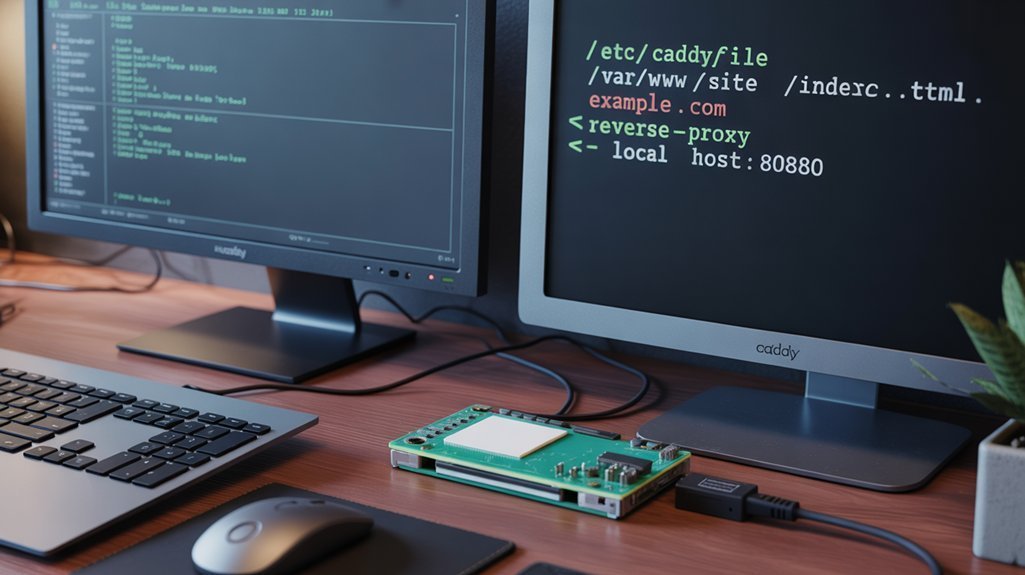
When you set up Caddy on your Raspberry Pi, create a central Caddyfile in /etc/caddy and a separate site root under /var/www/your-site so automated deployments and backups stay predictable.
Create /etc/caddy and edit Caddyfile with sudo; define global options first if needed, then one or more site blocks.
Start each block with its address, use root * /var/www/your-site and file_server and encode gzip inside the block.
Use explicit braces for multiple sites so address specificity routes correctly.
Place site files in /var/www/your-site, organize assets per site, and use clear names for virtual hosting.
Make certain directory permissions and ownership let Caddy read content (commonly www-data).
Back up /etc/caddy and /var/www regularly to keep deployments reproducible and recoverable.
Test locally before pushing changes to production now.
Running and Managing Caddy With Systemd
You’ll run Caddy under systemd so it starts on boot, restarts on failure, and integrates with system services; create a dedicated caddy user, drop privileges in a unit file placed in /etc/systemd/system, and use systemctl to enable, start, reload, and monitor the service while relying on journalctl for reproducible logs and troubleshooting.
Follow automation steps for systemd integration:
- Create caddy user and assign minimal user permissions.
- Drop privileges in a unit with [Unit],[Service],[Install].
- Enable and start with systemctl enable –now caddy.
- Inspect logs via journalctl -u caddy.service.
Script unit creation, validate with systemctl daemon-reload, and include resource limits for production reliability checks.
Automate ownership fixes, set directory ACLs for /etc/caddy and web root, test restart behavior under simulated failures regularly.
Enabling Automatic HTTPS and TLS Settings
Although setup is minimal, Caddy automatically provisions and renews TLS certificates (Let’s Encrypt/ZeroSSL or self-signed for localhost), so you can secure sites reproducibly without manual certificate management.
On Raspberry Pi you just declare your domain in the Caddyfile and Caddy handles automatic TLS, HTTP/2/3, and modern ciphers; make certain DNS and ports 80/443 are open and system time is correct.
Use the tls directive to override cert paths or to enable client auth with tls { client_auth { mode require_and_verify } } when you need mutual TLS.
Caddy stores keys securely and performs certificate renewal and OCSP stapling automatically, reducing operational load.
If validation fails, check DNS, port conflicts, permissions, and logs for reproducible troubleshooting.
Also keep Caddy regularly updated to maintain compatibility and security.
Advanced Installation Options and Alternatives
Explore advanced installation options on Raspberry Pi by choosing custom Caddy builds or alternatives: Caddy’s modular architecture lets you compile only the plugins you need into a static binary (reducing runtime bloat and improving CPU efficiency), embed FrankenPHP to serve PHP apps as a single, high-performance binary, and automate reproducible deployments via scripted builds and config-as-code; if you need different trade-offs, consider Nginx or Lighttpd for lower memory footprints or a framework server (Flask) for Python apps, and pick based on automation requirements, language support, and maintenance overhead.
Choose custom Caddy builds or alternatives on Raspberry Pi: trim plugins, embed FrankenPHP, and automate reproducible deployments.
- Build custom binary: Plugin customization to reduce footprint.
- Embed FrankenPHP: single-binary PHP with FrankenPHP performance gains.
- Automate builds: scripted compile, tag, release for reproducible deploys.
- Choose Nginx/Lighttpd/Flask for memory or language trade-offs.
Troubleshooting Common Installation Issues
Diagnose common installation failures by running automated checks for file and binary permissions, systemd service user and environment settings, port bindings and conflicts, Caddyfile syntax and paths, DNS/hostname resolution, and required packages; script these checks (and their fixes) so you can reproduce and remediate issues consistently across Pi devices.
Automate permission troubleshooting: verify Caddy binary is executable, /etc/caddy and web roots have correct ownership, and systemd User= matches those owners.
Validate capability management for binding <1024 via setcap or use systemd ambient capabilities.
Test systemd after edits with daemon-reload and journalctl -u caddy.
Script port scans and firewall checks, parse Caddyfile for syntax errors, and confirm DNS points to your Pi.
Include OS updates and ARM-compatible binaries in the checklist to prevent dependency failures.
Frequently Asked Questions
Are Caddy Plugins Available for Arm/Raspberry Pi Builds?
Yes — you can use ARM plugins; official ARM builds include many modules, but niche plugins need custom builds. You’ll automate builds with Cross compilation tooling or native Go toolchain, creating reproducible custom Caddy binaries.
How Can I Back up Caddy Certificates and Configuration Automatically?
30% of outages stem from lost configs. You’ll schedule automated snapshots of /etc/caddy and /root/.local/share/caddy, compress with gpg, securely rsync for remote sync to cloud/NAS, log outcomes, and test restores via cron or systemd timers.
Will Running Caddy Increase SD Card Wear Significantly?
No, running Caddy won’t materially increase SD card wear if you minimize logging and automate rotations; you’ll reduce write cycles, preserve flash endurance, and implement reproducible, automated backups or tmpfs mounts for reliable, innovative deployments.
Can Caddy Proxy Streams From a Raspberry Pi Camera Module?
Sure, because you clearly needed another proxy, you can use Caddy to proxy Raspberry Pi camera streams: it’ll handle HTTP MJPEG, support RTSP proxying via conversion, and enable WebSocket relaying for low-latency, automated, reproducible deployments.
How Do I Integrate Caddy With Pi-Hole for DNA-Based Ad Blocking?
You’ll use Caddy as an HTTPS gateway and reverse proxy to enable Pi hole integration: automate Caddyfile proxying to Pi-Hole’s local HTTP, keep Pi-Hole as DNS server, and configure DNS forwarding in DHCP or router.
Ready to Install Caddy on a Raspberry Pi
You’re ready to run Caddy on a Raspberry Pi: you’ve automated updates, added the APT repo, and installed the package, so future deployments take minutes. Stat: Caddy’s automatic HTTPS provisions certificates in about 30 seconds on typical Pi hardware, cutting manual TLS time dramatically. Follow the steps, script the commands, and keep your Caddyfile and /var/www permissions reproducible. If something breaks, reproduce the error, check logs, and iterate. Automate backups and test restores regularly daily.