

Picture your Raspberry Pi as a small workshop on your desk, lights blinking and ready. You’ll get it updated, confirm Python 3 and pip, and create a clean virtual environment before installing Flask on a Raspberry Pi with pip so your projects stay predictable. I’ll also show a minimal app, how to run it, and options for keeping it running continuously—so you can move from experimentation to a reliable web service.
Key Takeaways
- Ensure Python 3 is installed and check it with python3 –version before proceeding.
- Install pip for Python 3 using sudo apt update && sudo apt install python3-pip, then verify with pip3 –version.
- Create and activate a virtual environment with python3 -m venv venv && source venv/bin/activate to isolate project dependencies.
- Install Flask inside the venv with pip install –upgrade pip setuptools && pip install Flask, then verify by python -c “import flask; print(flask.__version__)”.
- For production, serve via a WSGI server (gunicorn or mod_wsgi) and run behind a reverse proxy or systemd service for reliability.
Preparing Your Raspberry Pi and SD Card
Before you install anything, get your Raspberry Pi and microSD card ready: choose a reliable card (SanDisk, Samsung, Kingston, or the official Raspberry Pi card) with at least 32GB for general use, 64–128GB for media or AI projects, and up to 256GB only if you need heavy storage and are prepared to handle extra formatting.
Pick SDHC or SDXC in UHS-1/UHS-3 or Class 10; U1 usually balances cost and speed. Check compatibility with Pi bus speeds for best performance.
Test SD card health before deployment and use endurance-rated cards for heavy writes.
Format with the Raspberry Pi Imager, then set a backup strategy: image the card or sync critical folders to external storage or cloud. Remember to format the card as FAT32 to ensure Raspberry Pi compatibility.
You’ll avoid surprises and scale confidently. Also consider that the Raspberry Pi Foundation officially supports up to 256GB for SD card capacity. The Raspberry Pi SD interface supports SD6.1 which defines modern features and speeds.
Updating and Upgrading System Packages
Before installing Flask, check for updates with sudo apt update so your package lists are current. You can use Raspberry Pi Imager to preconfigure the OS with advanced options for Wi‑Fi and SSH in headless setups.
Then upgrade installed packages (sudo apt full-upgrade or apt-get upgrade) and clean up with autoremove/autoclean to avoid leftover cruft.
If the kernel or firmware changed, reboot your Pi to make sure the updates actually take effect.
Raspberry Pi OS is Debian-based and supports many packages, so it’s a good idea to remember its package support.
Also, it’s recommended to ensure you have internet connectivity before starting package operations.
Check for Updates
Because package lists and security fixes change often, you should refresh your Raspberry Pi’s package sources with sudo apt update before installing or upgrading software so you get the latest versions and avoid dependency problems. For broader system configuration you can also use sudo raspi-config to adjust boot and network settings before installing software.
Run that command regularly to fetch current package metadata and security patches; it reads sources in /etc/apt/sources.list and related files.
Check mirror selection if downloads are slow or outdated — pick a nearby or official mirror for reliability.
Verify free disk space with df -h and back up critical data before major changes.
Automated security updates can reduce risk, but manual checks let you control timing.
After updating package lists, you’ll be ready to perform controlled upgrades or install Flask with fewer surprises.
You can also run sudo apt full-upgrade occasionally to install all available package updates and kernel changes.
Make sure to run sudo apt-get update before installing new applications to ensure dependencies install correctly.
Upgrade Installed Packages
When you’re ready to bring your Raspberry Pi’s software up to date, run sudo apt update followed by sudo apt full-upgrade to apply all available package changes, including kernel and firmware updates that standard upgrades might skip. Raspberry Pi OS is optimized specifically for Raspberry Pi hardware, leveraging tailored optimizations to ensure maximum performance from limited resources.
You’ll use full-upgrade because it handles shifting dependency management on Raspberry Pi OS, adding or removing packages as needed.
After upgrading, verify kernel headers match your running kernel; if builds fail, reinstall them with sudo apt install raspberrypi-kernel-headers.
Clean up obsolete files with sudo apt autoremove and sudo apt autoclean to free space and reduce clutter.
Keep /etc/apt/sources.list current and check disk space with df -h before big upgrades.
Script these steps for repeatable maintenance, but review changes interactively.
Also remember that APT is pre-installed on Raspberry Pi OS and manages package installation and updates, so confirm APT is present before starting.
Reboot if Required
If updates include a new kernel, critical library, or firmware, you’ll need to reboot to apply them—check for the file /var/run/reboot-required or run the check over SSH to see if a reboot is pending. If that file exists, save work and run sudo reboot (or sudo shutdown -r now).
Desktop Raspberry Pi OS will also prompt you. Ensure your power supply can deliver a stable 5V supply to avoid undervoltage during updates.
Use needrestart to detect services needing a restart without a full reboot, but don’t skip reboots after kernel or firmware changes — they activate patched modules, device trees, and VideoCore firmware. Debian-based systems commonly place the reboot-required flag at /var/run/reboot-required.
For production or remote builds, integrate scheduled reboots with a systemd watchdog or maintenance window so updates don’t interrupt service.
Always back up before rpi-update, check disk space, and document the reboot and update actions. Owners of Raspberry Pi 4/Compute Module 4/Raspberry Pi 400 likely to upgrade for features/performance Bullseye.
Verifying Python 3 and Installing Pip
First check which Python 3 version you have with python3 –version so you know it meets your project’s requirements.
If pip’s missing or outdated, install or upgrade it with sudo apt install python3-pip && python3 -m pip install –upgrade pip setuptools.
Once pip is current, you’ll be ready to install Flask and manage packages reliably. Also consider enabling SSH on the Pi early to allow remote command-line access for package installation and testing.
You can update system packages first with apt update to ensure the latest installers are available.
Most Raspberry Pi OS versions come with Python pre-installed, so verify the version before installing a different release.
Check Python 3 Version
Before you install Flask, confirm Python 3 is present and current on your Raspberry Pi so packages and pip behave as expected. Also check your storage and card speed requirements if you plan to install a full OS or multiple packages, especially the microSD card.
Check installed Python versions and interpreter paths quickly: run ls /usr/bin/python* to list binaries and python3 -V to see the exact 3.x release.
If python –version points to Python 2, note that many Pis ship both for legacy support.
You can also launch the interpreter and run import platform; platform.python_version() or inspect sys.version_info in scripts to verify runtime details.
Many modern packages need Python ≥3.7, so confirm your version meets requirements before proceeding.
If it’s too old, plan to upgrade or install a newer interpreter to keep your project forward-looking and compatible.
You can list installed Python binaries to see what’s available on the system and where the executables live /usr/bin .
Always remember that the version format is major.minor.micro (for example, 3.10.1).
Install and Update Pip
You’ll want to update your Pi’s package lists and installed packages so pip installs cleanly and uses current dependencies. Run sudo apt update and sudo apt upgrade to avoid dependency errors and keep your system lean. You can flash images using the Raspberry Pi Imager before first boot to ensure a clean OS if needed.
Then install pip for Python 3 with sudo apt install python3-pip and verify with pip3 –version (or pip –version).
Prefer virtual environments for project work: python3 -m venv /path/to/venv, activate it, then install Flask inside that isolated environment. If pip3 isn’t found or you hit “externally-managed-environment” messages, follow pip troubleshooting steps: install python3-full, use apt packages for system tools, or cautiously use –break-system-packages.
Regularly run pip3 install –upgrade pip inside your venv to stay current and secure. It is also helpful to ensure you have network connectivity before installing packages so pip can reach PyPI and piwheels. Additionally, confirm that pip3 is installed on the system before proceeding to avoid install errors.
Installing Flask via Apt and via Pip (Options)
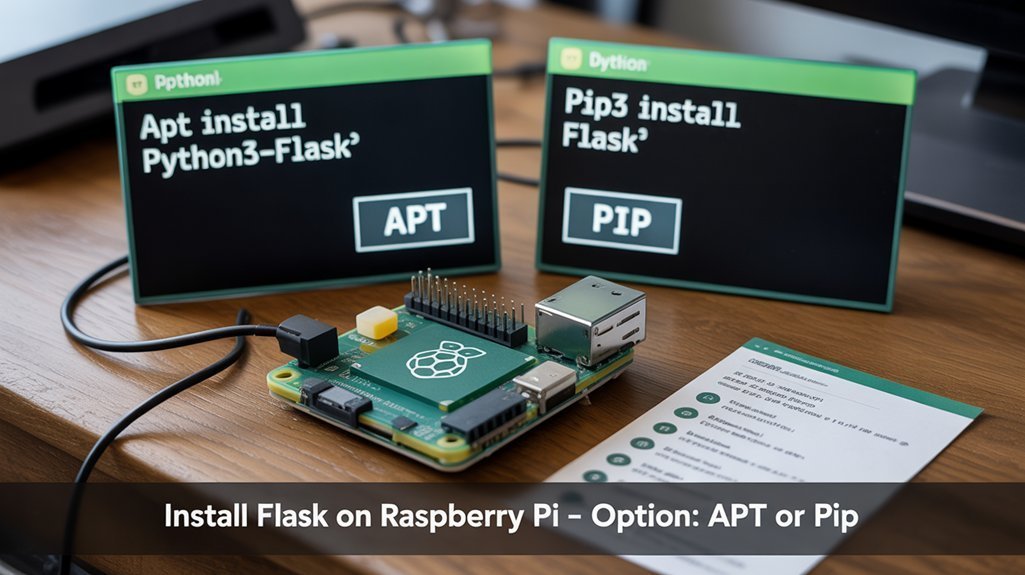
When you choose how to install Flask on your Raspberry Pi, you’ll usually pick between the system package (apt) for a quick, stable setup or pip for the latest release and project isolation. For remote management, secure your device using SSH key authentication to prevent unauthorized access.
Apt uses package management to install python3 and python3-flask together, giving you a reliable, OS-integrated Flask without managing virtualenvs; it’s fast and great for stable deployments, though versions may lag.
Pip (install pip if needed) pulls Flask from PyPI and lets you create virtual environments for strict dependency isolation and per-project control; it’s ideal for development or when you need recent features.
Verify with flask –version or import flask in Python.
Choose apt for simplicity, pip+venv for flexibility and innovation.
For Raspberry Pi projects that interact with hardware it’s common to use Python and Flask together because they provide easy GPIO access.
You can also run Flask under a production server like Apache with mod_wsgi on the Pi to serve apps reliably in the background production deployment.
Creating a Project Directory and App.Py
Start by creating a clear project folder—eg. /home/pi/Documents/rpiWebServer—and inside it make the standard Flask subfolders: templates for your HTML/Jinja files and static for CSS, JS, and images. Also note the Raspberry Pi GPIO pins operate at 3.3V logic, so take care when connecting external hardware.
Start with a clear project folder (eg. /home/pi/Documents/rpiWebServer) and add templates and static subfolders.
Create an app.py at the project root as the entry point, initialize app = Flask(__name__), and keep only core wiring there.
Add a package folder (like flaskr/) with __init__.py for larger code, split features into modular blueprints, and register them from app.py or the package init.
Use templates/ and static/ so Flask finds assets; organize static further by type as the project scales.
Initialize Git, add a concise .gitignore (.venv/, __pycache__/), and document scaffolding choices in README to speed collaboration and iteration. Note that following the Project structure overview from the Flask tutorial makes the app easier to test and maintain.
For local development, create and activate an isolated virtual environment with virtualenv to keep dependencies separate.
Writing a Minimal Flask Application
Build a minimal Flask app by importing Flask, creating an app object with app = Flask(__name__), and defining one or two simple routes that return strings or rendered templates. You’ll use @app.route(‘/’) above a handler that returns plain HTML or calls render_template for template rendering.
Keep handlers focused: return small responses, perform brief logic, or query sensors on your Pi. Use if __name__ == “__main__”: to guard app.run() when you want to start the development server.
For lightweight prototype state, leverage Flask’s session management to store small user flags or preferences between requests without heavy infrastructure. This pattern keeps code modular, readable, and ready to expand into more innovative interfaces or hardware-driven endpoints. Flask is a Python micro web framework that provides flexibility for building full-stack web applications.
Running the Flask Development Server and Testing Access
Often you’ll run the Flask development server directly on the Pi with a command like python3 app.py (or ./app.py if you made it executable), which launches a lightweight server bound to localhost:5000 by default; change app.run(host=’0.0.0.0′, port=8080) to listen on all interfaces or a different port so other devices on your LAN can connect.
Run your Flask app on the Pi with python3 app.py and set app.run(host=’0.0.0.0′, port=8080) to allow LAN access.
You’ll see request logs in the terminal (client IP, method, path, status), which confirm connectivity and help with remote debugging.
Test locally via http://127.0.0.1:5000 or from other devices using http://
Remember the dev server isn’t production-ready; use ssl tunneling or a reverse proxy when exposing services beyond your LAN.
- Start server and watch terminal logs.
- Test on Pi browser first.
- Access from other devices via Pi IP.
- Use ssl tunneling for secure exposure.
Setting up GPIO Control With Flask Routes
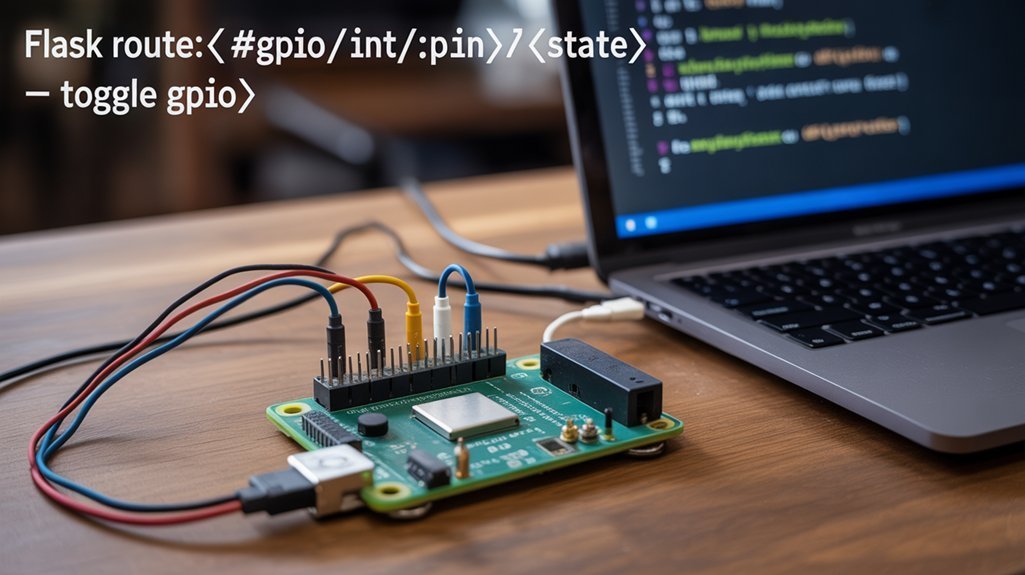
When you pair Flask with the RPi.GPIO library, you can expose each sensor and actuator as a simple HTTP endpoint so other devices or web UIs can read inputs or trigger outputs.
Set GPIO.setmode(GPIO.BCM), disable warnings, and configure pins with GPIO.setup before starting Flask.
Create @app.route handlers that read GPIO.input(pin) and return JSON or text like “pressed” or “not pressed.”
For outputs, toggle GPIO.output(pin, GPIO.HIGH/LOW) from GET or POST routes and return the new state.
Design routes for clear GPIO routing so each pin maps to a single endpoint.
Add debounce handling or software state checks for buttons to avoid false triggers.
Initialize GPIO once, keep logic lean, and always test outputs safely.
Deploying Flask for Continuous Operation (WSGI and Services)
You’ve got GPIO endpoints and Flask routes working on your Pi; now make that service reliable for long-term use. Use a WSGI setup (Gunicorn or uWSGI) to run Flask as a persistent, production-grade process, configure workers, bind to a localhost socket, and set sensible timeouts.
Put nginx in front as a reverse proxy for SSL, caching, and port 80/443 handling.
- Choose Gunicorn or uWSGI for lightweight, stable serving.
- Configure nginx to proxy_pass to your WSGI socket or port.
- Create a systemd services unit to run the WSGI command as a non-root user with restart policies.
- Monitor with systemctl logs, adjust worker counts for Pi resources.
This approach gives uptime, security, and easy maintenance for innovative Pi projects.
Frequently Asked Questions
Can I Secure My App running Flask on a Raspberry Pi With HTTPS?
Yes — you can secure your Flask app with HTTPS on the Pi: use self-signed certificates for local testing or automate public certificates with Let’s Encrypt, proxy Flask behind Nginx/Apache, and enforce strong TLS settings.
How Do I Restrict Network Access to the Flask Server on the Raspberry Pi?
Like a locked vault, you should use a restrictive firewall (UFW) to limit ports and trusted IPs, bind Flask to localhost, put Nginx proxy with HTTPS, and enforce access tokens for app-level control.
Can I Run Multiple Flask Apps on One Raspberry Pi?
Yes — you can run multiple Flask apps on one Raspberry Pi using port multiplexing and process isolation: assign each app a port, run them as separate services/virtualenvs, and front them with Nginx reverse proxy for routing and SSL.
What Are Best Practices for Backing up My Flask App?
Measure twice, cut once. You should use automated backups, Git for code, encrypted archives for configs and DB dumps, schedule restores tests, store offsite, version snapshots, secure secrets, monitor backups, and document restoration procedures.
How Do I Update Flask Without Breaking Dependencies?
You update Flask safely by using virtualenv management, activating a project venv, backing up pip freeze to requirements.txt, using dependency pinning, running pip install –upgrade flask, testing, and rolling back via saved requirements if conflicts appear.
Conclusion
Think of your Raspberry Pi as a small ship and Flask as its lighthouse—after you’ve provisioned the deck, updated charts, and installed the lamp (Python, pip, Flask), you’ll steer simple apps and GPIO hooks safely to shore. You’ll test locally, then rig a WSGI service to keep the light steady. With these steps, you’ll move from tinkerer to captain: practical, repeatable, and ready to scale whatever electronics voyage you choose.