

You’ve just unboxed your Raspberry Pi and you’re staring at a blinking cursor on a black screen. That intimidating terminal isn’t your enemy—it’s actually the fastest way to access your Pi’s full potential. While clicking through menus feels safer, mastering essential Raspberry Pi command line operations will transform how you manage files, install software, and monitor your system. The commands you’ll learn aren’t just shortcuts; they’re the foundation that separates casual users from those who truly control their hardware.
Key Takeaways
- Start with basic navigation commands like `pwd`, `ls`, `cd`, and `mkdir` to move through directories and understand file system structure.
- Use `sudo` for administrative tasks like system updates (`sudo apt update`) and package installation while understanding privilege requirements.
- Master essential file operations including `touch`, `cp`, `mv`, and permission management with `chmod` and `chown` commands.
- Monitor system health using commands like `df -h` for disk space, `btop` for resources, and `vcgencmd` for temperature monitoring.
- Automate workflows by chaining commands with `&&`, `||`, and using pipes `|` to pass output between commands efficiently.
Understanding the Raspberry Pi Terminal Environment
Terminal customization opens up your workspace’s full potential through shell configuration files like .bashrc. You can modify your prompt to display time, git branch status, or custom information that enhances your workflow. Environment variables like PATH determine executable locations, while custom aliases streamline repetitive tasks. Additionally, you can use aliases in bash to simplify frequently used commands for greater efficiency.
Different shells including bash, zsh, or others offer unique features for advanced users seeking optimized development environments. The command prompt displays essential information including username, hostname, current directory path, and user privilege level symbols. Raspberry Pi OS includes package management tools like APT that allow you to install, update, and remove software directly from the command line.
Navigating the Command Prompt and User Privileges
When you look at your Raspberry Pi terminal, you’ll notice the command prompt shows vital information about your current session and privileges.
The prompt format `username@hostname:path $` tells you who you’re logged in as, which device you’re using, where you’re in the file system, and whether you have normal user or root privileges. The dollar sign denotes terminal operation and indicates you’re running commands as a regular user rather than as root. Understanding this structure and knowing when to use `sudo` for elevated permissions is essential for safely managing your Raspberry Pi system. Secure Shell (SSH) access is a popular method for remotely managing your Pi without needing direct physical connections. You can modify critical system settings like password management using commands such as ‘sudo raspi-config nonint do_change_pass’ when you need administrative access.
Understanding Command Prompt Structure
Before you can effectively navigate your Raspberry Pi’s command line, you’ll need to understand the structure of the command prompt itself. The prompt displays critical information about your current session, including your username, hostname, and working directory path.
| Component | Symbol | Meaning |
|---|---|---|
| Username | pi | Current logged-in user |
| Hostname | raspberrypi | Device name |
| Path | ~ | Current directory (~ = home) |
| Privilege | $ or # | User type ($ = normal, # = root) |
Your user identity determines what commands you can execute and files you can modify. The `$` symbol indicates normal user privileges, while `#` represents root access. You can access the terminal using the Ctrl + Alt + T keyboard shortcut for quick command line entry. You’ll discover that prompt customization through `.bashrc` files allows you to add colors and additional context, enhancing your command line experience and preventing accidental operations in wrong environments. The command prompt title also indicates the active path, helping you maintain awareness of your current location within the file system structure.
Using Sudo for Privileges
Understanding your user privileges within the command prompt structure becomes particularly important when you need to perform administrative tasks on your Raspberry Pi. The `sudo` command grants temporary root access, allowing you to execute system-level operations like `sudo apt install package-name` or `sudo apt full-upgrade`.
You’ll need explicit sudo privileges by joining the sudo group using `sudo usermod -aG sudo username`. The sudoers configuration file at `/etc/sudoers` controls which users have access to sudo commands. Additionally, employing SSH key authentication can enhance security when managing your Raspberry Pi remotely.
Implement essential safety measures by using sudo only when necessary and confirming commands before execution. Pay attention to sudo warnings, as mistakes can compromise system integrity. Use `sudo –validate` to extend the password timeout by 15 minutes without rerunning commands.
Use `sudo !!` to rerun your last command with elevated privileges, and `sudo su` for temporary root shell access. Remember, with great power comes great responsibility—sudo bypasses normal security controls.
Essential File and Directory Navigation Commands
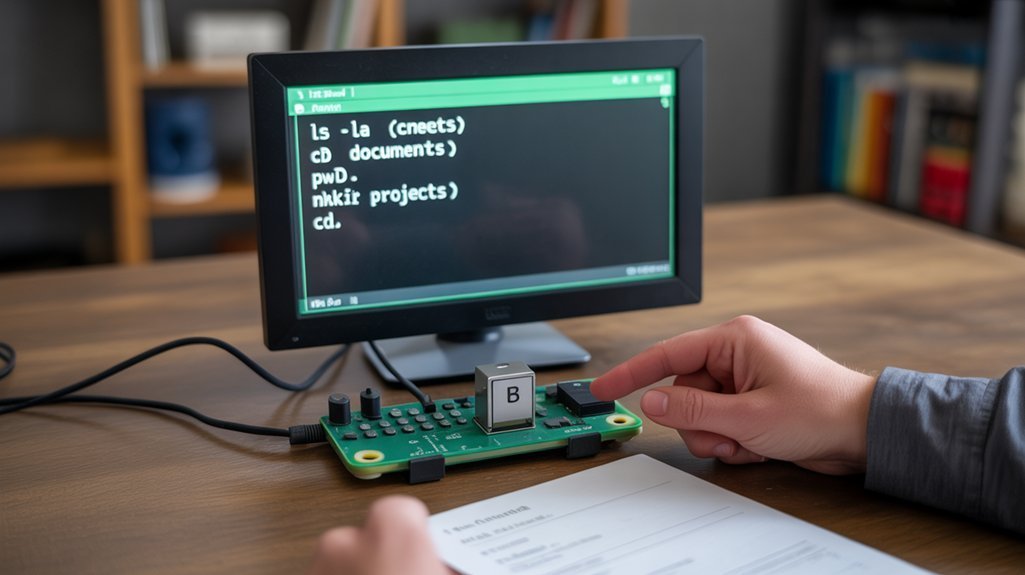
Now that you’re comfortable with the command prompt, you’ll need to master the fundamental commands that let you move through your Raspberry Pi’s filesystem efficiently. Understanding how to navigate directories and grasp the hierarchical structure will form the foundation of your command line skills. The pwd command displays your current directory location, helping you maintain navigation awareness as you move through the system. Additionally, becoming familiar with basic terminal commands will enhance your overall command line proficiency.
These basic navigation commands serve as your primary tools for exploring, locating, and organizing files throughout your system. The ls command allows you to list files and directories in your current location or any specified path on your Raspberry Pi.
Basic Navigation Commands
Five essential command categories will transform you from a hesitant beginner into a confident Raspberry Pi guide.
Start with `pwd` to display your current location—it’s your digital compass in complex file systems. Master directory listing using `ls` for basic views, `ls -l` for understanding permissions and ownership details, and `ls -a` to reveal hidden files. When examining file contents, use `cat` to display content of text files directly in the terminal, which is crucial for checking scripts or configuration files.
Excel at traversing directories with `cd` commands: move to specific folders, ascend levels with `cd ..`, or return home instantly with `cd ~`. Create organized structures using `mkdir` for single directories or `mkdir -p` for nested paths, which helps maintain a hierarchical file system that is efficient for project organization.
Finally, utilize terminal utilities like `clear` for screen management and `history` to access previous commands efficiently. The filesystem maintains a tree-like structure with the root directory serving as the foundation for all navigation and organization.
Directory Structure Understanding
Before you can navigate confidently through your Raspberry Pi, you’ll need to grasp how its directory structure operates as a hierarchical tree system. The root directory “/” serves as your starting point, with every file and folder branching from this foundation following the Filesystem Hierarchy Standard.
Your directory hierarchy exploration begins with understanding key locations:
/home/pi contains your personal files,
/etc stores system configurations, and
/lib holds essential libraries. The Filesystem Hierarchy Standard provides guidelines for the structure and contents of the filesystem.
You’ll use absolute paths starting with “/” for precise navigation, while relative paths work from your current location. Understanding your current location prevents unintended system damage when executing commands that could affect critical files.
Essential filesystem navigation tips include using `pwd` to confirm your position, `mkdir` to create directories, and `cd` for movement. Remember that Linux commands are case-sensitive, so entering `LS` differs from `ls` and proper capitalization ensures your commands execute correctly.
System Update and Package Management Fundamentals
Although maintaining your Raspberry Pi might seem like an optional task, keeping your system updated is fundamental to both security and performance. Regular updates patch vulnerabilities and fix bugs that could compromise your device, especially when it’s internet-connected.
Your Raspberry Pi OS uses Debian-based repositories, requiring a systematic approach to manage package dependencies effectively. Here’s your essential update workflow:
- Refresh package lists with `sudo apt update` to download the latest repository information.
- Upgrade all packages using `sudo apt full-upgrade` for thorough dependency resolution. This ensures that the system benefits from the latest community-driven updates for enhanced stability.
- Reboot your system with `sudo reboot` to apply kernel and firmware changes.
Before upgrading, check available disk space using `df -h` to prevent installation failures. The `full-upgrade` command handles complex package dependencies better than basic upgrade options, ensuring ideal system performance. After completing the upgrade process, install kernel headers using `sudo apt install raspberrypi-kernel-headers` to maintain compatibility for module building. Remember to change the default password from “raspberry” to enhance your system’s security posture.
Installing and Removing Software With Apt Commands

Managing software on your Raspberry Pi becomes effortless once you’ve mastered apt’s installation and removal commands. These essential apt installation tips will streamline your development workflow.
| Command | Purpose |
|---|---|
| `sudo apt install | Install new software packages |
| `sudo apt remove | Uninstall while keeping configs |
| `sudo apt purge | Complete removal with configs |
Your package removal strategies should match your specific needs. Use `remove` when you might reinstall later, preserving configuration files. Choose `purge` for complete elimination, freeing maximum disk space. Additionally, monitoring your system’s performance can be enhanced by utilizing advanced configuration options in Raspi-Config.
Add the `-y` flag to bypass confirmation prompts, accelerating automated installations. Apt automatically handles dependencies, eliminating manual configuration headaches. Monitor disk space with `df -h` before major installations, and run `sudo apt clean` regularly to clear cached packages and maintain peak system performance. Keep your system current by running `sudo apt update && sudo apt upgrade -y` to update package lists and install all available upgrades. Use `sudo apt autoremove` to eliminate unnecessary packages and free up valuable disk space after system updates.
Using Sudo for Administrative Tasks
When you’re managing your Raspberry Pi, you’ll frequently need administrative privileges to perform essential system tasks like installing software, editing configuration files, or managing user accounts.
The `sudo` command grants you temporary superuser access, allowing you to execute these privileged operations while maintaining system security.
Understanding how to properly use sudo privileges guarantees you can handle administrative tasks safely without compromising your Pi’s security or accidentally damaging critical system files.
Understanding Sudo Privileges
Administrative control on your Raspberry Pi requires elevated permissions that go beyond what standard user accounts provide.
Understanding sudo privileges is essential for effective command execution and maintaining security practices while performing administrative responsibilities.
Sudo usage enables privilege escalation through three key mechanisms:
- Temporary Permission Elevation – Sudo grants elevated commands access to system resources without permanent root login, limiting command limitations while maintaining security.
- Sudoers File Configuration – This file defines user permissions and controls which administrative responsibilities each account can execute.
- Granular Access Control – You can specify exact sudo benefits for different users, allowing precise management of who executes what commands.
The sudoers file supports advanced configurations, including LDAP integration for multi-device environments, ensuring consistent privilege escalation across your Raspberry Pi network while maintaining robust security practices. LDAP integration allows for centralized maintenance of sudoers policies across multiple systems, simplifying administrative overhead. The system maintains a command log of all sudo operations, providing administrators with detailed tracking and monitoring capabilities for security auditing purposes.
Essential Administrative Commands
Once you’ve grasped sudo privileges, you’ll need to execute specific administrative commands that control your Raspberry Pi’s core functions.
User management starts with `sudo adduser
File permissions require `sudo chown` and `sudo chmod` commands to maintain system security.
Power management utilizes `sudo reboot` and `sudo shutdown` for safe system control.
Software updates depend on `sudo apt-get update && sudo apt-get upgrade` for package maintenance.
You’ll monitor system health through log monitoring using `sudo nano /var/log/syslog`.
Configuration editing requires `sudo nano /etc/hostname` for network settings.
These commands form your administrative toolkit, enabling you to manage users, secure files, update software, and control system operations effectively while maintaining proper security protocols. Additionally, understanding GPIO pins will enhance your ability to integrate hardware components with your Raspberry Pi projects.
Root Access Safety
While administrative commands give you powerful control over your Raspberry Pi, understanding root access safety becomes critical for protecting your system from accidental damage.
Root access bypasses all permission safeguards, making careful privilege management essential for system integrity.
Implement these safety measures to protect your system:
- Use targeted sudo commands instead of prolonged root shell sessions (`sudo su`) to minimize exposure time and reduce accidental damage risks.
- Double-check destructive commands like `rm`, `apt remove`, or filesystem modifications before executing them with elevated privileges.
- Follow least privilege principles by escalating to root only when necessary, then immediately reverting to standard user permissions.
Ethical considerations matter too—respect privacy, understand commands fully before execution, and maintain recent backups for recovery. Additionally, consider the performance capabilities of various Raspberry Pi models to ensure that your project aligns with your system’s specifications.
Basic File Operations and Directory Management
Every Raspberry Pi user needs to master fundamental file operations and directory management to navigate their system effectively.
Mastering essential file operations and directory navigation commands is the cornerstone of effective Raspberry Pi system administration.
You’ll start with `pwd` to check your current location and `cd` to move between directories. Use `ls -la` for viewing permissions and managing contents of folders.
For file creation, `touch filename` generates new files, while `mkdir` creates directories.
Master copying files with `cp` and moving directories using `mv`. When editing files, `nano` provides a beginner-friendly editor—save with `Ctrl+X`, then `Y`.
File viewing becomes simple with `cat` for quick content display or `less` for paginated reading.
Directory removal requires `rmdir` for empty folders or `rm -r` for recursive deletion.
These commands form your foundation for efficient system navigation and file manipulation.
Checking System Status and Installed Packages
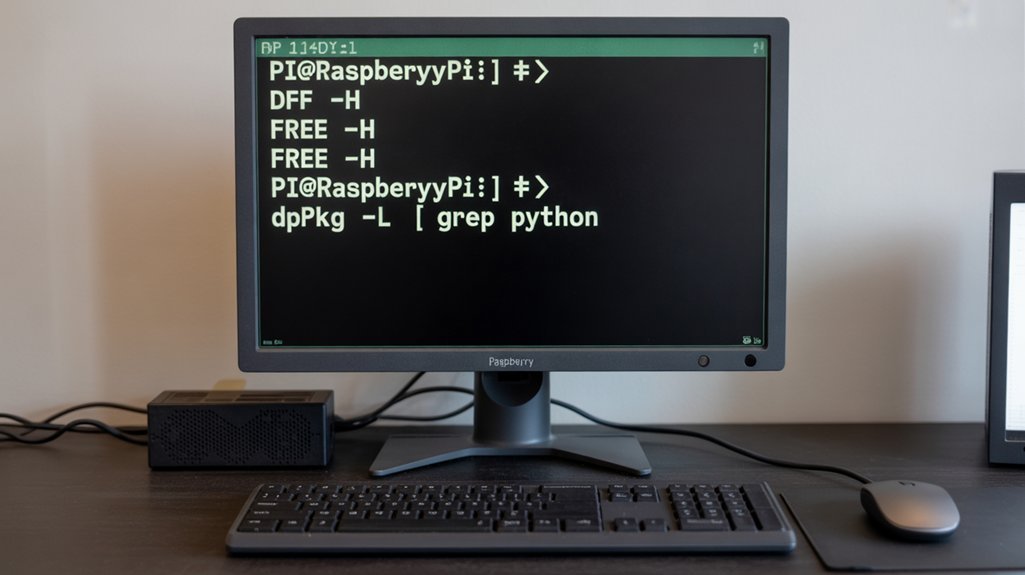
Monitoring your Raspberry Pi’s health and understanding what software you’ve installed becomes essential as you develop more complex projects and maintain your system over time. Effective system diagnostics require multiple approaches to assess performance and verify configurations.
Master these critical monitoring areas:
1. Hardware Performance Analysis – Use `vcgencmd measure_temp` for CPU analysis and thermal monitoring.
Check memory allocation between CPU and GPU with `vcgencmd get_mem arm && vcgencmd get_mem gpu`.
Deploy `btop` for thorough resource allocation visualization showing CPU, RAM, disk, and network usage in real-time.
2. Package Management Verification – Execute `dpkg -l` to list all installed packages, then use `apt-cache policy
3. Network Configuration Assessment – Run `ifconfig` or `ip addr` to examine network interfaces and IP assignments for complete connectivity analysis.
Combining Commands for Efficient Workflows
Once you’ve mastered individual commands, you’ll discover that combining them creates powerful workflows that accomplish complex tasks in a single line. Command chaining with operators like `&&`, `||`, and `;` enables sophisticated automation sequences.
| Operator | Purpose | |
|---|---|---|
| `&&` | Execute second command only if first succeeds | |
| `\ | ` | Pass output as input between commands (piping utilities) |
| `>` | Save command output to files (output redirection) | |
| `&` | Run commands in background (background execution) |
You’ll leverage process filters through `grep` and data transformation with `awk` for precise results. For example, `ps aux | grep python | awk ‘{print $2}’ | xargs kill` terminates Python processes efficiently. Job management becomes seamless with `jobs`, `fg`, and `bg` commands. File cleanup operations like `mkdir backup && cp *.log backup/ && rm *.log` demonstrate powerful workflow automation capabilities.
Terminal Shortcuts and Best Practices for Daily Use of the Raspberry Pi Command Line

Efficiency transforms your Raspberry Pi terminal experience when you master essential keyboard shortcuts and adopt proven practices.
Terminal efficiency emerges through consistent application of time-saving techniques that reduce repetitive typing and minimize errors.
Essential shortcuts deliver immediate shortcut benefits:
- Navigation mastery – Use Ctrl+A and Ctrl+E to jump between line positions, while Tab completion accelerates file selection and reduces typos considerably.
- History optimization – Leverage Ctrl+R for reverse command search and Up/Down arrows to cycle through previous commands, eliminating redundant typing entirely.
- Session management – Implement tmux or screen for detachable sessions, allowing you to maintain long-running processes even when disconnected from your Pi.
Customize your prompt with PS1 variables and establish aliases in .bashrc for frequently used commands, transforming routine tasks into streamlined workflows.
Frequently Asked Questions
How Do I Recover from the Raspberry Pi Command Line if I Accidentally Delete Important System Files?
Better safe than sorry! Immediately shut down your Pi, remove the SD card, and connect it to another computer. Use TestDisk for file recovery or perform a system restore from your backup.
What Should I Do if My Raspberry Pi Becomes Unresponsive During Updates?
When your Pi freezes during updates, immediately perform a hard reboot by powering off, waiting ten seconds, then restarting. This update troubleshooting approach enables effective system recovery while preserving your data integrity.
How Can I Access My Raspberry Pi Remotely Through SSH?
You’ll enable SSH through raspi-config or Raspberry Pi Configuration settings for ssh setup. Then connect using `ssh username@ip_address` from any SSH client, enabling seamless remote access to your Pi’s command line interface.
Why Does My SD Card Keep Getting Corrupted and Losing Data?
While you’re seeking innovation, your SD card’s suffering from primitive power-offs and cheap hardware. Different SD card types offer varying data integrity levels. You’ll prevent corruption by using quality cards, stable power supplies, and proper shutdowns.
How Do I Backup My Entire Raspberry Pi System Before Making Changes?
You’ll create a complete system image using `dd if=/dev/mmcblk0 of=backup.img bs=4M status=progress`. Effective backup strategies include regular scheduling, cloud storage, and combining full images with incremental rsync backups.
How are You Going to Use the Raspberry Pi Command Line?
You’ve taken the first step in a thousand-mile journey toward Raspberry Pi mastery. These command line fundamentals will serve as your foundation for countless projects ahead. Don’t let the learning curve intimidate you—practice makes perfect. Start with basic navigation and file operations, then gradually incorporate more advanced techniques. Your confidence will grow with each successful command execution. The terminal isn’t just a tool; it’s your gateway to unlocking your Raspberry Pi’s full potential.