

You’ll think SPI can move mountains once you see how fast it transfers data. You’ll work with four simple signals — MOSI, MISO, SCLK, and CS — and get deterministic, full‑duplex links to sensors, ADCs, and displays. This guide shows which Raspberry Pi pins to wire, how to enable SPI in the OS, and how to pick the right mode and clock settings so your device actually responds. Keep going to get the Raspberry Pi SPI Bus working reliably.
Key Takeaways
- SPI is a synchronous master-slave bus on Raspberry Pi using MOSI, MISO, SCLK, and a CE/CS line for device selection.
- Match CPOL and CPHA (SPI modes 0–3) between Pi and peripherals to avoid corrupted data.
- Enable SPI via sudo raspi-config, reboot, and verify /dev/spidev* exists before use.
- Wire MOSI to MOSI (GPIO10), MISO to MISO (GPIO9), SCLK to SCLK (GPIO11), and a CE pin (GPIO7/8); share common ground.
- Use python3-spidev for quick development and an oscilloscope for signal troubleshooting and integrity checks.
What Is SPI and How It Differs From Other Serial Protocols
Clarity in choice of bus matters: SPI (Serial Peripheral Interface) is a synchronous, master–slave serial protocol you’ll typically use for short-distance, board-level communication where a dedicated clock line synchronizes data transfer.
You’ll gain Understanding SPI through a Benefits Overview: high-speed, full-duplex Communication Modes and simple hardware.
Device Compatibility is broad but varies by voltage and framedata, so check datasheets.
Device compatibility is broad, but voltage levels and framing differ—always verify each device’s datasheet before connecting.
Performance Comparison favors SPI over I²C for throughput and over UART for simultaneity.
Application Examples include sensors and displays.
Error Handling must be implemented at the application layer since Protocol Standards are informal and device-specific. Also note that many controllers provide hardware FIFOs to buffer transfers and reduce CPU load.
SPI is widely used because it enables high-speed data transfer between microcontrollers and peripherals.
Raspberry Pi SPI Hardware Pins and Wiring
Wiring the Raspberry Pi’s SPI requires matching the Pi’s MOSI (GPIO 10), MISO (GPIO 9), SCLK (GPIO 11), and a CE line (CE0: GPIO 8 or CE1: GPIO 7) to your peripheral’s corresponding pins, tying grounds together, and ensuring both sides share the same logic level (Pi GPIOs are 3.3V). Always ensure you do not exceed the Raspberry Pi’s current limits to prevent damage.
Follow an SPI Pinout Guide to verify headers per model. Use short, direct wiring and common ground. Assign unique CS/CE lines for each device; add GPIO-driven CS if you need more. Consider pull resistors for idle CS state and use level shifters for non-3.3V peripherals. Apply disciplined SPI Wiring Techniques. The Raspberry Pi’s GPIO pins operate at 3.3V logic and each pin should be treated within its current limits to avoid damage. The platform is community-driven and accepts contributions via GitHub for improving pinout data.
Enabling SPI on the Raspberry Pi and System Setup

Enable SPI with sudo raspi-config, choose Interfacing Options → SPI and confirm to turn the interface on. You can access SPI pins via the 40-pin GPIO header on the board for connecting peripherals. You should reboot to load the kernel modules so the SPI driver is active. After restart, verify /dev/spidev* device nodes exist (and check lsmod | grep spi_ if they don’t). Additionally, remember that SPI is a synchronous serial interface used for short-distance device communication. The Raspberry Pi provides a bcm2835-based SPI driver and useful helper functions in the bcm2835 library.
Enabling SPI via Raspi-Config
Before you configure SPI, update the system and tools so raspi-config can apply the needed kernel modules reliably; run sudo apt update && sudo apt full-upgrade, fix any broken dependencies, and consider reinstalling or using a fresh OS image if your release is old. Remember that raspi-config is a command-line utility used to toggle interfaces and settings.
Use sudo raspi-config, go to 5 Interfacing Options → P4 SPI, and choose Yes to enable kernel modules.
Verify modules and device nodes after activation. Keep spi configuration and spi troubleshooting notes handy for version mismatches or python spidev issues. It’s also important to check the current SPI status before enabling to confirm whether it’s already active (check SPI status).
- Open terminal
- Navigate menus with arrows
- Enable SPI (P4)
- Install python3-spidev if needed
- Check ls /dev/spi*
Note that many peripherals use either I2C or SPI for communication, so confirm which interface your device requires before enabling SPI.
Rebooting to Activate SPI
Now that you’ve enabled SPI with raspi-config (or edited /boot/config.txt), you must reboot the Pi so the device tree overlays and kernel modules load correctly. Also ensure you are using a reliable power supply to prevent undervoltage during reboot. Use controlled reboot strategies: sudo reboot or sudo shutdown -r now to guarantee a full kernel restart.
After boot, inspect dmesg and journalctl for device tree overlay application and SPI driver initialization. Run lsmod | grep spi_ to confirm spi_bcm2835 or spi_bcm2708 loaded. If overlays like dtoverlay=spi1-3cs were added, verify syntax and remove stray control characters in /boot/config.txt before retrying. Only proceed with software installs after confirming module presence. The Raspberry Pi’s default SPI bus is SPI0, which provides the standard pins for most projects and is often the simplest choice for connecting peripherals SPI0. Modern Raspberry Pi OS releases enable many kernel modules via the device tree by default, simplifying peripheral support device tree.
Accessing /dev/spidev*
When you enable SPI and reboot, the kernel creates character devices like /dev/spidev0.0 and /dev/spidev0.1 that give user-space programs direct access to the physical SPI buses and their chip selects.
Check /dev for spidev nodes with ls -l /dev/spidev*; absence means SPI isn’t active, dtparam may be needed in /boot/config.txt, or a PiTFT is claiming the bus.
Install python3-spidev for rapid prototyping or build py-spidev for deeper control. Watch for /fdev/spidev interactions and driver module changes (spi_bcm2708 → spi_bcm2835).
Use sudo or adjust permissions to access these devices. SPI is a synchronous serial protocol that enables fast communication between the Raspberry Pi and multiple peripherals.
- Verify OS updates first
- Enable via raspi-config
- Toggle in GUI
- Reboot to instantiate drivers
- Check module blacklists
Additionally, ensure the kernel has the SPI kernel driver enabled so the spidev nodes are created after reboot.
SPI Modes, Clock Polarity, and Phase Explained
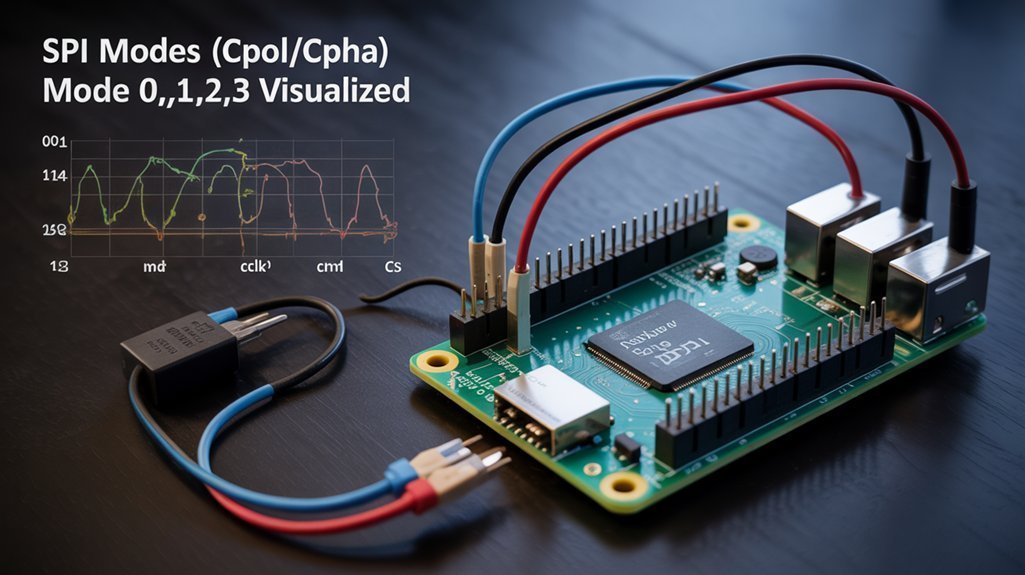
You’ll need to set Clock Polarity (CPOL) to match the idle level the peripheral expects (0 = low, 1 = high).
You’ll also set Clock Phase (CPHA) to control which clock edge captures and shifts data, noting that “first” and “second” edges depend on CPOL.
Choose the SPI mode (0–3) that combines CPOL and CPHA identically on both master and slave to guarantee reliable transfers.
SPI is a synchronous communication interface commonly used for short-distance, high-speed peripheral connections.
The main device generates the clock signal, so the master must drive the bus and assert chip select to begin communication, making it the clock source.
Clock Polarity (CPOL)
Because the SPI clock’s idle level directly sets how master and slave interpret timing, Clock Polarity (CPOL) specifies whether SCLK rests low (CPOL=0) or high (CPOL=1) between transfers.
You must match this setting on both sides to avoid sampling errors. You’ll use CPOL to define clock behavior and guarantee data synchronization before and after transfers.
Key points:
- CPOL=0: SCLK idles low; pulses drive it high.
- CPOL=1: SCLK idles high; pulses drive it low.
- CPOL is the high bit of SPI mode.
- Mismatch causes corrupted frames.
- External inversion can adapt CPOL but adds timing complexity.
- SCLK is generated by the master and provides the timing reference for both MOSI and MISO.
- Ensure the master supports all required SPI modes to maintain compatibility across devices.
Clock Phase (CPHA)
Having set CPOL to define the clock’s idle level, you now need to pick CPHA to determine which clock edge actually samples data.
CPHA importance lies in defining whether sampling occurs on the first (CPHA=0) or second (CPHA=1) clock edge after SS assertion, controlling when master and slave read MOSI/MISO.
CPHA selection affects data setup and shifting: CPHA=0 samples on the leading edge and shifts on trailing; CPHA=1 shifts first and samples on trailing, offering extra setup time at higher speeds.
Match CPHA between devices per datasheets to avoid corruption and guarantee reliable SPI transfers.
Keep your browser updated and enable JavaScript for full access to the portal’s features, ensuring up-to-date browsers and compatibility.
Choosing SPI Mode
When you pick an SPI mode for a Raspberry Pi project, you’re choosing the clock polarity (CPOL) and phase (CPHA) pairing that determines the clock idle level and which clock edge samples data.
The Pi’s SPI controller supports all four modes (0–3), so set the mode to match your peripheral’s datasheet to avoid framing and timing errors.
Choose mode by selecting CPOL and CPHA to match devices. Test tolerance if the datasheet allows multiple modes. Use spidev or libraries to set mode.
Verify idle clock level and sampling edge to prevent bit errors.
- Mode 0: CPOL=0, sample on rising
- Mode 1: CPOL=0, sample on falling
- Mode 2: CPOL=1, sample on rising
- Mode 3: CPOL=1, sample on falling
- Matching Devices: confirm datasheet and test in-system
The Raspberry Pi commonly interfaces with microcontrollers and ADCs using the SPI bus, which offers full-duplex communication.
Using SPIdev and Python for SPI Communication
Using SPIdev and Python lets you control Raspberry Pi SPI devices from user space with minimal setup: enable SPI in the Pi configuration, install the Python development headers and the spidev module, then open the bus with spidev.SpiDev() (e.g., spi = spidev.SpiDev(0, 0)), set spi.max_speed_hz to your device’s supported clock, and perform transfers with spi.xfer2) for atomic full‑duplex transactions or spi.readbytes()/spi.writebytes() for simpler operations, remembering that access typically requires root privileges or appropriate device permissions. Ensure you use a reliable power supply to avoid undervoltage when running SPI peripherals.
Using SPIdev and Python, enable SPI, install spidev, open spidev.SpiDev(0,0), set max_speed_hz, and use xfer2() or read/write.
You’ll activate /dev/spidevX.Y, install spidev via pip or setup.py, then open bus 0 CE0/CE1.
Use xfer2() for atomic spi communication and predictable data transfer; readbytes/writebytes for simple ops.
Confirm permissions or run sudo.
The MCP3008 is a common example ADC used with SPI because it provides a 10-bit resolution and eight channels, so connect its VRef appropriately to match your input range and reference voltage MCP3008 ADC.
This approach is ideal for projects that require real-time GPIO interaction with sensors and actuators, especially when using the Raspberry Pi’s GPIO pins.
Practical SPI Projects: Sensors, Displays, and ADCs
Now that you can control SPI from Python with spidev, you can apply those same calls and settings to real hardware: sensors, displays, and ADCs are the most common projects because they map cleanly to the SPI signals (SCLK, MOSI, MISO, CS) and predictable transfer semantics.
You’ll use datasheets for register maps and command sequences, set SPI mode/speed to device specs, and manage CS lines for multiple devices. Focus on sensor calibration and display configurations early.
Practical project types include:
- Environmental sensors (e.g., BMP280) via SPI reads
- TFT/OLED displays with D/C control
- MCP3008 ADC sampling analog inputs
- IMU sensors (gyro/accel)
- Multiplexed CS management
Troubleshooting Common Raspberry Pi SPI Bus Issues and Best Practices
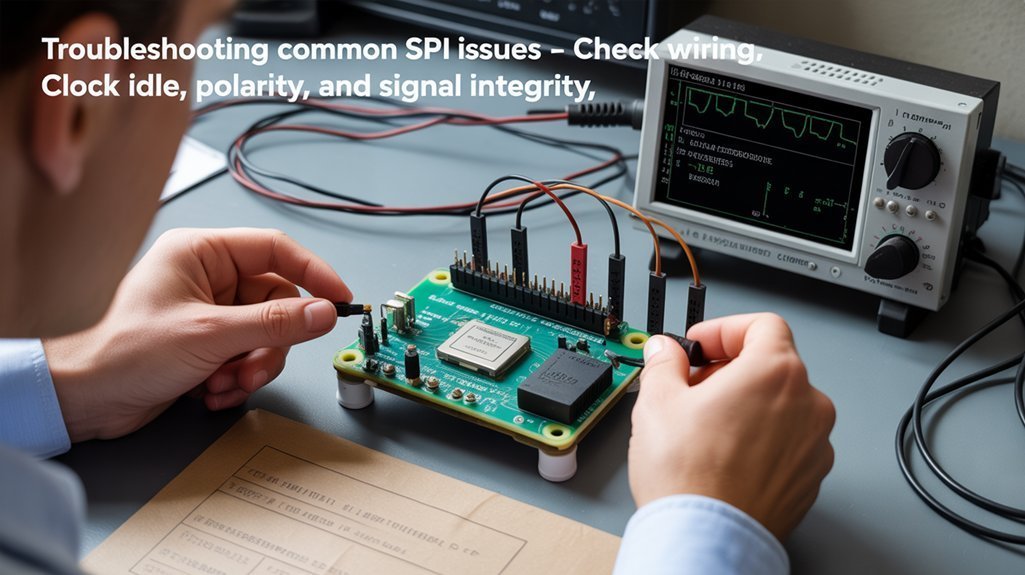
Although SPI is simple in concept, troubleshooting it demands a methodical approach and attention to hardware, software, and boot-level details.
You’ll enable SPI via raspi-config or /boot/config.txt (ensure dtparam=spi=on and remove stray ^M); reboot to create /dev/spidev0.0.
Verify wiring: MOSI(GPIO10), MISO(GPIO9), SCLK(GPIO11), CS lines; use loopback (short MOSI‑MISO) and spidev_test.c.
Check drivers, device tree overlays, modules, SPI mode (0–3), clock, and CS polarity.
Inspect bootloader/EEPROM on Pi4 and reflash if corrupt.
Use oscilloscopes for signal integrity.
Follow systematic SPI troubleshooting and best practices to isolate and resolve faults.
Frequently Asked Questions
Can I Use SPI and I2C Simultaneously on the Same GPIO Pins?
No — you can’t use SPI and I2C simultaneously on the same GPIO pins because SPI protocol and I2C protocol differ; GPIO limitations cause communication conflicts, so simultaneous usage requires separate pins or hardware for interface compatibility.
How Do I Add More Than Two Chip Selects to Hardware SPI?
You can’t extend native CS beyond two; instead, implement multi chip communication by using GPIOs as software-controlled CS or add an external multiplexer or SPI expander, configuring device tree overlays and disabling automatic CS handling.
Is SPI Secure for Transmitting Sensitive Data?
About 70% of breaches exploit unencrypted links, so no—SPI isn’t secure by itself for sensitive data. You’ll need data encryption, key exchange and authentication to mitigate security vulnerabilities and guarantee confidentiality and integrity.
Can DMA Be Used to Speed up Raspberry Pi SPI Transfers?
Yes — you can use DMA to speed up Raspberry Pi SPI transfers. You’ll exploit DMA advantages to offload bulk movement, tune SPI configurations for clocks and buffers, and manage aligned, privileged setups for reliable, high-throughput operation.
What Are Power Consumption Impacts of Continuous SPI Usage?
Continuous SPI use raises your Pi’s power draw by keeping CPU and SPI controller active, reducing energy efficiency; implement power management like DMA, lower clocking, burst transfers, and peripheral power-gating to reclaim battery life.
Conclusion
You’ve now seen how SPI works, how to wire the Raspberry Pi’s MOSI/MISO/SCLK and CS lines, enable the interface, and use spidev with Python. Follow mode, CPOL/CPHA, and timing like a checklist—methodical and precise—to avoid comms errors. Start with simple sensors or ADCs, test signals with an oscilloscope or logic analyzer, and iterate configurations. With these fundamentals, you’ll build reliable SPI systems that behave as predictably as clockwork.