

Most Pi Zero W images still ship with root SSH disabled but predictable defaults you can secure at provisioning, so you should generate keys on the device and use mutual‑TLS for AWS IoT. You’ll wire sensors with level shifting and common ground, flash a verified OS to a fast Class‑10 card, enable headless Wi‑Fi, and register a Thing in IoT Core — but there’s more to get right for secure, reliable telemetry and OTA control. Let’s explore how to build a Raspberry Pi Zero Iot Device on AWS!
Key Takeaways
- Prepare a Class 10 16GB+ microSD with Raspberry Pi OS Lite, enable headless SSH and Wi‑Fi via a wpa_supplicant.conf and empty ssh file.
- Securely configure the Pi: change default password, disable unused interfaces, tie sensor grounds, and use level shifters for 5V devices.
- Install Python3, pip, AWS CLI (via pip), and required libraries (paho-mqtt, boto3); run sudo apt update && sudo apt full-upgrade first.
- Provision device identity and permissions in AWS IoT Core: create a thing, generate certificates, attach a policy, and download credentials to the Pi.
- Implement a lightweight client (MQTT/TLS) on the Pi to publish telemetry, subscribe to commands, and use AWS IoT Device SDK for secure connectivity.
Preparing Your Raspberry Pi Zero W Hardware and MicroSD Image
Start by assembling reliable hardware and a properly prepared microSD image so your Pi Zero W boots predictably and stays secure on the network. Consider the Pi Zero W’s role among other Raspberry Pi models when planning capabilities.
Start with trusted hardware and a verified microSD image so your Pi Zero W boots reliably and stays secure.
You’ll choose a Class 10 16GB+ microSD, verify the OS checksum, and flash with Raspberry Pi Imager or Balena Etcher.
Format the card FAT32, drop ssh and wpa_supplicant.conf on boot, and pick the Lite or Desktop image per use case.
Inspect the tiny PCB: plan for the 1GHz BCM2835, 512MB RAM, mini HDMI and micro USB power constraints. The Pi Zero W also includes onboard wireless connectivity which simplifies network setup for many IoT projects.
Design for power budgeting around a stable 5V 2.5A supply and account for USB OTG adapters.
Specify a compact enclosure that preserves case ventilation and allows the CSI camera cable if needed. Note that the board uses a VideoCore IV GPU which can offload video work in multimedia projects.
Connecting Sensors and Peripherals to the Pi Zero GPIO
Start by mapping the Pi Zero’s 40-pin header to your sensors using BCM numbering to keep code and wiring consistent.
You’ll route sensor power from the 3.3V pins (or 5V where required), tie all grounds together, and use series resistors or level shifters to protect GPIO lines. Also include series resistors to protect inputs and adhere to the Pi’s per-pin current limits.
Verify each connection against a trusted pinout and minimize exposed wiring to reduce risk of shorts and electrical faults. Additionally, plan for power and GPIO limitations on the Pi Zero W, since the board has limited 3.3V current available and sharing pins can affect sensor reliability. Also account for the Pi Zero W’s GPIO capability when designing your circuit to avoid overloading pins or exceeding current limits.
Wiring and Pin Mapping
When you wire sensors and peripherals to the Pi Zero’s 40-pin header, map each signal to the correct GPIO function (I2C, SPI, UART, PWM or plain I/O) and verify voltages and grounds first to prevent damage. Use consistent pin numbering in schematics and toolchains to avoid mistakes; include voltage protection like level shifters or series resistors where needed. Label I2C on GPIO2/3, UART on GPIO14/15, SPI on GPIO7–11, and PWM on GPIO12/13/18/19. Maintain a minimal attack surface by disabling unused interfaces. The Pi Zero uses a BCM2835 processor and has 512 MB of RAM, so plan software and drivers accordingly. The Pinout site is an excellent reference for pin layouts and HAT compatibility, offering a comprehensive pin library.
Use HATs with an I2C EEPROM for automatic identification to simplify hardware configuration.
| Function | Typical GPIOs | Use case |
|---|---|---|
| I2C | GPIO2, GPIO3 | Sensors, EEPROM |
| SPI | GPIO7–11 | Displays, ADCs |
| UART | GPIO14,15 | GPS, serial console |
| PWM | GPIO12,13,18,19 | Servos, LEDs |
Map, protect, and document.
Sensor Power and Ground
Reliability depends on clean power and solid grounds: connect sensors to the Pi Zero’s 3.3V or 5V pins only after verifying each device’s voltage needs, tie all sensor grounds to any Pi GND pin (prefer the closest pin to reduce noise), and use regulated or HAT-mounted supplies for mobile/rechargeable setups so you don’t bypass onboard protection. Also ensure you use a regulated 5V supply within the Pi’s acceptable voltage range to prevent undervoltage issues.
You’ll tie grounds to available GND pins (Pin 6/9/14/20/25/30/34/39) to preserve signal reference integrity; place grounds adjacent to related signal pins for lower loop area.
Implement grounding best practices: solid solder joints, single-point grounding for sensitive modules, and avoid shared high-return currents.
Apply power filtering techniques — decoupling caps, ferrite beads, and series resistors — and use level shifting when mixing 5V sensors with 3.3V GPIO.
For stable operation, power the Pi Zero from a 5V, 2.5A regulated supply.
Remember that all Pi ground pins are electrically common, so you can use the GND pin nearest your wiring to keep layouts tidy and reduce noise.
Headless Setup: Enabling SSH and Configuring Wi‑Fi
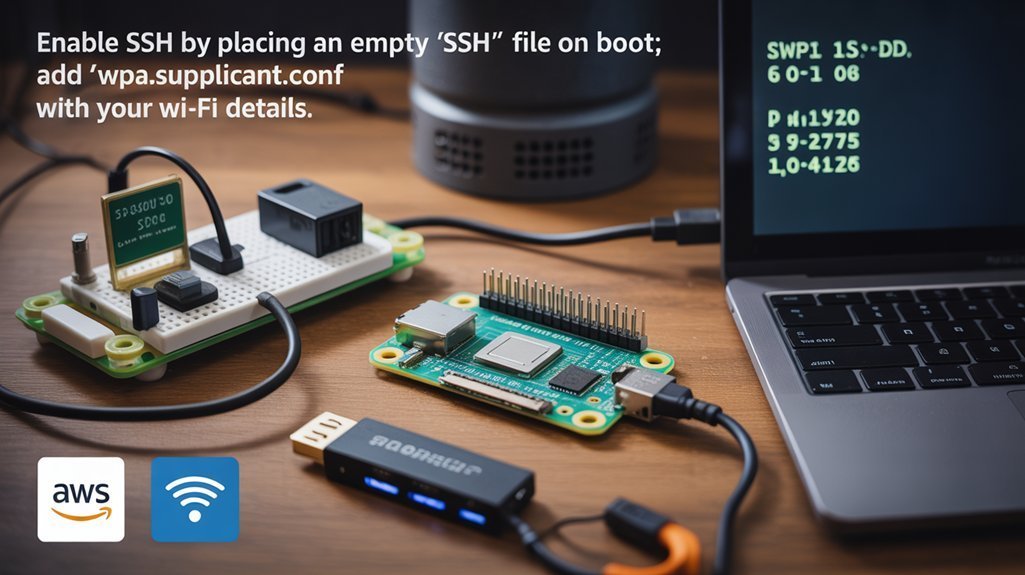
Before you power the Pi, prepare the microSD so it can boot headless: flash Raspberry Pi OS Lite, then place an empty file named ssh (no extension) and a properly formatted wpa_supplicant.conf into the boot partition so the device enables SSH and joins your wireless network on first boot. You’ll avoid attaching peripherals and enable remote access immediately. This is especially useful when deploying many units or when the Pi will be headless in production.
Prepare the microSD for headless boot: flash Raspberry Pi OS Lite, add an empty ssh file and a correct wpa_supplicant.conf.
On first SSH login (ssh pi@raspberrypi.local or by IP) change the default password and follow password management practices. The new Raspberry Pi Imager’s pre-boot configuration features let you prefill SSH and Wi‑Fi settings during flashing. Verify Wi‑Fi via router or nmap for reliable connectivity; this prevents basic network troubleshooting later.
- Make sure wpa_supplicant.conf has correct country, ctrl_interface, update_config, ssid, psk.
- Create an empty ssh file with no extension.
- Remove ssh file after first boot.
- Change hostname, secure default credentials. Raspberry Pi Imager can also pre-configure SSH and Wi‑Fi during flashing.
Updating the OS and Installing Required System Packages
Before you install AWS components, update package lists with sudo apt-get update and apply firmware and package upgrades (sudo apt-get upgrade && sudo apt-get dist-upgrade) to guarantee a secure, supported baseline. Consider running raspi-config to verify system settings such as hostname, SSH, and boot behavior before installing AWS components.
Then install essential utilities—Python3/pip, git, paho-mqtt and an appropriate JRE—using apt-get -y to automate and avoid interactive prompts.
Keep the device powered and networked, verify installs with pip list and apt-get -f install, and document versions for future audits. Recent projects show it’s useful to connect your device to your cloud account early to test connectivity AWS IoT Core. It is also recommended to install and enable openjdk-8-jre on Raspberry Pi Zero W for compatibility with Greengrass Nucleus.
Update Package Lists
Start by renewing your Pi Zero’s package lists with sudo apt update so you have current version metadata before installing or upgrading software; this step requires an internet connection and sudo privileges, and it prevents broken installs when you later run sudo apt install or sudo apt upgrade for Python, Git, awscli, curl, and other AWS IoT dependencies. Also ensure your Pi’s microSD card has sufficient capacity and speed for full OS installations and package operations.
You’ll then inspect upgradable packages with apt list –upgradable and plan controlled changes.
For fleet deployments, design scheduled updates and consider offline mirrors for air-gapped sites.
Maintain logs for auditing and automate safe rollbacks.
- Run sudo apt update before any install to make sure package index accuracy.
- Verify connectivity and sudo access; abort on failures.
- Install essentials (python, git, awscli, curl) post-update.
- Clean with sudo apt autoremove and sudo apt autoclean to conserve space.
Amazon recommends installing awscli using pip as the preferred package manager.
Upgrade System Firmware
Having refreshed package lists and ensured connectivity, you’ll next update the Pi’s firmware and OS packages so the device runs supported, secure system software. Raspberry Pi OS’s package management simplifies installing and updating software across Pi models.
Check EEPROM state with sudo rpi-eeprom-update and install rpi-eeprom via sudo apt install rpi-eeprom; reboot to apply changes.
Use sudo apt full-upgrade for package updates, verify disk space with df -h, and avoid rpi-update unless endorsed by engineers.
Install apt-utils, ca-certificates, curl/wget, and required Python libraries with explicit sudo apt install commands to maintain deterministic installs.
After reboot, validate kernel and firmware with uname -a and vcgencmd version, review dmesg and /var/log/syslog for errors, and run bootloader diagnostics if boot issues arise.
Prepare firmware rollback procedures and keep SD backups before major upgrades.
Ensure you confirm the Pi model and bootloader channel before applying changes to match recommended firmware images bootloader matching.
Use the repository-provided stable firmware and prefer official package updates tied to Raspberry Pi OS releases to reduce the risk of incompatibilities.
Install Essential Utilities
Kick off by updating the OS package index and applying upgrades so your Pi runs supported, secure software: run sudo apt update && sudo apt upgrade -y, then reboot with sudo reboot to pick up kernel and firmware changes. Additionally, enable SSH for remote command-line access and troubleshooting.
After reboot, verify versions with cat /etc/os-release and apt list –upgradable. Install Python 3, pip, virtualenv, and the AWS IoT SDK, keeping pip packages current.
Harden the system by installing openssl, ca-certificates, curl, ssh, and confirming firewall egress to AWS IoT endpoints (usually 443). Use git, htop, and tmux for development and reliable operation.
- Enforce user permissions for service accounts and SSH keys
- Perform package auditing regularly for vulnerable dependencies
- Verify AWS SDK installation by importing modules in Python
- Log and monitor upgrades for traceable change control
Ensure the Raspberry Pi has the necessary hardware available before configuring software. Additionally, register the device in AWS IoT Core to obtain credentials for secure cloud communication.
Registering the Device in AWS IoT Core and Creating an IoT Thing
Before you connect your Raspberry Pi Zero to AWS, create an IoT Thing in AWS IoT Core to represent the device as a unique cloud identity; this lets you manage attributes, group membership, and access controls centrally while tracking connection status and telemetry.
Before connecting your Raspberry Pi Zero, register an AWS IoT Thing to give it a unique cloud identity for management.
Navigate IoT Core > Manage > Things > Create, give a descriptive name, and add metadata like model, location, and fleet tagging to support your onboarding checklist. Consider using SSH key authentication for stronger device security when connecting.
Register the physical device via the Connect/onboarding wizard to link hardware and the Thing, then confirm the Thing ARN appears in the registry.
Assign groups for fleet management and attach an IAM role scoped to least privilege.
Finally, verify connectivity and telemetry using the IoT test console to confirm secure, observable integration. The device can use AWS IoT Core features such as device certificates to authenticate and encrypt its connection.
Generating and Managing X.509 Certificates and Policies
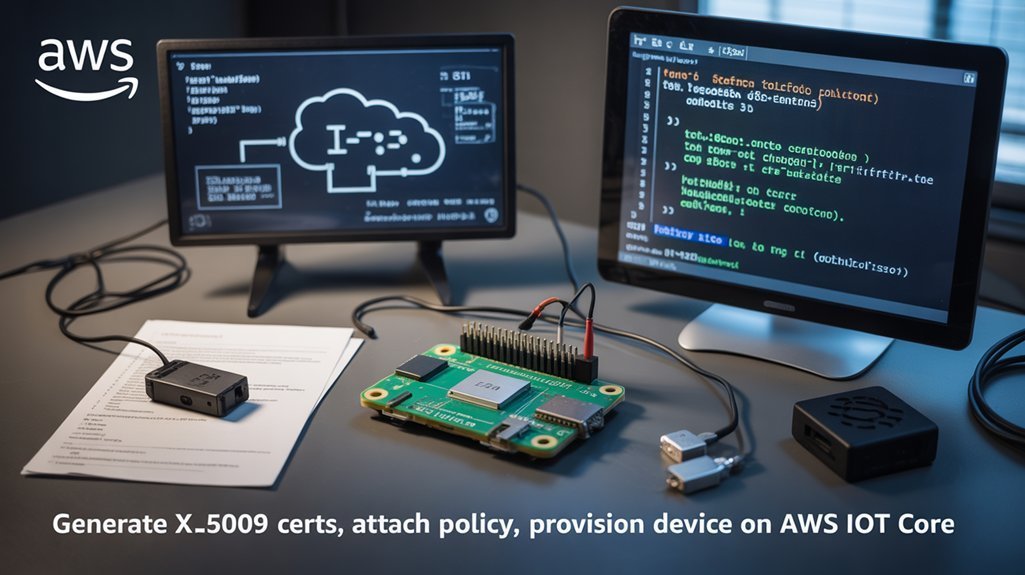
Now you’ll provision an X.509 certificate for the Pi, either by generating keys on-device and submitting a CSR or by using AWS to create and register keys so the private key never leaves the device unless you choose otherwise.
Pair that certificate with a minimal, least-privilege policy that grants only the MQTT topics and IoT actions the device actually needs, and plan for revocation or replacement at end-of-life or compromise.
Also consider stronger algorithms (P-521, RSASSA-PSS) and secure local storage for private keys to maintain cryptographic and operational integrity.
Generating a certificate from a CSR ensures the private key never leaves the device.
You can set up the necessary device keys and certificates using the AWS console or an automated CloudFormation stack to streamline provisioning interactive lab.
Creating Device Certificates
Generate and manage X.509 device certificates to establish strong, device-level identity for your Pi Zero and enforce least-privilege access to AWS IoT Core. You can auto-generate certs via the console or use create-keys-and-certificate in the CLI, but prefer CSR-based flows or offline provisioning when you need hardware backed keys and to keep private keys on-device.
Create or download device certificate, private/public keys, and Amazon Root CA; securely install the private key on the Pi Zero. Register CSR-generated certificates in AWS IoT and activate them to allow connections. Automate issuance and rotation with CDK, CloudFormation, or Lambda hooks to maintain lifecycle control.
- Generate keys locally or via AWS CLI/CDK
- Use CSR to retain private keys on-device
- Store private keys securely on Pi Zero
- Automate provisioning and rotation
Designing Least-Privilege Policies
When you design least-privilege policies for X.509‑authenticated Pi Zero devices, tie each certificate to a minimal set of MQTT and IoT actions scoped to that device’s identity and attributes so a compromised key can’t be used to affect other devices or services.
Assign unique certificates, map thing attributes (serial, model) into policy variables, and use scoped variables to dynamically resolve topic ARNs so a single policy can cover many devices safely.
Limit actions to publish/subscribe only on device-specific topics and restrict device management APIs.
Implement centralized tracking for certificate state, automate policy rotation and certificate revocation workflows, and enforce role-based IAM for operators.
Regularly audit and test policies against threat models to prevent privilege creep and enable rapid containment.
Installing the AWS IoT Device SDK and TLS Root Certificate
To get your Pi Zero talking securely to AWS IoT Core, install the appropriate AWS IoT Device SDK for your language (Java or Embedded C are common) and place the Amazon Trust Services TLS root certificate (usually AmazonRootCA1.pem) where your application can reference it; this guarantees mutual-TLS authentication, lets the SDK perform proper TLS handshakes, and gives you a reproducible location for certificate management and updates.
You’ll clone or add dependencies, install runtimes, and verify sample apps run. Configure SDK paths for endpoint, client cert, private key, and the root CA. Test TLS handshakes and log outputs to accelerate sdk troubleshooting and prepare for automated certificate rotation.
- Use unique certs per device and store keys securely.
- Keep AmazonRootCA1.pem with application code.
- Automate certificate rotation and backups.
- Validate with SDK sample apps and logs.
Implementing MQTT Communication and Device Shadow Sync
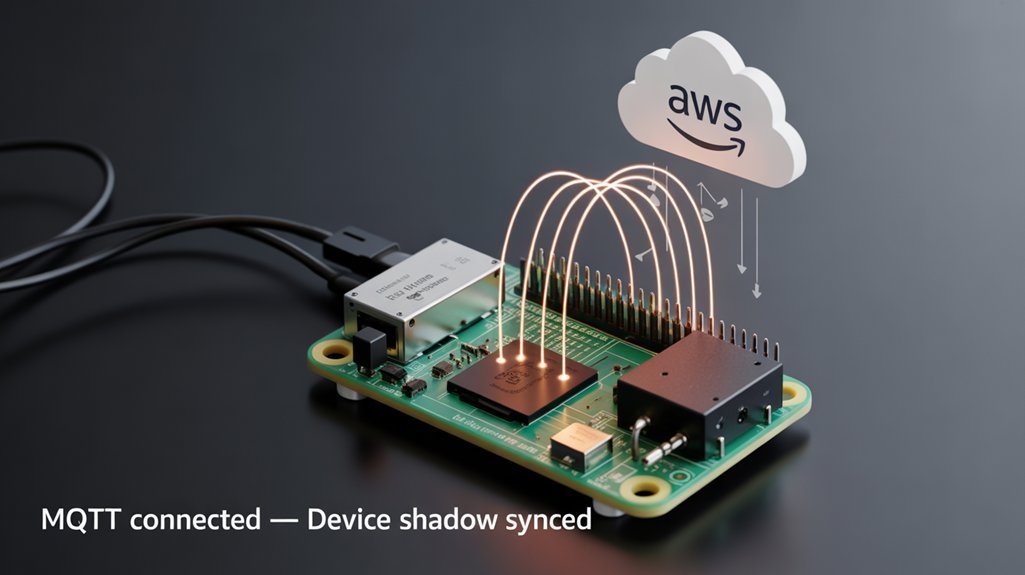
Start by wiring your Pi Zero into an MQTT-based sync loop that uses AWS IoT Device Shadows as the authoritative state model: your device publishes sensor and status updates as the shadow’s reported state, subscribes to the shadow/update/delta topics to receive desired-state changes, and reconciles differences by applying actions locally then updating reported state and version.
Architect the client to handle shadow versioning, mutual TLS, and IAM-limited topic access.
Implement offline reconciliation so state drift is resolved when connectivity returns.
Choose qos strategies that balance latency and delivery guarantees for telemetry versus control messages.
Subscribe to delta and update/accepted topics, apply desired changes atomically, then publish reported state with the new version.
Log and alert on failed syncs, rotate credentials, and validate incoming desired configurations before applying.
Routing Sensor Data to AWS Services With Iot Rules Engine
Having synced your device state with AWS IoT Device Shadows and guaranteed reliable MQTT flows, you’ll now route that telemetry to the services that will store, analyze, and act on it.
Use Rules Engine SQL filters to select messages (e.g., WHERE temperature > 31) and limit downstream cost and noise.
Define actions to push to DynamoDB, S3, OpenSearch, Lambda, or external systems via HTTP destinations.
Assign precise role ARNs and minimal IAM privileges so rules can invoke resources without overreach.
Implement error handling: error actions, retries, and fallback SNS/Lambda alerts.
Monitor rule execution and iterate filters to maintain signal quality.
- Filter at ingress with SQL WHERE clauses
- Parallelize actions for storage and analytics
- Centralize external routing via HTTP destinations
- Log failures and trigger fallback workflows
Security Practices and Operational Maintenance for Pi IoT Devices
Because your Raspberry Pi sits at the edge of your network and often runs unattended, you need a tightly controlled security and maintenance posture that combines strong authentication, minimal attack surface, secure remote access, and continuous monitoring.
Change default credentials, require strong unique passwords, and use SSH key-based auth; disable password logins and add MFA where possible.
Harden the OS by removing unused services, enabling secure boot or verified firmware, and storing keys in TPMs or secure elements to support physical tamper resistance.
Prefer VPNs or AWS IoT secure tunnels over exposed SSH, enforce host key verification, and monitor access logs.
Automate updates with automated patching, audit configurations, back up securely, segment networks, and define IoT-specific incident response to isolate and remediate compromised devices.
Frequently Asked Questions
Can I Use Cellular LTE Instead of Wi‑Fi for Raspberry Pi Connectivity?
Yes — you can use cellular LTE instead of Wi‑Fi; you’ll gain cellular reliability and off‑grid operation, but you’ll need robust network provisioning, secure SIM/key management, VPNs or mTLS, and architecture for power, updates, and latency.
How Do I Update Deployed Pi Devices Remotely Without Manual Access?
You’ll use OTA updates via AWS IoT Device Jobs, deploying signed job documents and scripts, orchestrating a rollout with certificates, device shadows, retry logic, staged groups, and monitoring to guarantee integrity and scalable patching.
What Are the Power Consumption Expectations and Battery Sizing Recommendations?
Expect ~0.4–0.7W idle (Zero) or ~0.6W (Zero 2 W); size batteries 1400–2000+mAh factoring peaks, converters, low power modes and solar charging. You’ll architect secure power budgets and monitor consumption remotely.
Can Multiple Pi Devices Share the Same AWS IoT Certificate and Policy?
You can, but you shouldn’t: shared certificates enable quick provisioning, simple setup, yet introduce severe security risks, hinder auditing, and break granular policies. Use unique per-device certificates, automated provisioning, and regular rotation for secure scalability.
How Do I Comply With GDPR When Collecting Sensor Data From Devices?
You’ll comply by enforcing data minimization, implementing consent management, encrypting storage/transit, applying strict access controls, logging processing, enabling rights (access/erasure/portability), doing regular security assessments, and documenting architecture for accountability and audits.
What to Do After You Built a Raspberry Pi Zero IoT Device?
You’ve just built an industrial‑grade, cloud‑ready Pi Zero W that’s tougher, smarter, and far less flaky than most production gear—because you followed a secure architecture: verified OS image, headless SSH, on‑device keys, mutual‑TLS, least‑privilege policies, and shadow sync. Keep sensors wired cleanly, power filtered, and rules engine routing strict. Regular updates, audits, and key rotation will keep it resilient. Treat each device like a critical node, not a toy, and it’ll behave like one.